

Style your widget
Make the booking page match your brand, from a one-click preset to per-element colors.
The booking page pulls your logo, photos, and colors from your brand kit, so most venues never need to touch a style setting. When you do want control, there are two levels: the quick settings on the Widget page, and the full Widget Studio for typography, per-element colors, and custom CSS. Changes publish to your booking page and embeds within a minute.
The quick settings
Open Settings, then Widget under Studios. The Brand card inherits your brand kit; you can override the accent color or paste a different logo URL without touching the kit itself. The other cards control what the page offers:
What guests can request switches Reservations and Private events on or off. Switching Private events on adds a "Request an event" card to the page; see the Events guides for what happens after a guest sends one.
After booking adds an add-to-wallet button to confirmation emails, so guests can carry the booking as a pass on their phone.
The Widget Studio
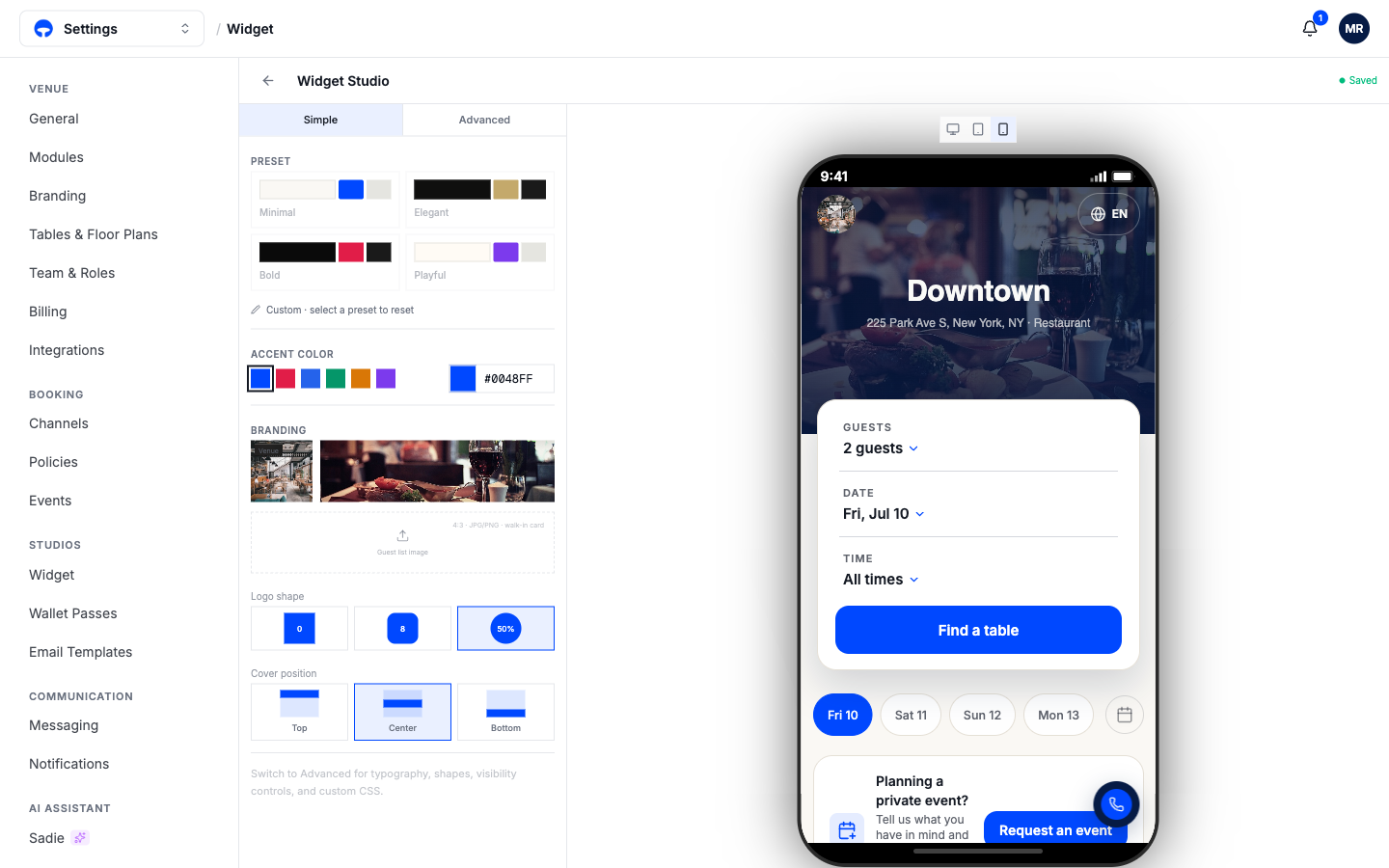
Click Advanced at the top of the Widget page to open the full studio. The preview on the right renders your real booking page and switches between desktop, tablet, and phone frames; every change shows there as you make it. Unlike the quick settings, the studio does not save automatically: an Unsaved badge appears while you have pending changes, and nothing publishes until you click Save. Hit Save before leaving the studio, or Discard to drop the changes.
The Simple tab covers most styling: four presets (Minimal, Elegant, Bold, Playful) as starting points, the accent color, your logo and cover photo, the logo shape, and where the cover photo crops.
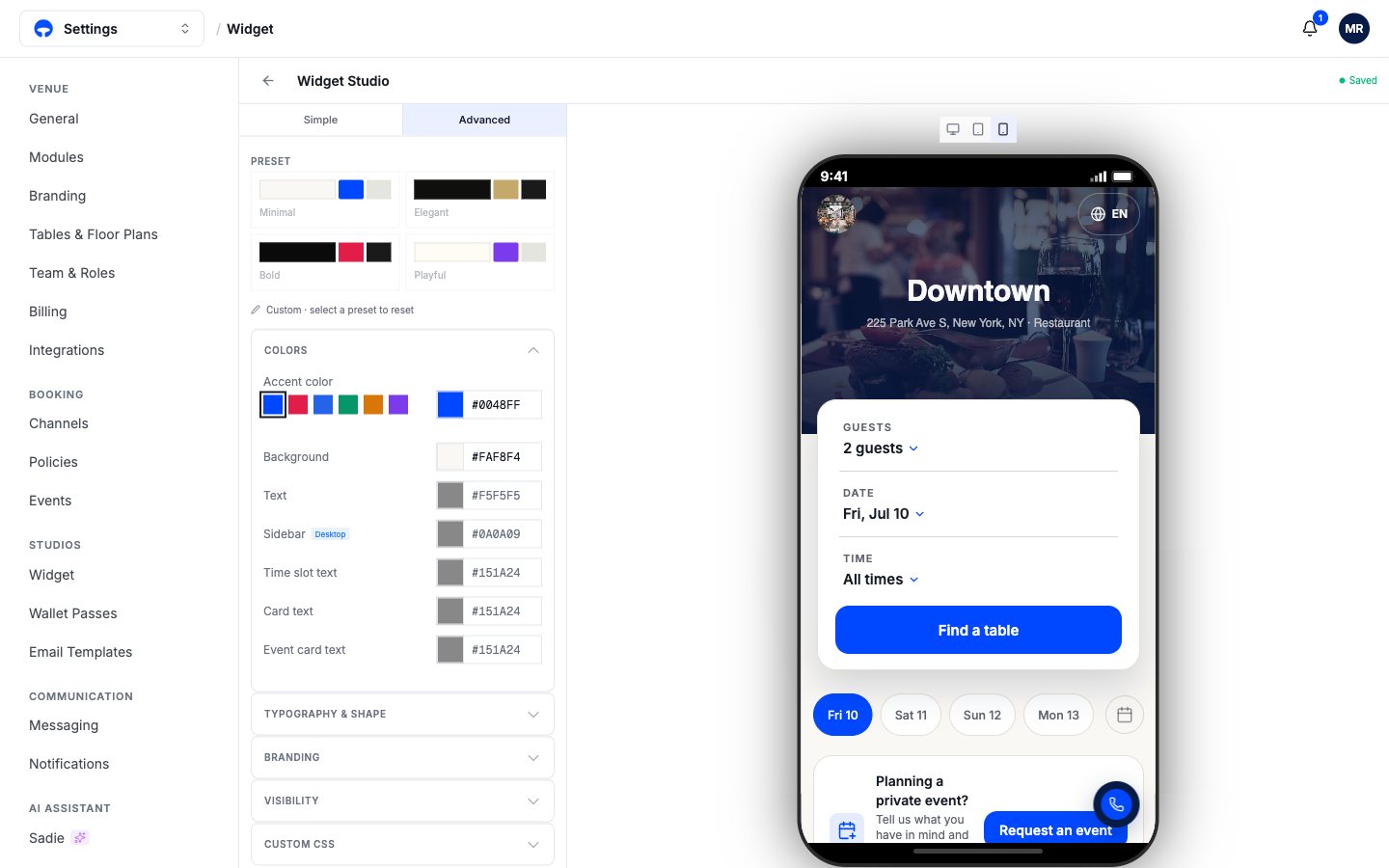
The Advanced tab opens every element. The presets stay at the top, then background, text, sidebar, time-slot, and card colors each get their own value, plus sections for typography and shape, branding, which elements show at all, and custom CSS for anything the controls don't reach.
Start from a preset
Pick the preset closest to your look before touching individual colors. Every change you make on top marks the setup as Custom, and selecting a preset again resets to a clean base.
What's next
Check the result the way guests will meet it: What guests see walks the booking flow end to end.