

What guests see
The booking flow your guests walk through, from picking a time to the confirmation text.
Your booking page is where guests book a table online, whether they open your link directly or tap the widget on your website. Knowing the flow helps you answer guest questions and spot when something in your setup looks off. This page walks the whole journey, from picking a time to the confirmation.
Picking a date and time
The page opens on your venue's photo, name, and address, with a search bar for party size, date, and time. Available times are grouped by service, so guests see your day the way you run it: Weekend Brunch, Lunch, Dinner. The sidebar reminds guests why booking direct is worth it, including free cancellation and the 15-minute table hold.
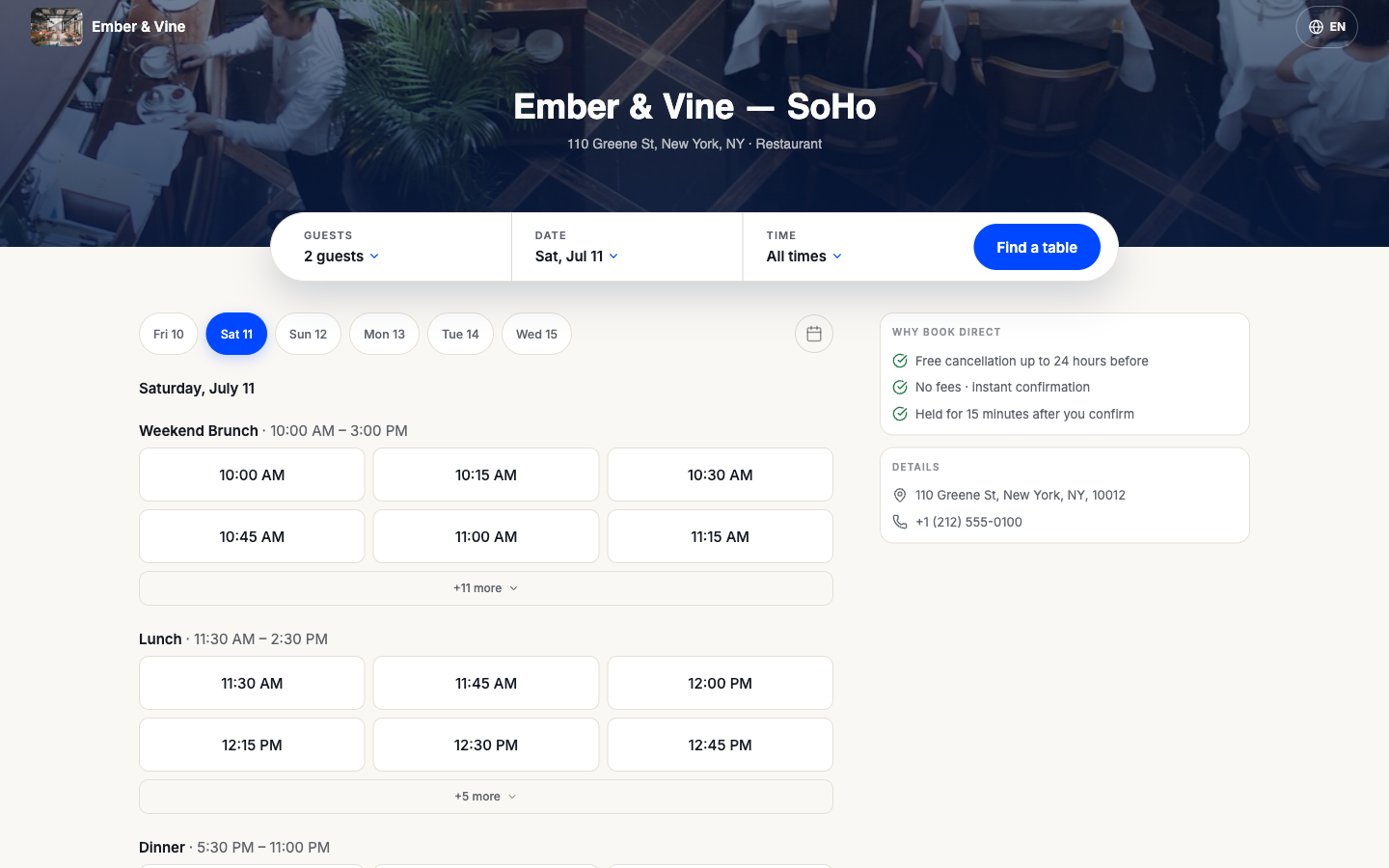
If a date has nothing open, the page offers other dates with availability, and for tonight it offers the live waitlist instead: guests see the current quoted wait and get a text when their table is ready.
Choosing where to sit
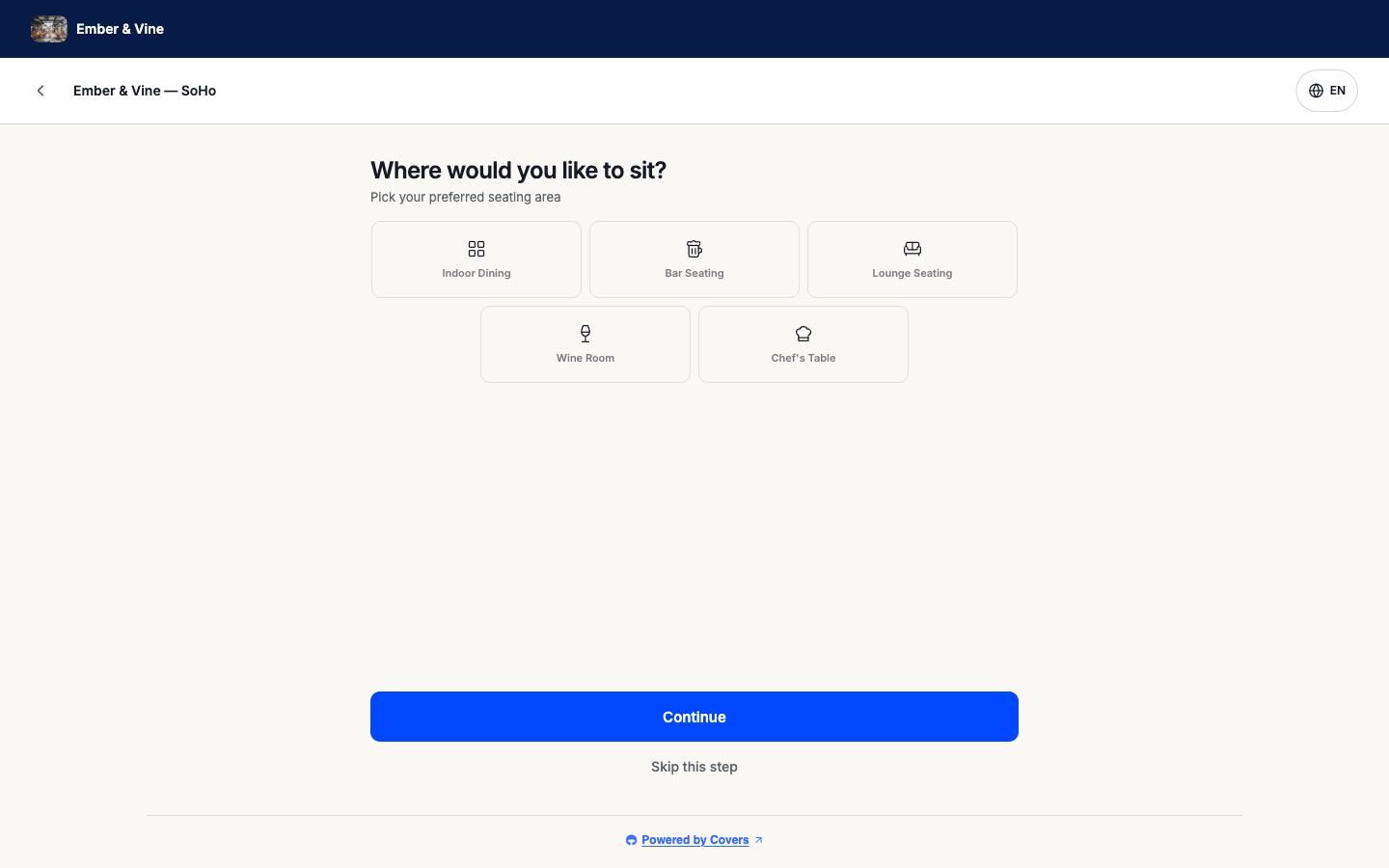
After picking a time, guests can choose a seating area, built from the zones on your floor plan: Indoor Dining, Bar Seating, and so on. The step is optional; Skip this step lets Covers seat them anywhere.
Filling in details
Guests enter their first and last name and choose how they want to hear from you. A phone number is required only when they pick text (SMS or WhatsApp) as their preferred contact method; guests who prefer email can leave it blank. Confirmations and table-ready updates go out on the channel they chose. They can flag a special occasion, allergies, or a note for you, and everything they write lands on the reservation you see in Covers. While they type, the table is held for 15 minutes, with the countdown showing at the top.
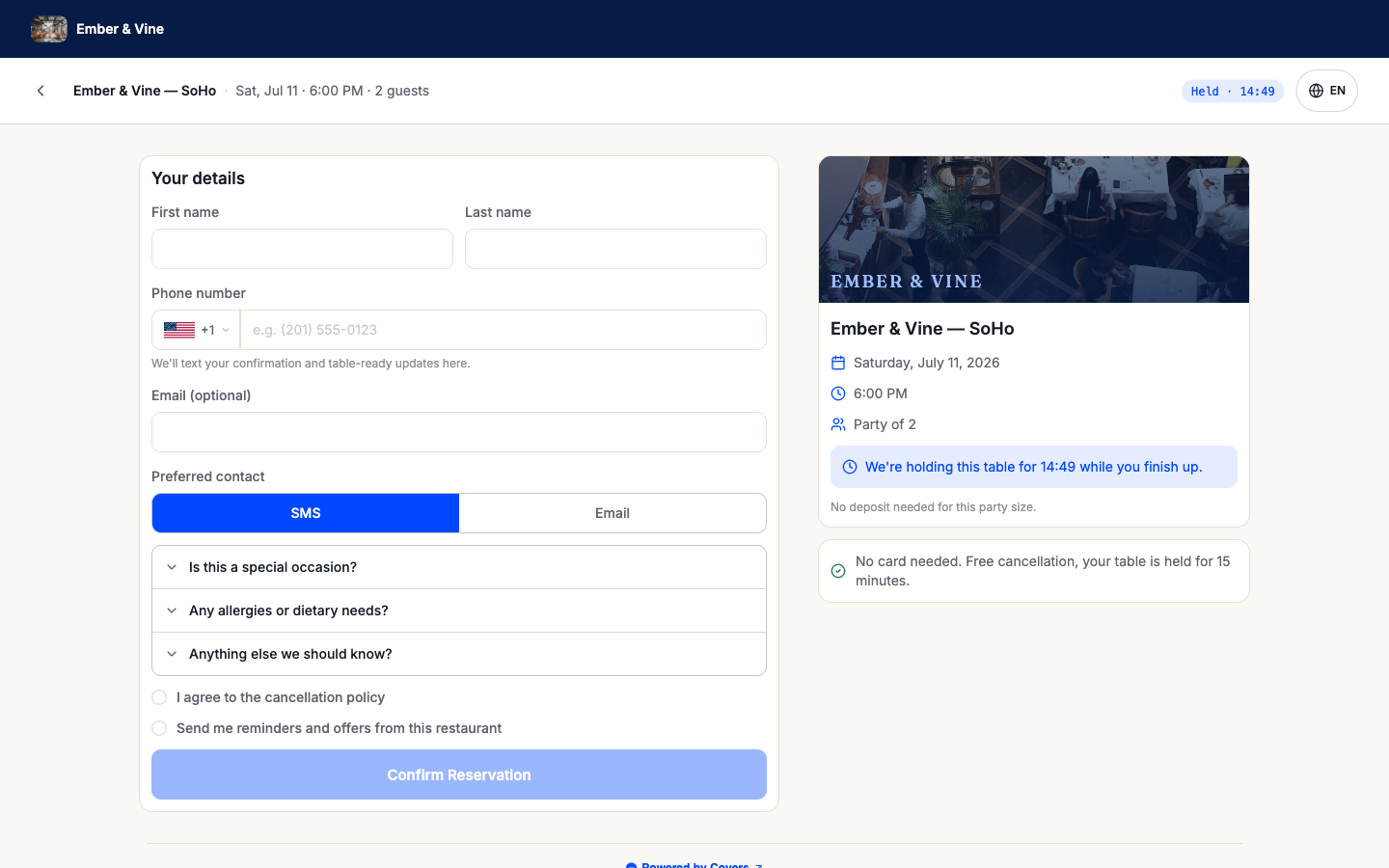
Guests must tick your cancellation policy before the Confirm Reservation button activates. The marketing opt-in below it is their choice and feeds the marketing consent you see on their guest profile.
The confirmation
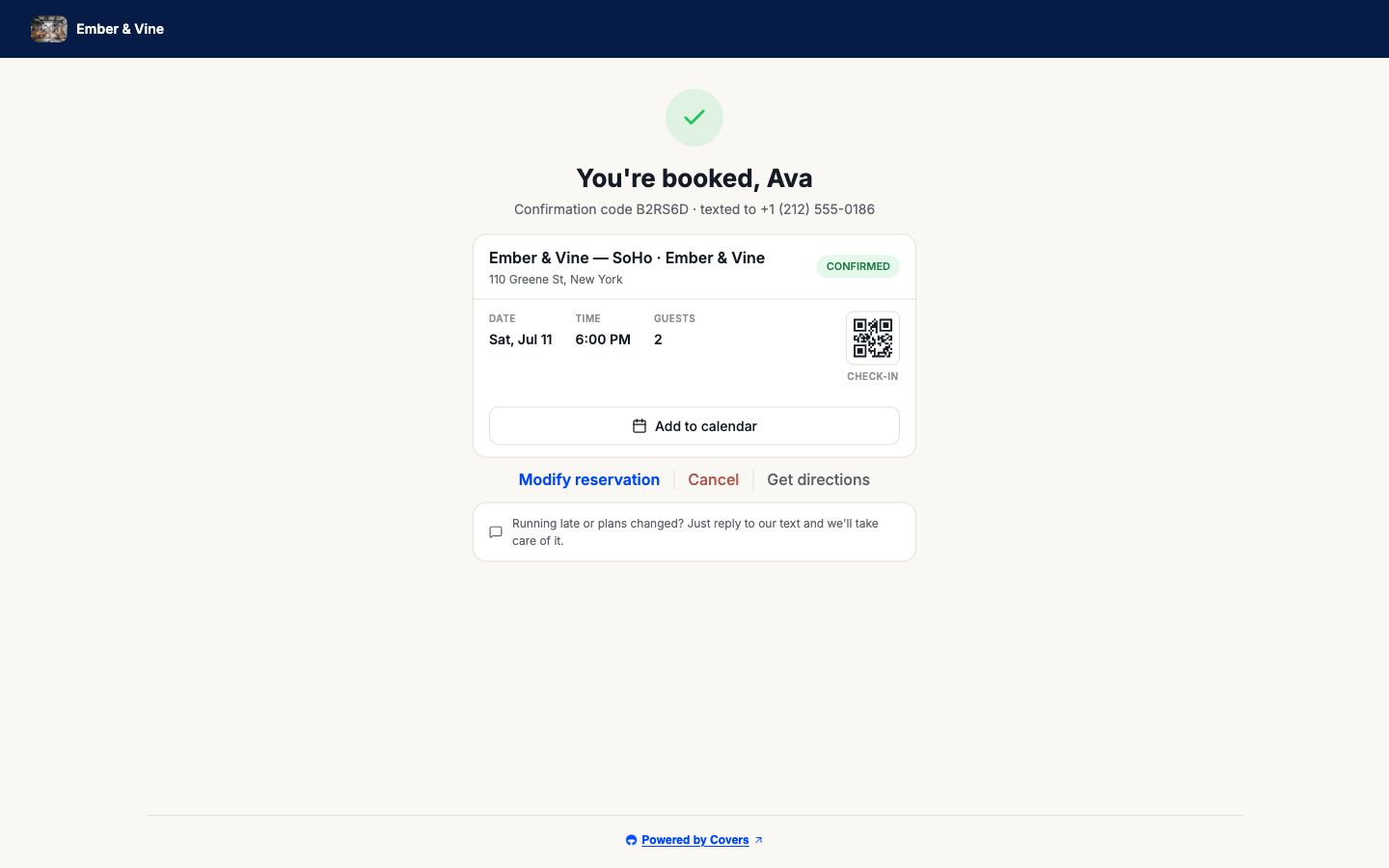
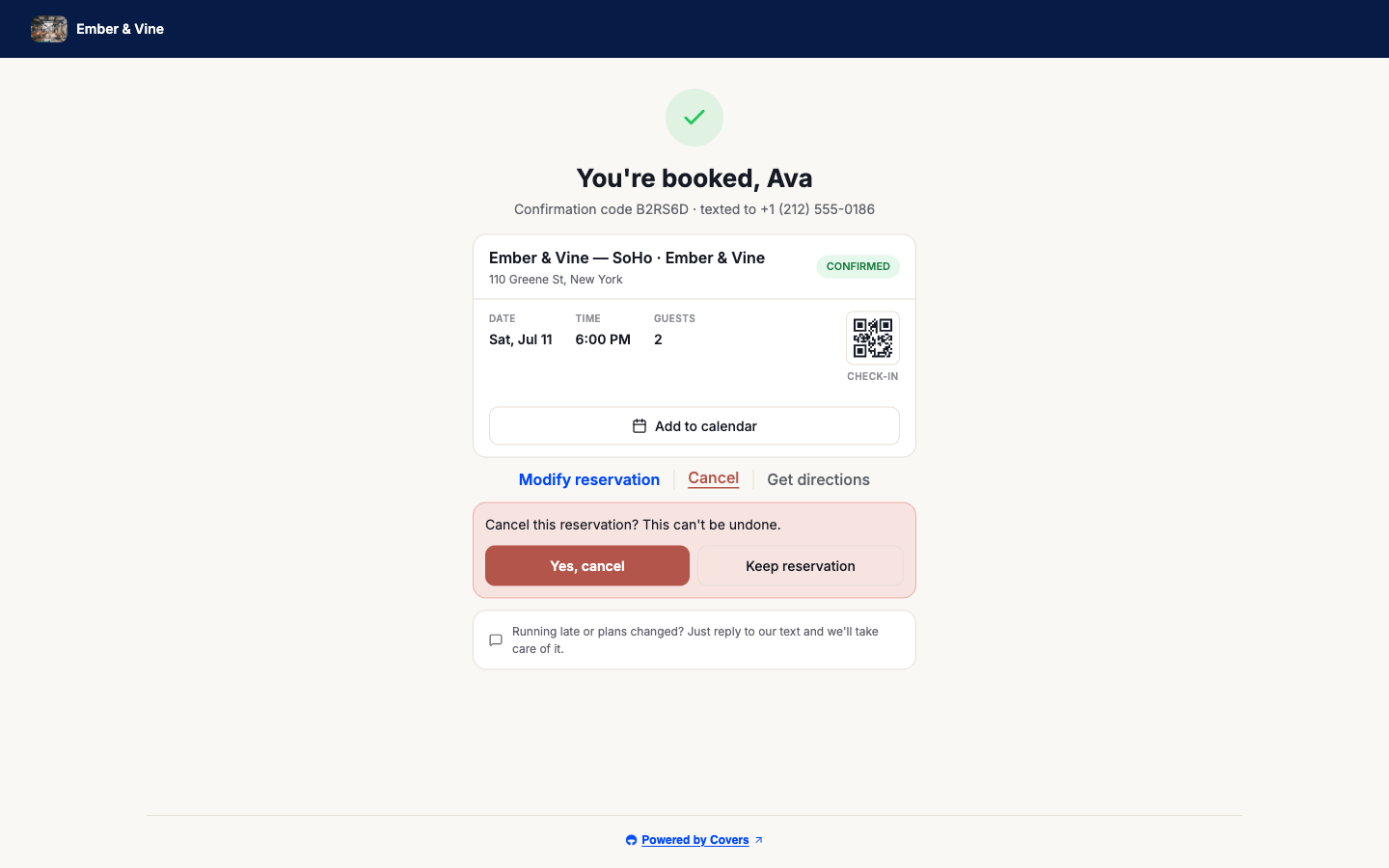
The confirmation page shows the booking, a confirmation code, and a QR code for check-in, and the same summary goes to their phone by text. From here, or from the link in that text, guests can add the booking to their calendar, get directions, modify the reservation, or cancel it.
When a guest cancels or changes plans
Cancelling asks the guest to confirm first, and the cancellation lands in your reservations list right away, with the table freed for someone else. Guests can also reply to the confirmation text in plain words, "running 15 late", and the message shows up in your inbox attached to the booking.
What's next
Put the page in front of guests with Put bookings on your website, or make it match your brand with Style your widget.