

Imported calendars
Overlay holidays, sports fixtures, and your own events on the availability calendar.
Game days, public holidays, and festival weekends shape how busy a night will be. Imported calendars lay those dates over your availability grid, so when you plan a schedule change you can see what else is happening that day. They are context only: an imported event never blocks a booking or changes a service on its own.
What is already there
Covers adds two calendars for you automatically: public holidays for your venue's country, and key hospitality dates like Valentine's Day and New Year's Eve. Both carry a small purple sparkle in the sidebar marking them as automatic. You cannot remove them, but you can untick them any time to hide their events.
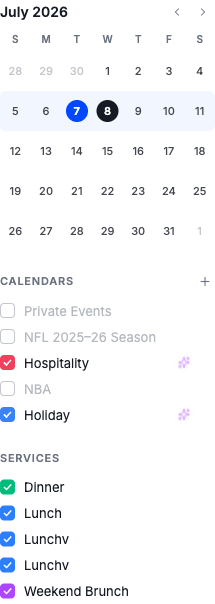
Events from these calendars appear in the all-day row at the top of the week and day views, and as small chips in month view.
Add a calendar
Click the plus next to Calendars
In the sidebar, find the Calendars section and click the + control. The Add calendar window opens with the available sources.
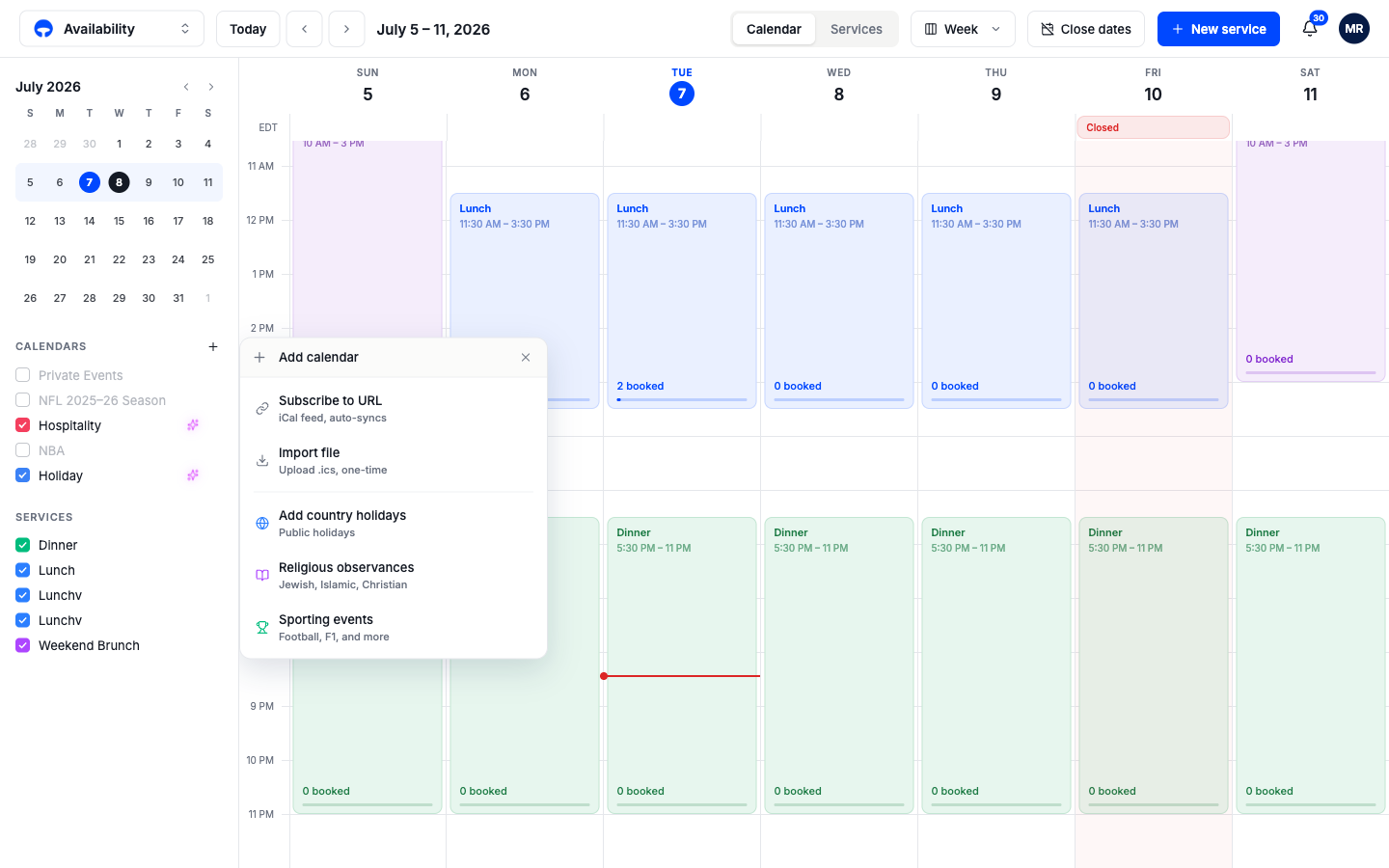
Pick a source
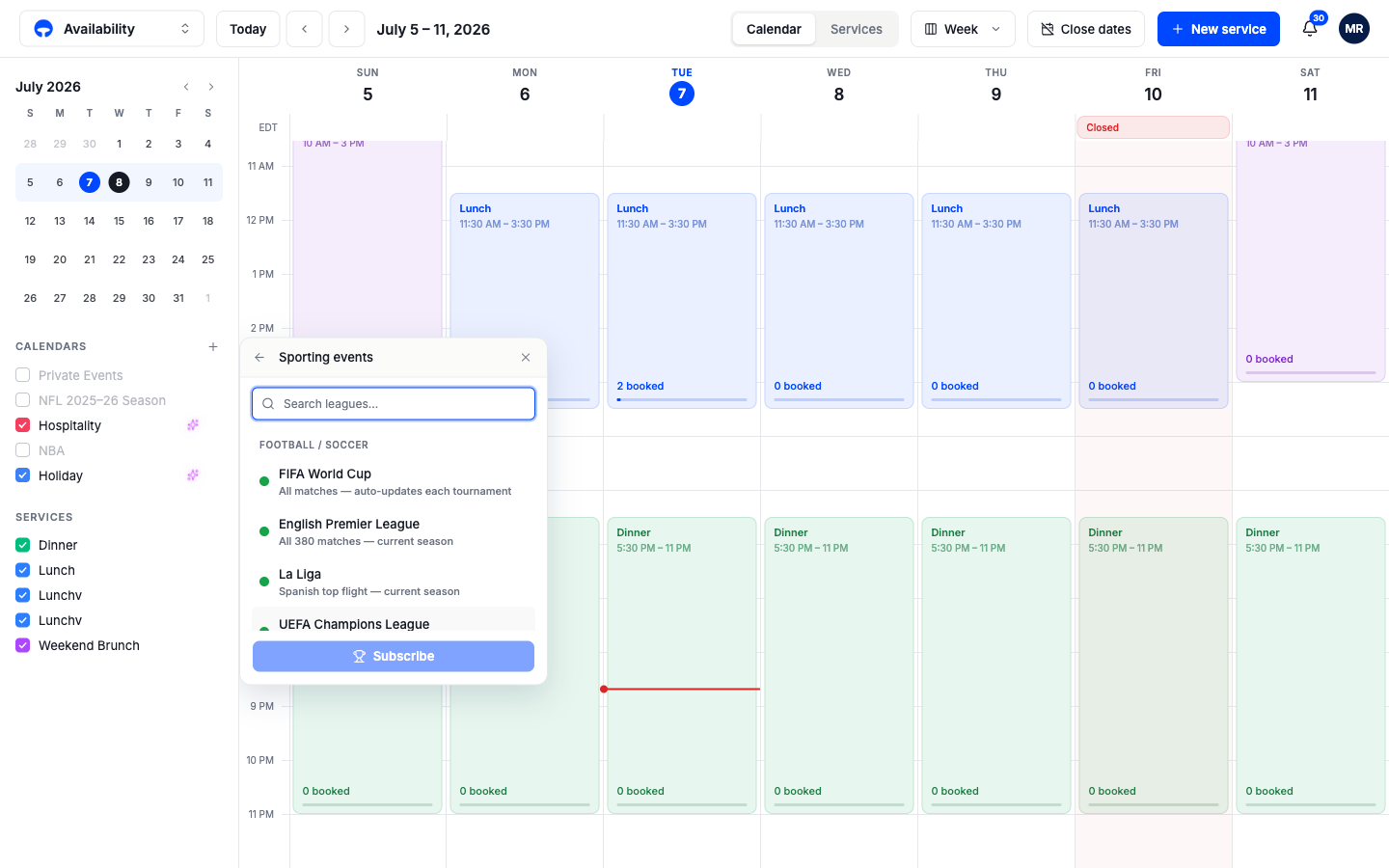
- Sporting events: fixture calendars for football, F1, and more than twenty other leagues. Covers suggests leagues relevant to your region first, and a search finds the rest.
- Add country holidays: public holidays for another country, useful near a border or in a tourist area.
- Religious observances: Jewish, Islamic, and Christian holidays, for awareness and staffing.
- Subscribe to URL: any iCal feed link, the format most calendar apps can share. It re-syncs on its own.
- Import file: a one-time upload of a
.icscalendar file.
Name the calendar and pick a color
Give the calendar a display name and a color, then confirm. Its events appear on the grid right away, in that color.
Manage your calendars
Each calendar in the sidebar has a colored checkbox; untick it to hide its events without losing anything. The calendar's options menu offers Sync now, which pulls the latest events on demand, and Remove, which deletes the calendar and all its events. Removing is permanent, but you can always re-add the same source later.
Using events to plan
An imported event changes nothing by itself. When one lands on a date that matters, adjust the service for that date:
- For a big game at 6 PM, open that day's Dinner block and set earlier hours or looser pacing, saved for that date only.
- For a street fair weekend, add extra covers to Lunch on those dates.
- For a private event booked through an external calendar, close those hours with a blockout.
The event stays visible on the grid, so anyone reading the calendar later can see why that date is set up differently.