

The availability calendar
See how services, the calendar, and your booking times fit together.
Availability is where you decide when guests can book. You set up services, your bookable periods like Lunch and Dinner, and Covers turns them into the times guests see on your booking page, over the phone, and everywhere else you take reservations. The calendar shows your whole schedule, and everything on it can be clicked and changed.
What a service is
A service is one bookable period: Dinner on Friday and Saturday, Lunch on weekdays, a one-off New Year's Eve seating. Each service carries its own hours, days, party sizes, and limits. Guests can only book inside a service; on a day with no services, there is nothing to book.
Every service has:
- A name and color, so you can tell them apart on the calendar.
- Hours, including a last seating time; booking slots stop at last seating, not at closing.
- Days it runs, either a weekly pattern or a single date.
- Capacity, party size limits and an optional cap on total covers.
- A booking window, how far ahead guests can book and when online booking cuts off.
Reading the calendar
Open Availability from the main menu. Each colored block is one service on one day; the block shows its name, hours, and how many covers are booked so far.
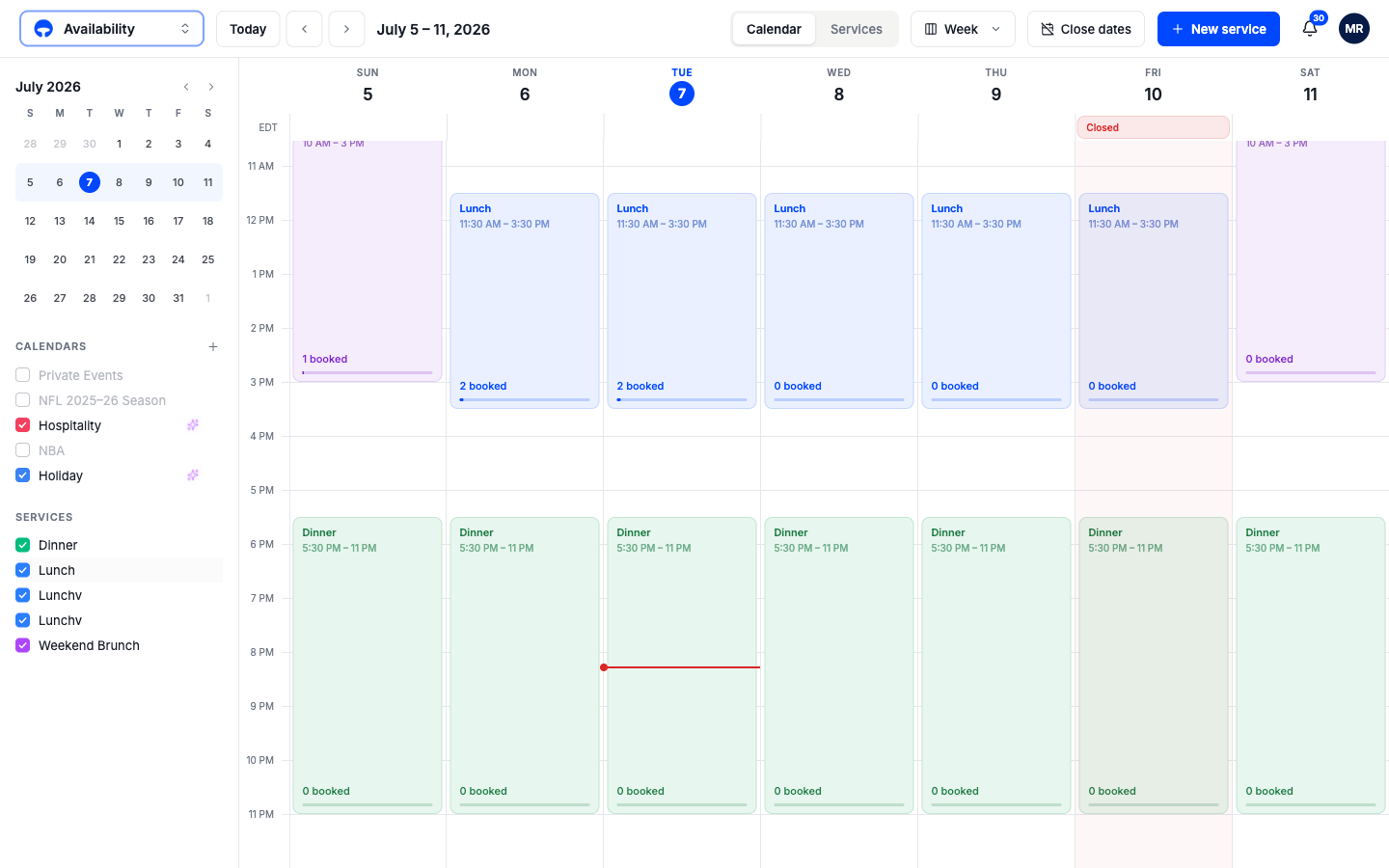
Three views cover different jobs. Switch between them with the view menu in the header, or press W, D, or M. A red line marks the current time, and T jumps back to today. The sidebar on the left holds a mini calendar for jumping to any date, plus checkboxes to show or hide each service and each imported calendar.
Week is the everyday view: seven days side by side, with holidays and events in the all-day row at the top.
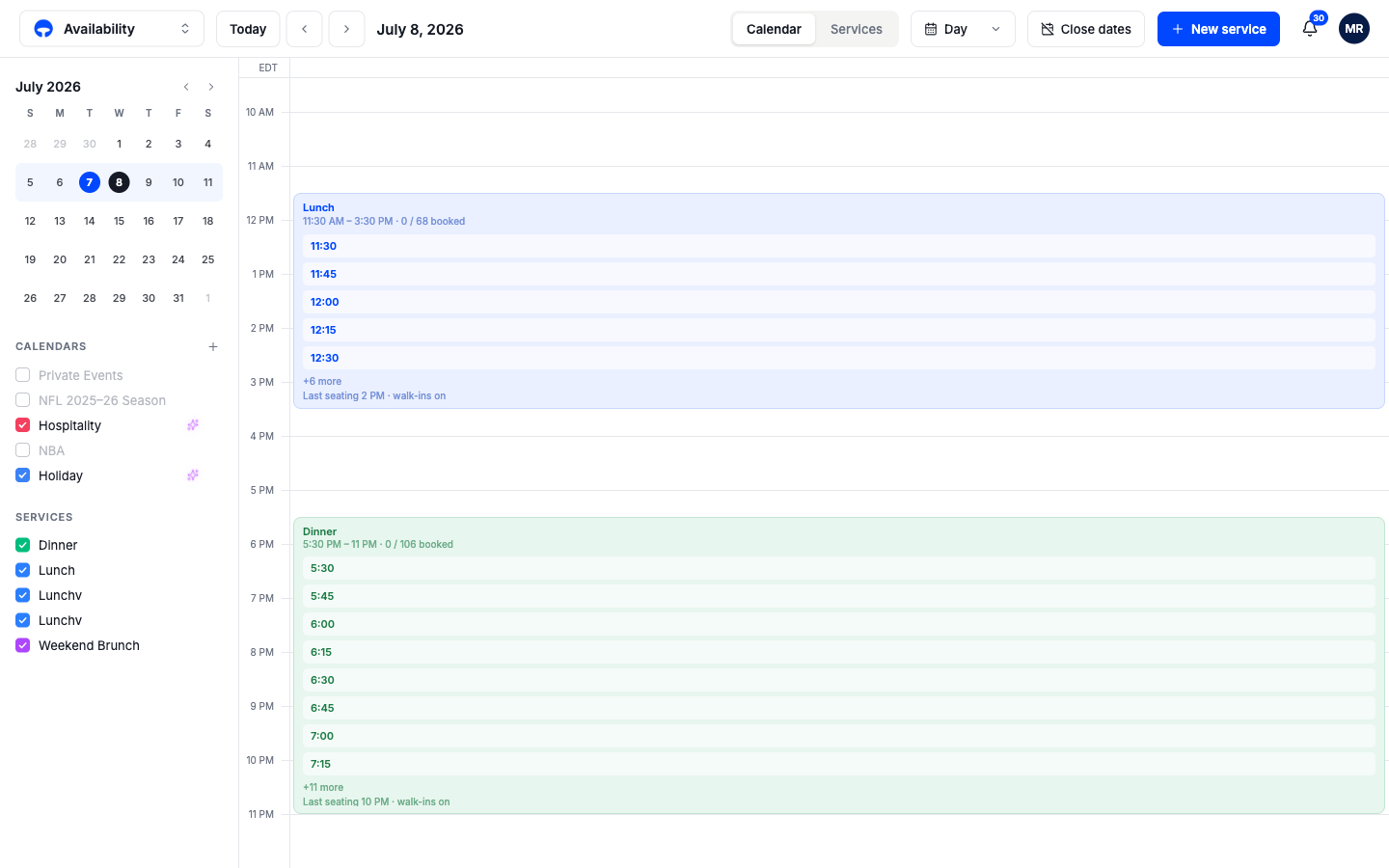
Day zooms into one date and shows every booking slot inside each service, with how many covers are booked against capacity. Each service card's footer shows its last seating time and walk-in setting.
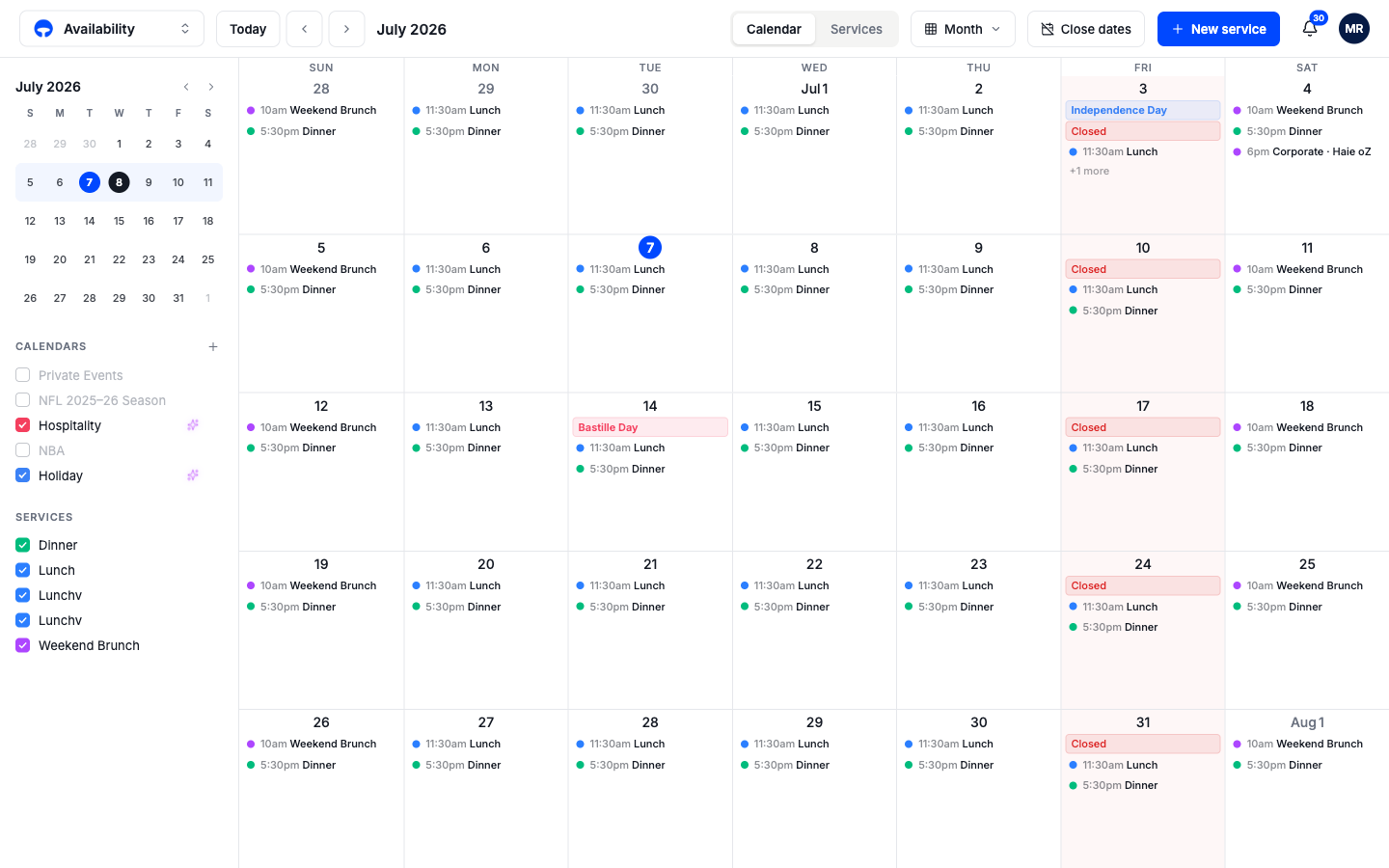
Month is for planning ahead: services shrink to small chips, holidays and events show as colored labels, and closed days are tinted red. Click a date number to jump to its day view.
The day summary
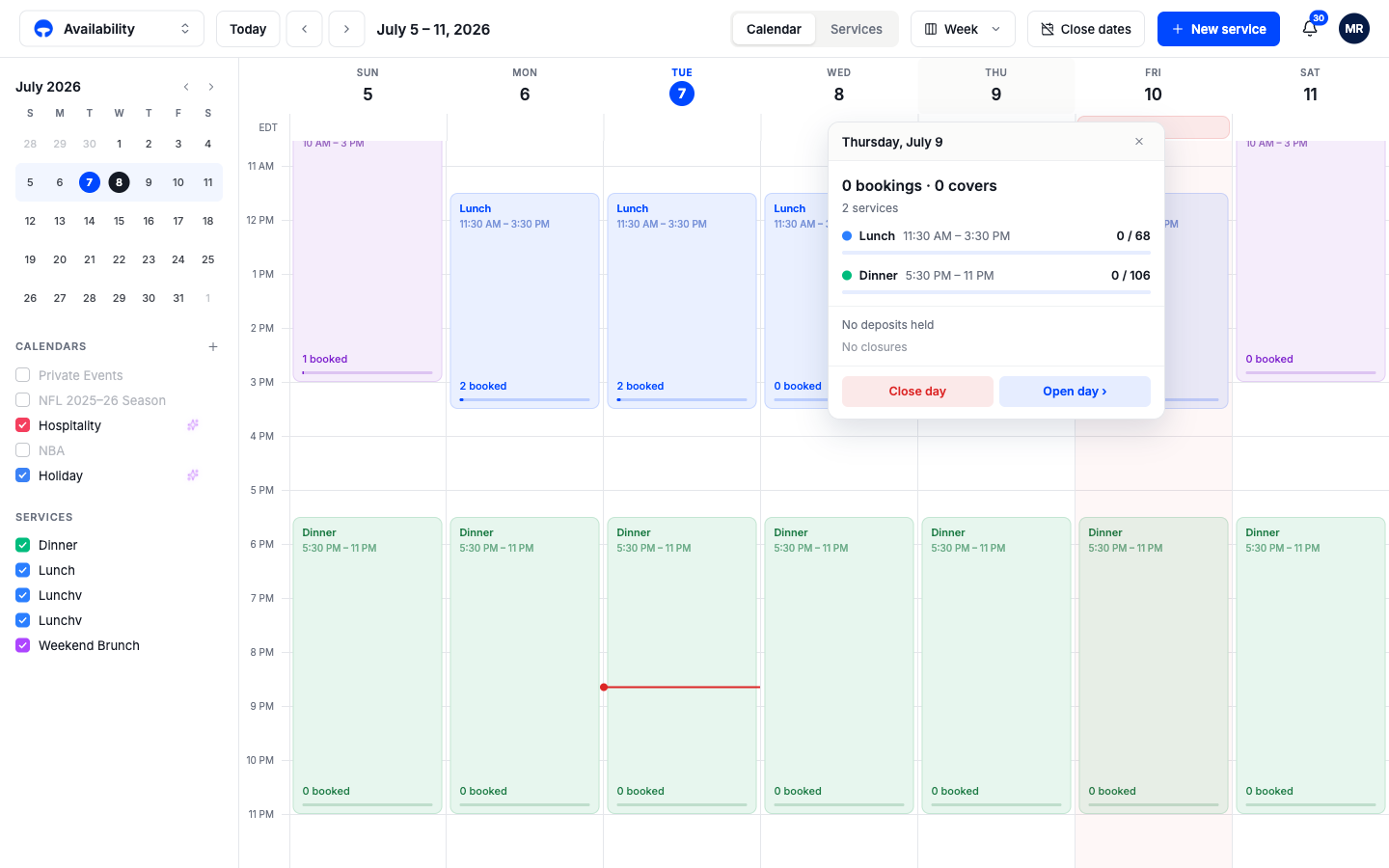
In week view, click any day's header to open the day summary: total bookings and covers, how full each service is against its capacity, and any deposits or closures on the day. From here, Open day jumps to the day view, and Close day closes the whole day in one click, keeping existing reservations untouched.
The Services tab
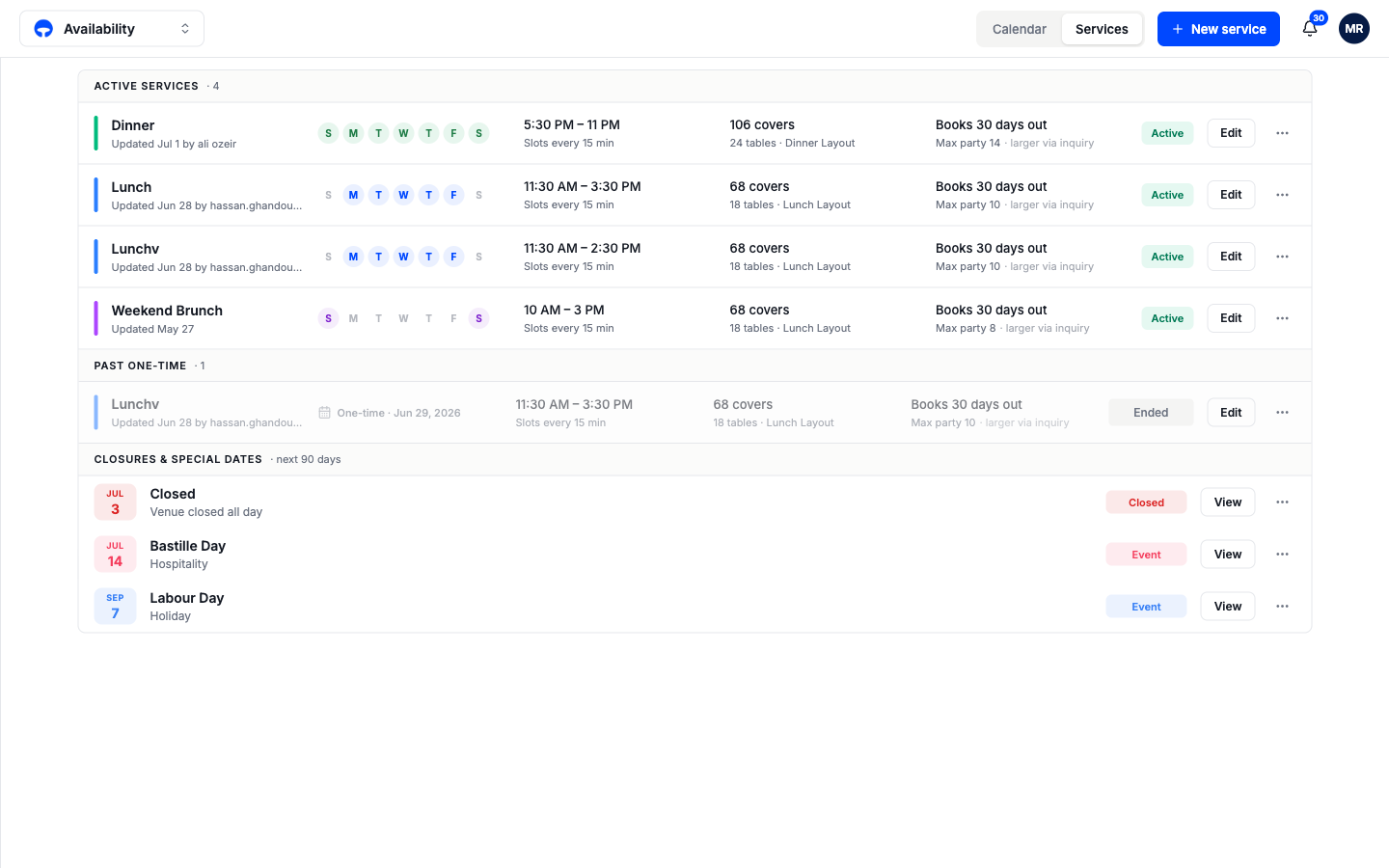
Next to the Calendar tab in the header sits Services, a plain list of everything you have set up: active services, past one-time services, paused services, and upcoming closures and special dates for the next 90 days. When you want to review settings rather than dates, this list is faster than hunting through the grid.
How this reaches your guests
Everything guests can book comes from this calendar. When you add a service, its times appear on your booking page within moments. When you close a date, those times disappear everywhere at once: the booking widget, phone bookings, and any connected channels such as Reserve with Google. You never have to update your availability in more than one place.