

Edit a service
Change one date or the whole series without touching the rest of the schedule.
Most service changes are small: earlier hours for a game day, or fewer covers on a slow Monday. Covers separates a change to one date from a change to the whole series, so you can adjust tonight without touching next week.
Change a single date or the whole series
Click the service block on the calendar
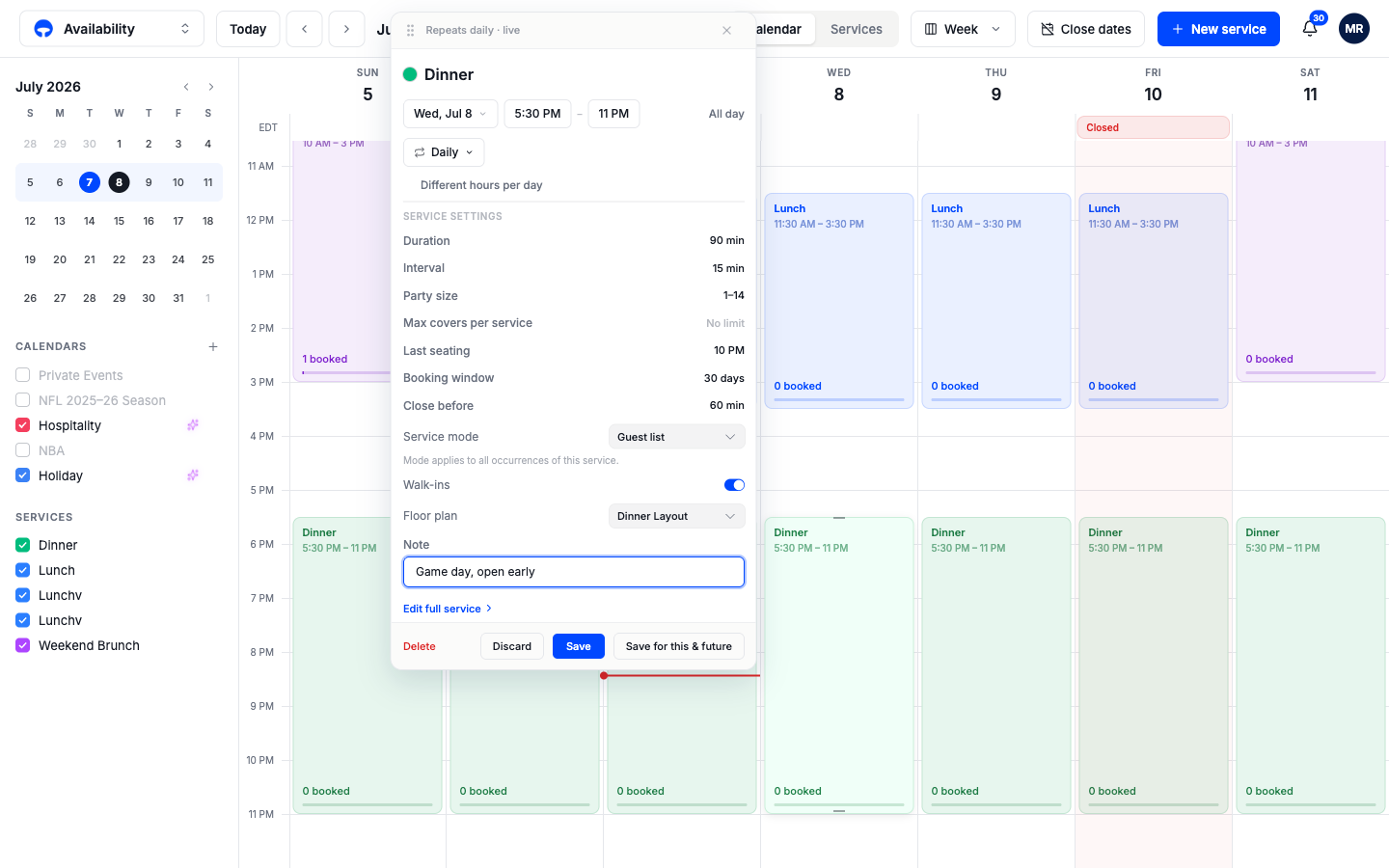
Click the block on the date you want to change. The edit panel opens with the current settings filled in.
Make your changes
Adjust times, party size, covers, anything in the panel. Changed something you did not mean to? Click Discard to put everything back the way it was saved.
Pick how far the change reaches
A repeating service shows two save buttons. Save applies the change to this date only; the rest of the series is untouched, and the block gets a small "Modified" badge. Save for this & future updates the series from this date forward. A one-off service has a single Save button, since there is no series to apply the change to.
If your change affects dates that already have reservations, Covers stops and shows you the count before anything happens. You choose: keep the reservations as they are, unassign their tables for re-seating, or cancel them. Nothing is cancelled until you confirm it.
Drag to move or resize
For time changes, skip the panel entirely. Drag a block to a new time, or drag its top or bottom edge to change when it starts or ends; blocks snap to 15-minute steps. When you drop a repeating service, Covers asks whether the move applies to this event only or to this and future events. Press Esc mid-drag to cancel.
Past services cannot be dragged. Clicking one shows a read-only view of what ran.
Edit from the Services tab
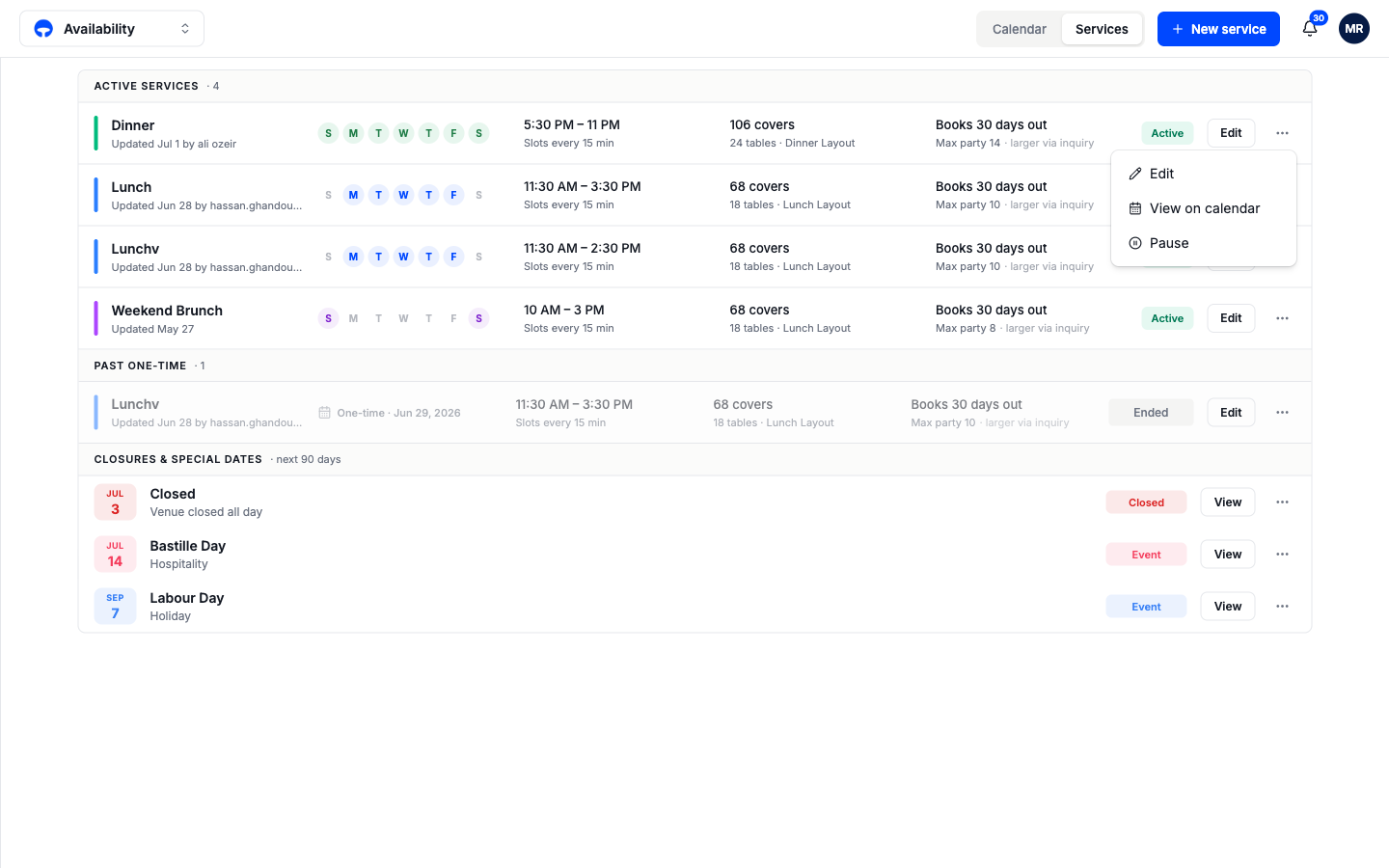
The Services tab lists every service with an Edit button that opens the full-page editor. That is the easiest place to review every setting: capacity, pacing, booking window, and floor plan, each in its own card. Changes there apply to this and future dates of the service.
Pause a service
Pausing stops new bookings but keeps the whole setup, which fits a seasonal service or a menu rework. In the Services tab, open the row's options menu and choose Pause. The service moves to the Paused section, its dates leave the booking page, and existing reservations stay visible in Bookings.
To bring it back, click Resume on the row. Everything returns exactly as you configured it.
Delete a service
Deleting happens on the calendar: click the service block and, in the edit panel, click Delete. The Services tab row menu offers Edit, View on calendar, and Pause only. For a repeating service you choose the reach, this event only or this and future; a one-off deletes directly. If active reservations exist you review them first, same as any other change. After deleting, an Undo button sits in the corner for 30 seconds. After that, the service cannot be recovered.
Pause or delete?
If there is any chance the service comes back, pause it instead. A paused service keeps every setting; a deleted one has to be rebuilt.