

Close dates
Block a day, a date range, or a few hours, and reopen when plans change.
Closing a date pulls its booking times from everywhere at once: your booking page, phone bookings, and connected channels. Guests stop seeing the times; nothing looks broken. Covers gives you three kinds of closure: a single day, a range of dates, and a blockout for part of a day or a subset of services.
Close a single day
Click an empty slot on that day
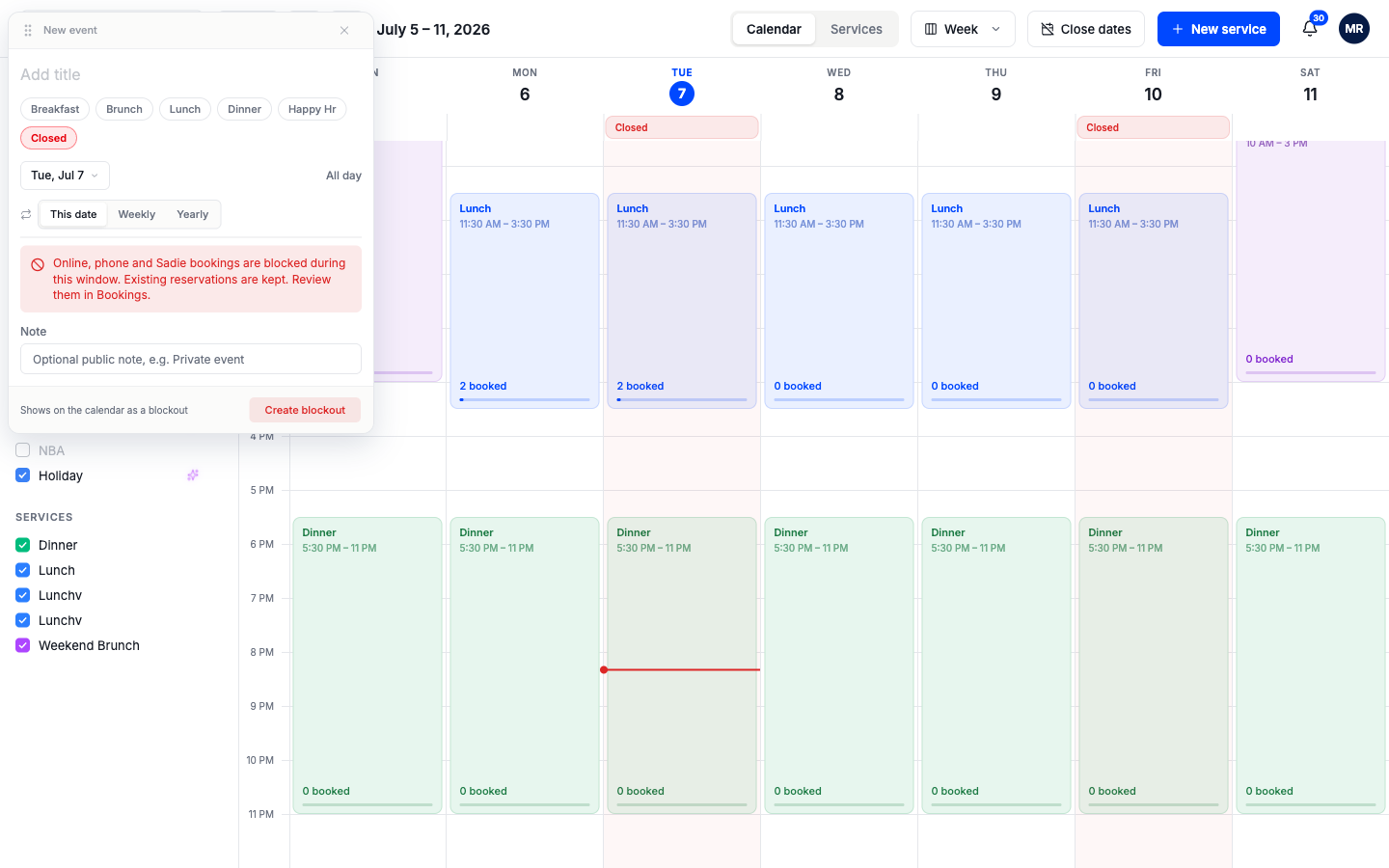
On the calendar, click any empty time on the day you want to close. The service panel opens.
Tap the Closed chip
Tap Closed in the chip row. The panel switches to closure mode: a notice explains that bookings will be blocked, and a Note field lets you add a short public reason like "Private event" that guests see instead of booking times.
Choose whether the closure repeats
A closure can apply to this date only, weekly (every Monday, for a weekly dark day), or yearly (every December 25th).
Click Create blockout
Covers first checks for existing reservations on that day. If there are none, the day closes immediately and shows a red Closed marker on the calendar. If there are some, you review them first; see below.
There is a shortcut for week view: click a day's header to open the day summary, then click Close day. It closes the day, keeps every reservation, and offers Undo for 30 seconds.
Close a range of dates
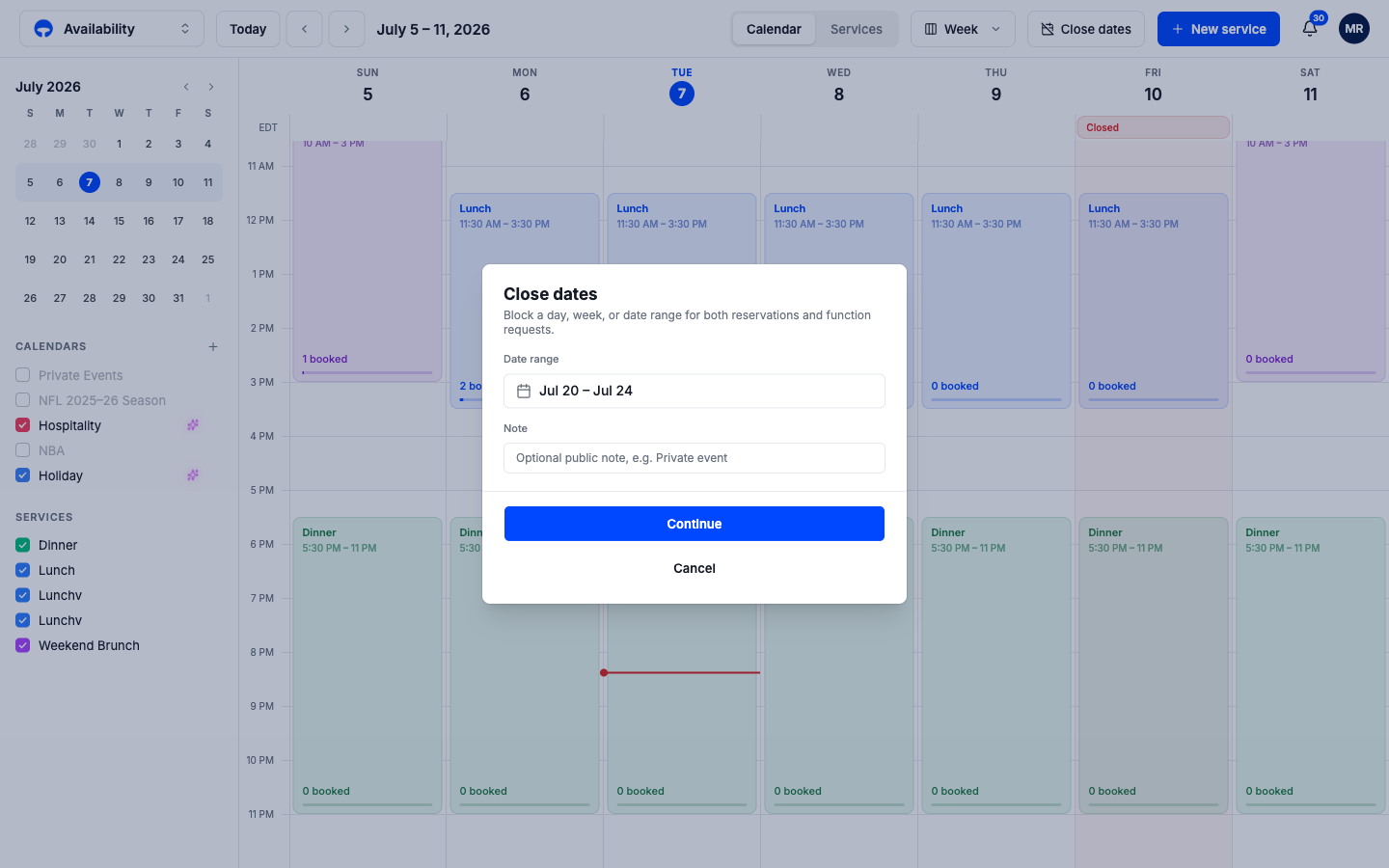
For a holiday week or a renovation, click Close dates in the header. Pick the first and last day, add an optional public note, then click Continue to review what the closure touches before confirming. Ranges up to 400 days work; past that, Covers asks you to split it up.
When reservations are in the way
If a closure overlaps existing services or reservations, Covers shows exactly what it touches before anything happens: the affected services, and a count of the bookings in the way. Then it offers two choices:
- Close & keep: new bookings stop, existing reservations stay on the books. Use it when you are closing to walk-ins but still honoring what is booked.
- Cancel & close: the overlapping reservations are cancelled and each guest is notified. The count sits right in the button label, "Cancel 3 & close", so you always know what you are agreeing to.
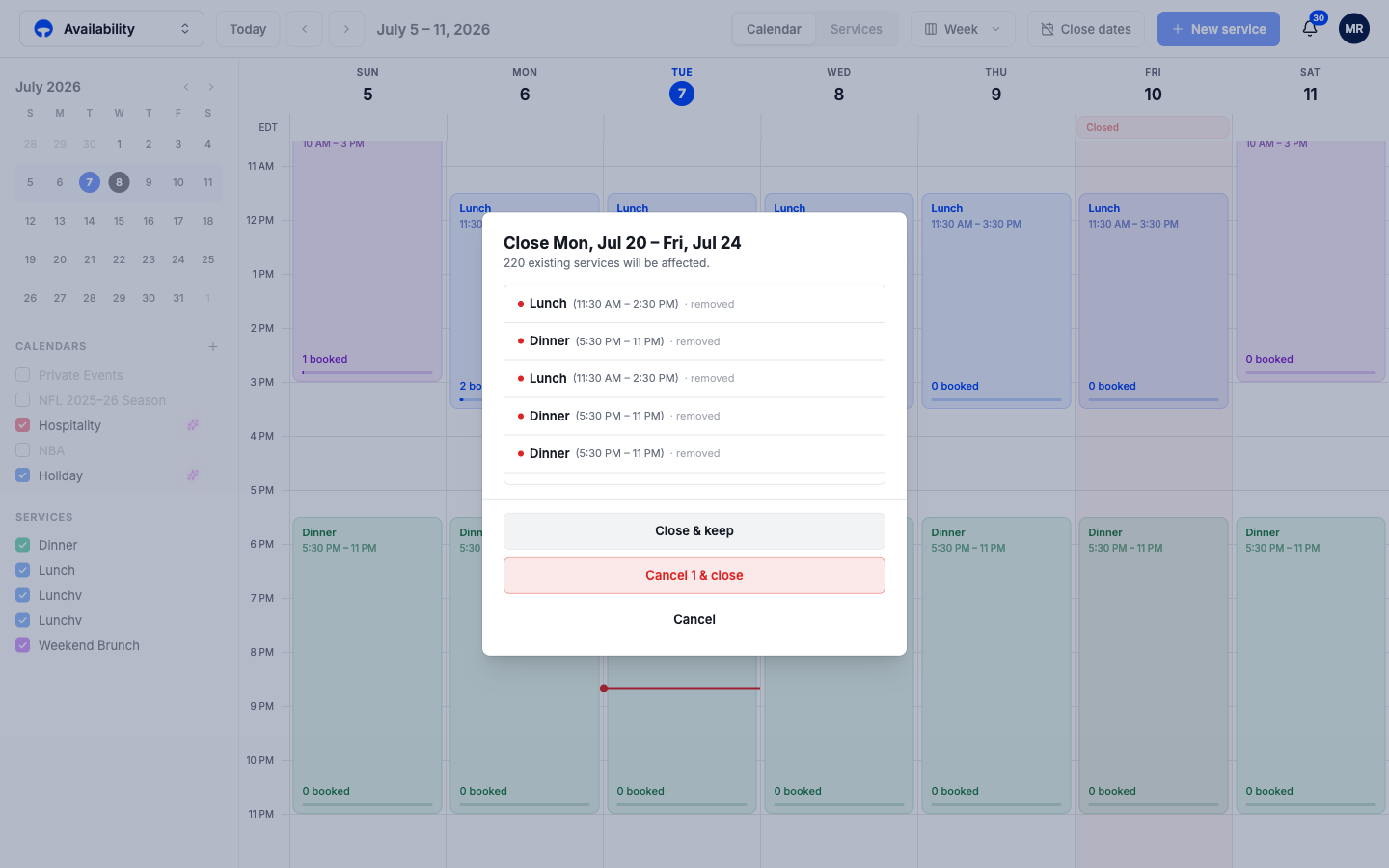
Covers never cancels a reservation without showing you this review first.
Close part of a day with a blockout
A blockout stops new bookings for a time window or for specific services, without closing the whole day. If a private party has the main dining room from 2 to 5, block out those hours and leave dinner untouched.
Open the full editor and choose Blockout
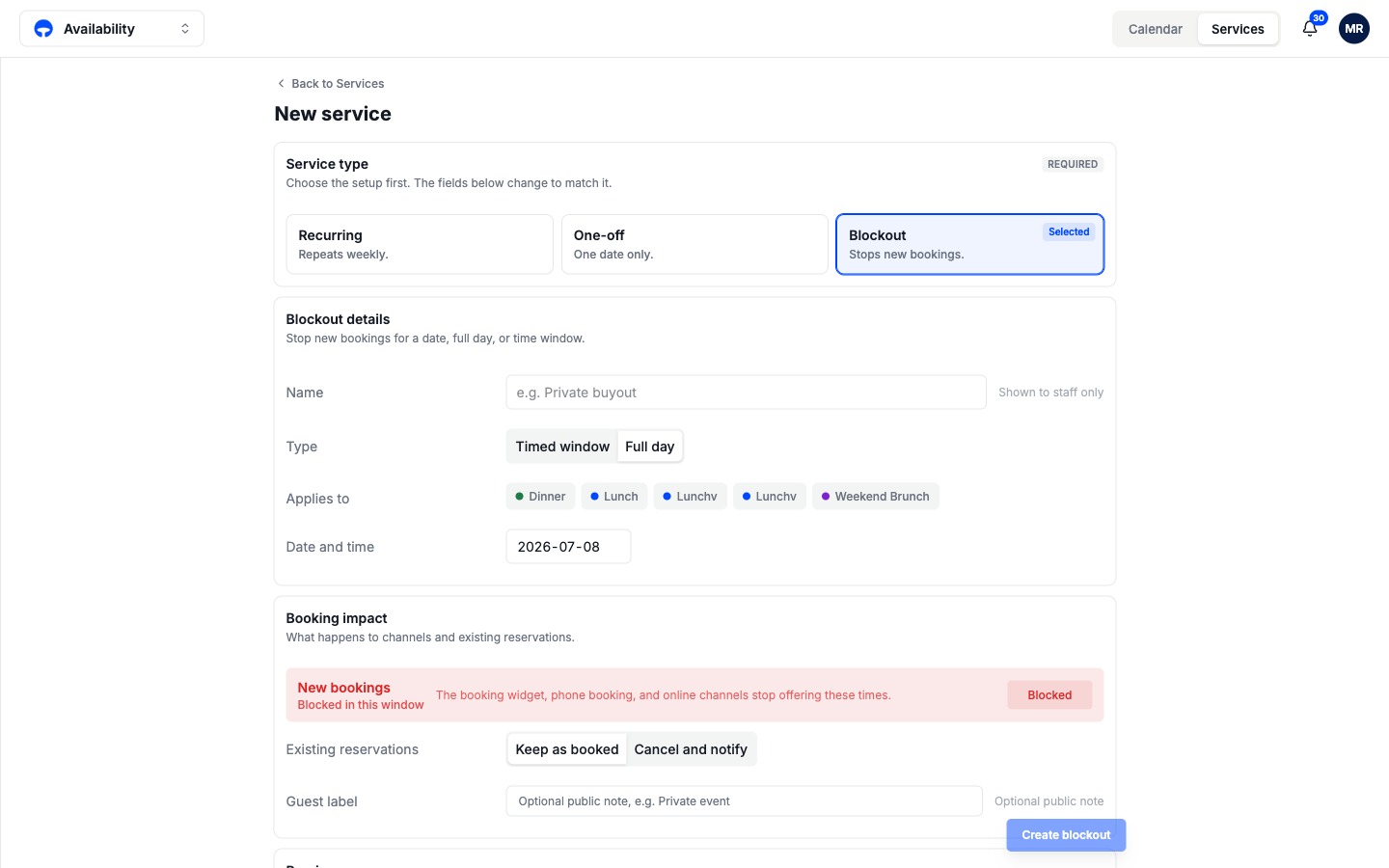
Click New service in the header, then pick the Blockout type.
Fill in the details
Give it a name (staff only), choose Timed window or Full day, pick the date and hours, and tick which services it applies to.
Decide what happens to existing bookings
Under Booking impact, choose Keep as booked or Cancel and notify. You can also add a guest label, a short public note shown in place of the blocked times.
Check the preview and create the blockout
The preview card lists which services are blocked and which are unaffected, plus how many reservations overlap. When the preview matches what you intend, click Create blockout.
Reopen a closed date
Click the red closure block on the calendar and click Reopen. The services come back exactly as they were scheduled, and the booking times return to your booking page. Closures you made moments ago can also be undone straight from the Undo button, which stays available for 30 seconds.
Cancelled bookings come back too
Undoing or reopening a closure also restores the reservations it cancelled, and tells you how many came back. The exception is cancellations older than 24 hours: those stay cancelled and the guests need to be re-booked by hand, so check the confirmation message.