

Create a service
Add a recurring service or a one-off date so guests can start booking.
A new service takes about two minutes. There are two ways to make one: click an empty slot on the calendar for the quick panel, or use the full-page editor when you want to see every setting laid out. Both create the same service, and anything you create in one can be edited in the other.
Before you start
Set up your floor plan first if you want the service to seat against real tables. A service without a floor plan still takes bookings; it cannot cap capacity by table.
Create a service from the calendar
Click an empty time on the calendar
Go to Availability and click the grid where the service should start, on any day it will run. A panel opens next to the slot with the time already filled in.
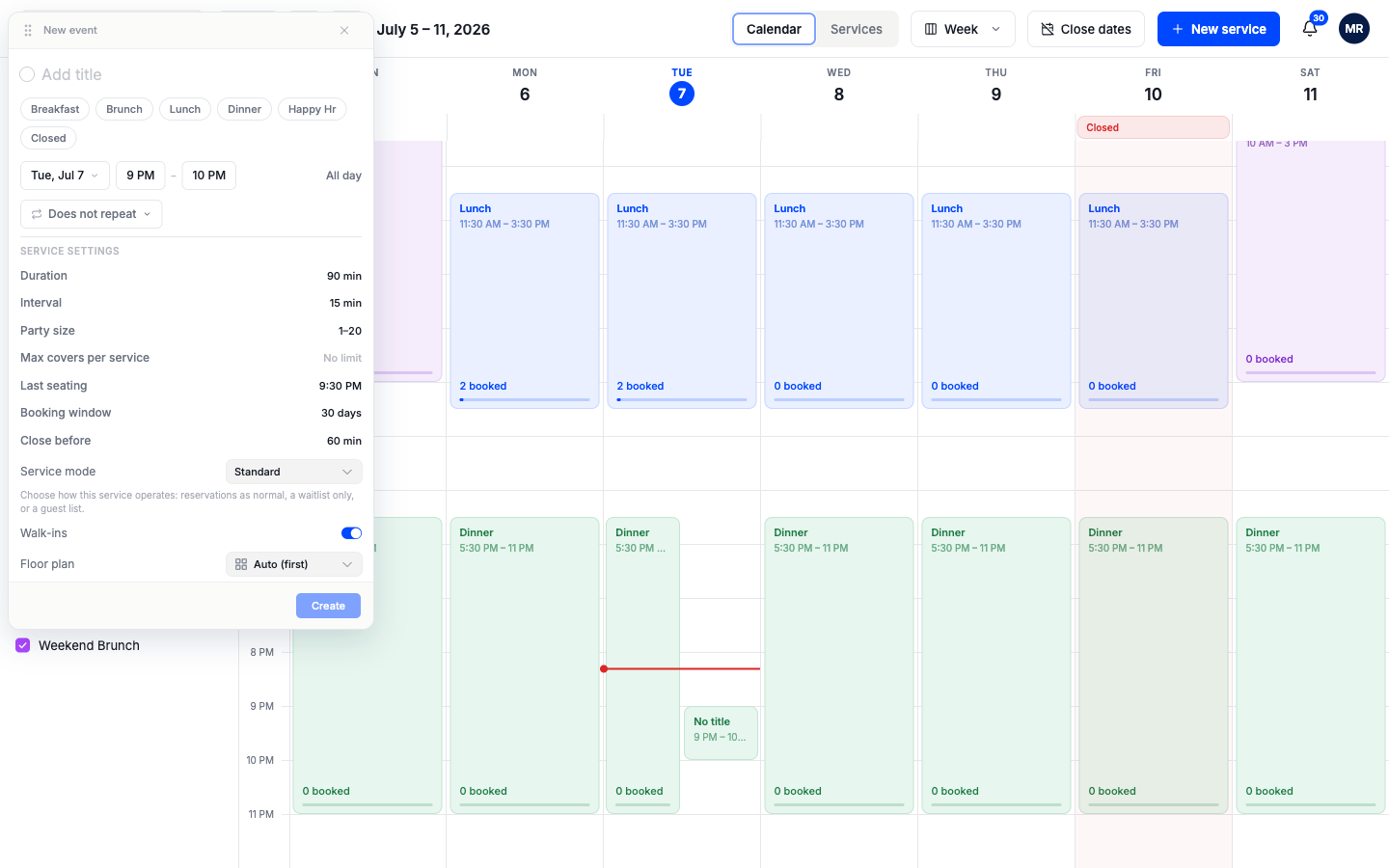
Name the service
Type a name, or tap one of the chips: Breakfast, Brunch, Lunch, Dinner, Happy Hr. A chip fills in the name, typical hours for that meal, and a matching color in one tap. You can change any of it afterward. The Closed chip at the end of the row is for blocking the date instead; see Close dates.
Choose the days the service runs
The repeat menu offers Does not repeat, Daily, Weekdays, Weekly, and Custom..., which lets you tick exact days, Thursday through Saturday for example. Choose "Does not repeat" for a one-off date.
If the service runs different hours on different days, switch on Different hours per day and set each day's times individually.
Check the settings
Below the schedule sit the booking rules: duration, slot interval, party size, last seating, booking window, and walk-ins. You can save with the defaults and change any setting later. Each setting is explained under What each setting does below.
Click Create
The service appears on the calendar for every matching day, and guests can book it right away.
The full editor
For a bigger setup job, click New service in the header (on an iPad or phone, tap the floating plus button instead). A full page opens with the same settings grouped into cards, plus a choice of service type at the top:
- Recurring: repeats weekly, like your everyday Lunch and Dinner.
- One-off: a single date, like a tasting menu night or a holiday seating.
- Blockout: the opposite of a service; it stops bookings instead of taking them. See Close dates.
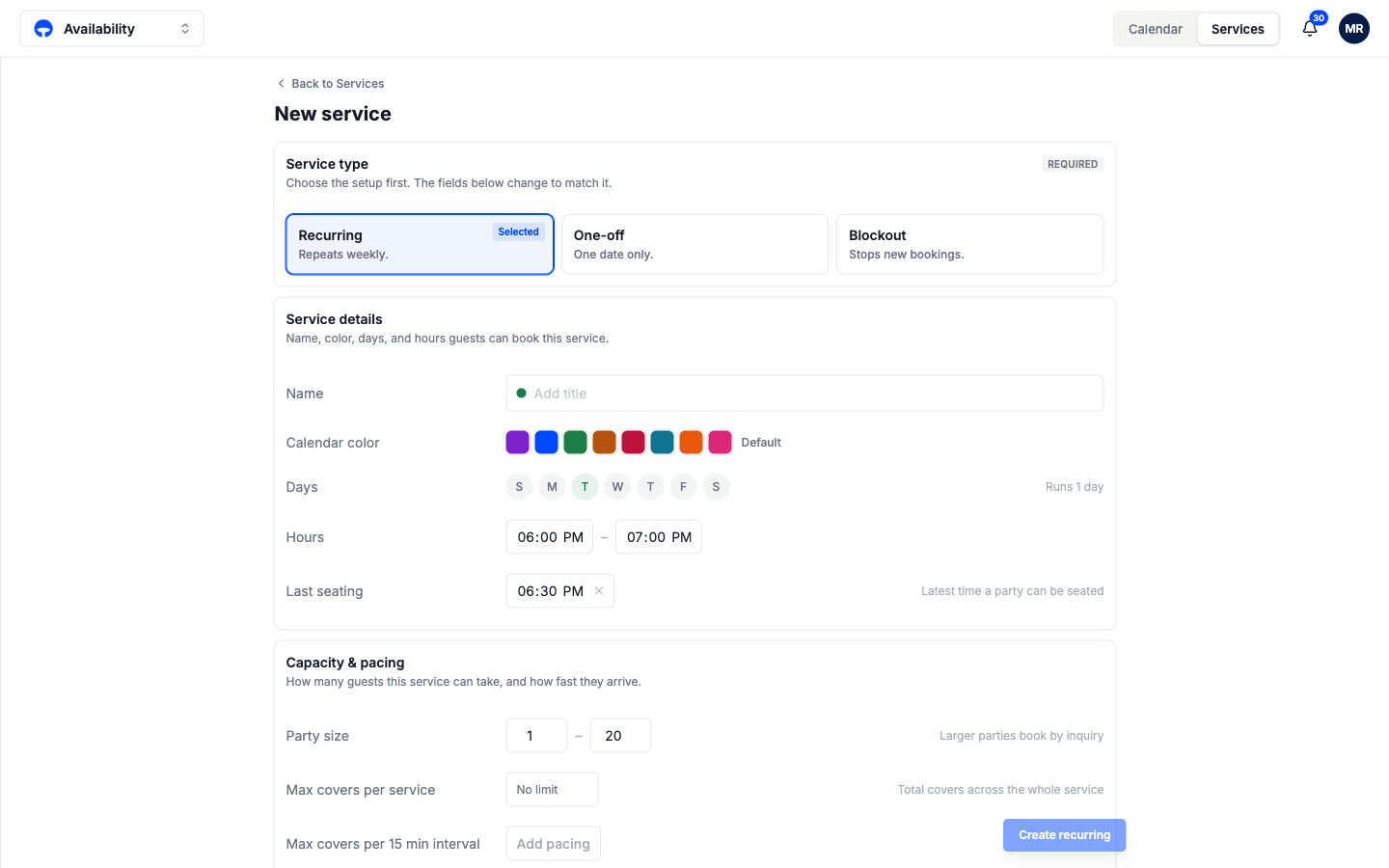
Fill in the cards top to bottom and click the create button at the bottom. The editor and the quick panel save to the same place, so anything you create in one can be edited in the other.
What each setting does
The settings below are grouped the way the full editor groups them, so what you read here matches what you see on the screen.
Hours and timing
Hours and last seating. Booking slots run from the start time to last seating, not to the end time. A Dinner from 5:30 PM to 11:00 PM with last seating at 9:30 PM stops offering tables at 9:30; the kitchen gets its buffer automatically.
Duration and interval. Duration is how long a table is held for each booking. Interval is how often slots appear: every 15, 30, or 60 minutes.
Capacity and pacing
Party size. The smallest and largest party a guest can book online. Larger groups are pointed to an inquiry instead of a booking, so big parties still reach you.
Max covers per service. A ceiling on total covers for the whole service. Leave it empty for no limit; the floor plan's tables still cap what can be seated.
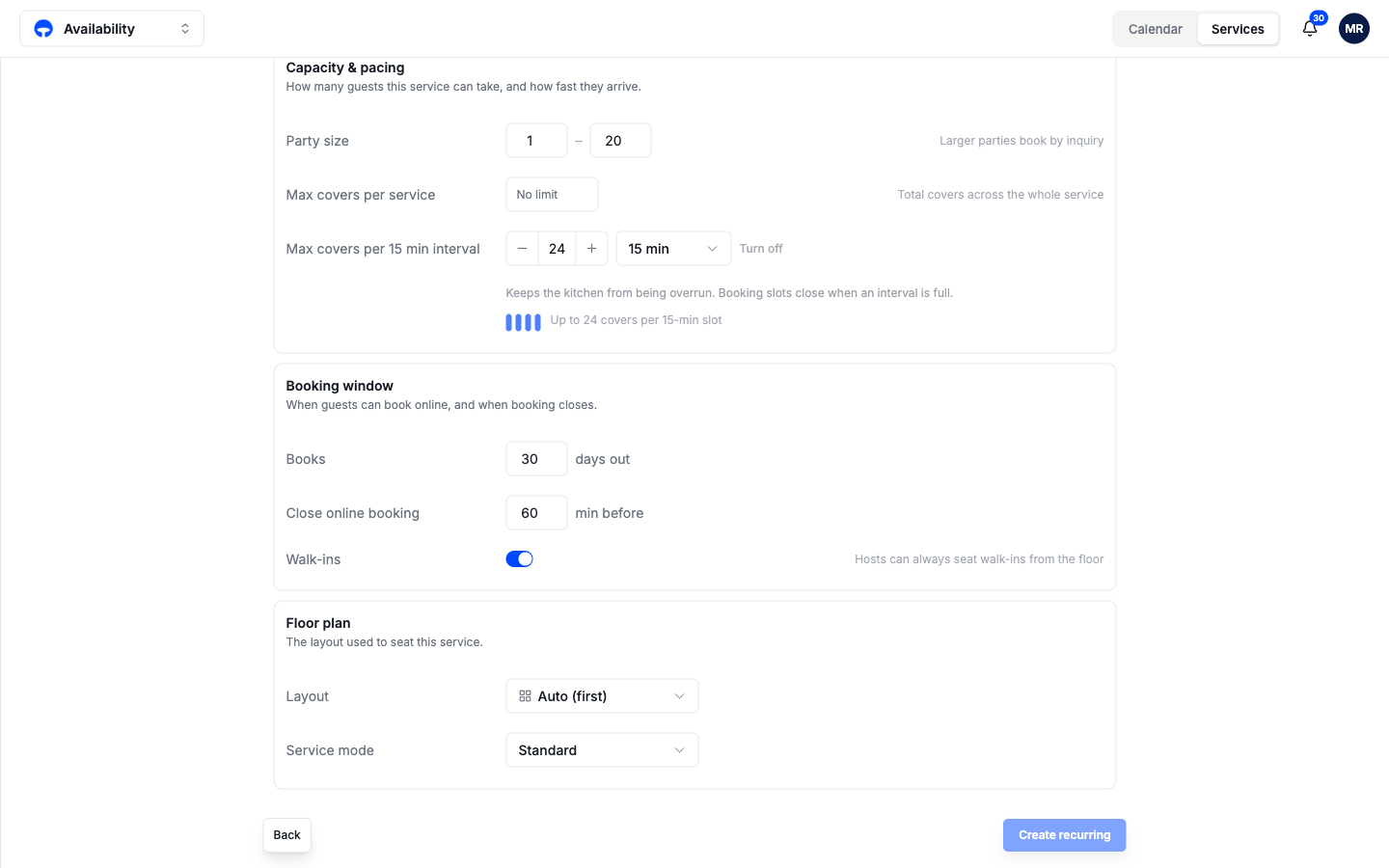
Pacing. A limit on covers per interval, for example 24 covers per 15 minutes. When an interval fills, its slots close while the rest of the night stays open, so one rush cannot overrun the kitchen.
Booking window and walk-ins
Booking window. How many days ahead guests can book, and how many minutes before a slot online booking closes. "Books 30 days out, close 60 min before" means a guest can book next month but not for half an hour from now.
Walk-ins. Switch this on if the service takes guests without a booking. Hosts can always seat walk-ins from the floor either way; this setting tells Covers to plan for them.
Floor plan and service mode
Floor plan. The layout used to seat the service. "Auto (first)" uses your first active layout, which is right for most single-room venues.
Service mode. How the service operates: Standard takes reservations as normal, Waitlist only runs a live waitlist instead, and Guest list runs a door list. Standard is right for almost every dining service.
Default values
Every new service starts with these values until you change them.
| Setting | Default | What it controls |
|---|---|---|
| Duration | 90 min | How long a table is held for each booking |
| Interval | 15 min | How often booking slots appear |
| Party size | 1 to 20 | Larger parties are pointed to an inquiry |
| Max covers | No limit | Ceiling on total covers for the whole service |
| Last seating | 30 min before end | Booking slots stop here, not at closing |
| Booking window | 30 days | How far ahead guests can book |
| Close before | 60 min | Online booking cutoff before each slot |
| Walk-ins | On | Whether the service plans for guests without a booking |
| Service mode | Standard | Standard reservations, waitlist only, or a guest list |
| Floor plan | Auto (first) | The layout used to seat the service |