

Layouts
Keep a different table arrangement for each service.
Most venues rearrange the room: dinner runs the full floor, lunch runs half of it, Sunday brunch pulls the banquettes apart. In Covers each arrangement is a layout, and each service seats against the layout you attach to it.
Switch between layouts
The pill next to the page name at the top shows the layout you are editing. Click it to see every layout for the venue.
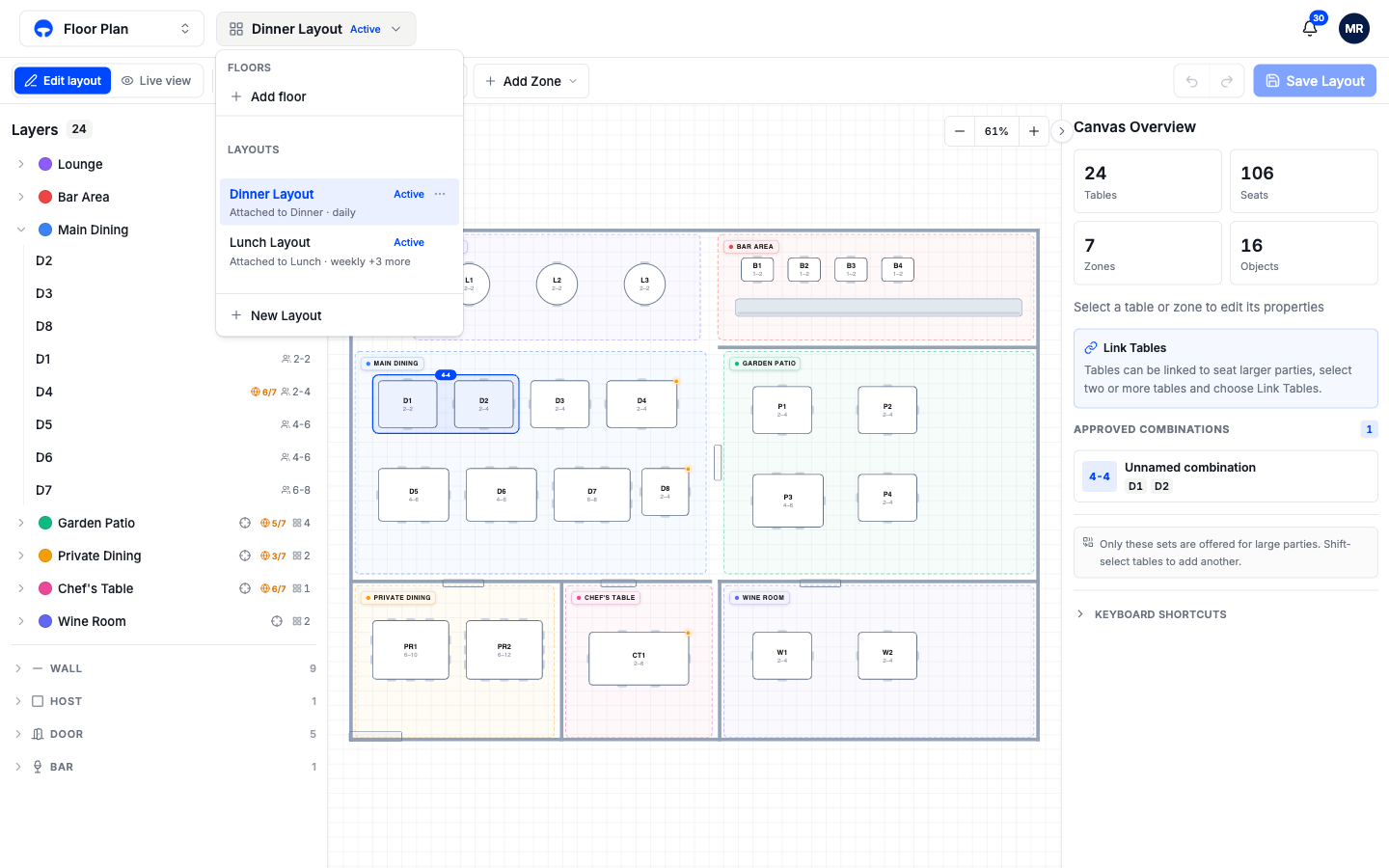
Each row shows where the layout is used: Attached to Dinner · daily means the Dinner service seats against it every day. An Active tag marks a layout in use today. The three-dot menu on a row renames, duplicates, or deletes the layout; deleting is only offered while another layout exists, and Covers asks you to confirm.
Create a layout
Click New Layout
The row sits at the bottom of the layout switcher. A template list opens: Main Floor, Patio, Private Dining, Bar Area, Rooftop, or Custom with your own name.
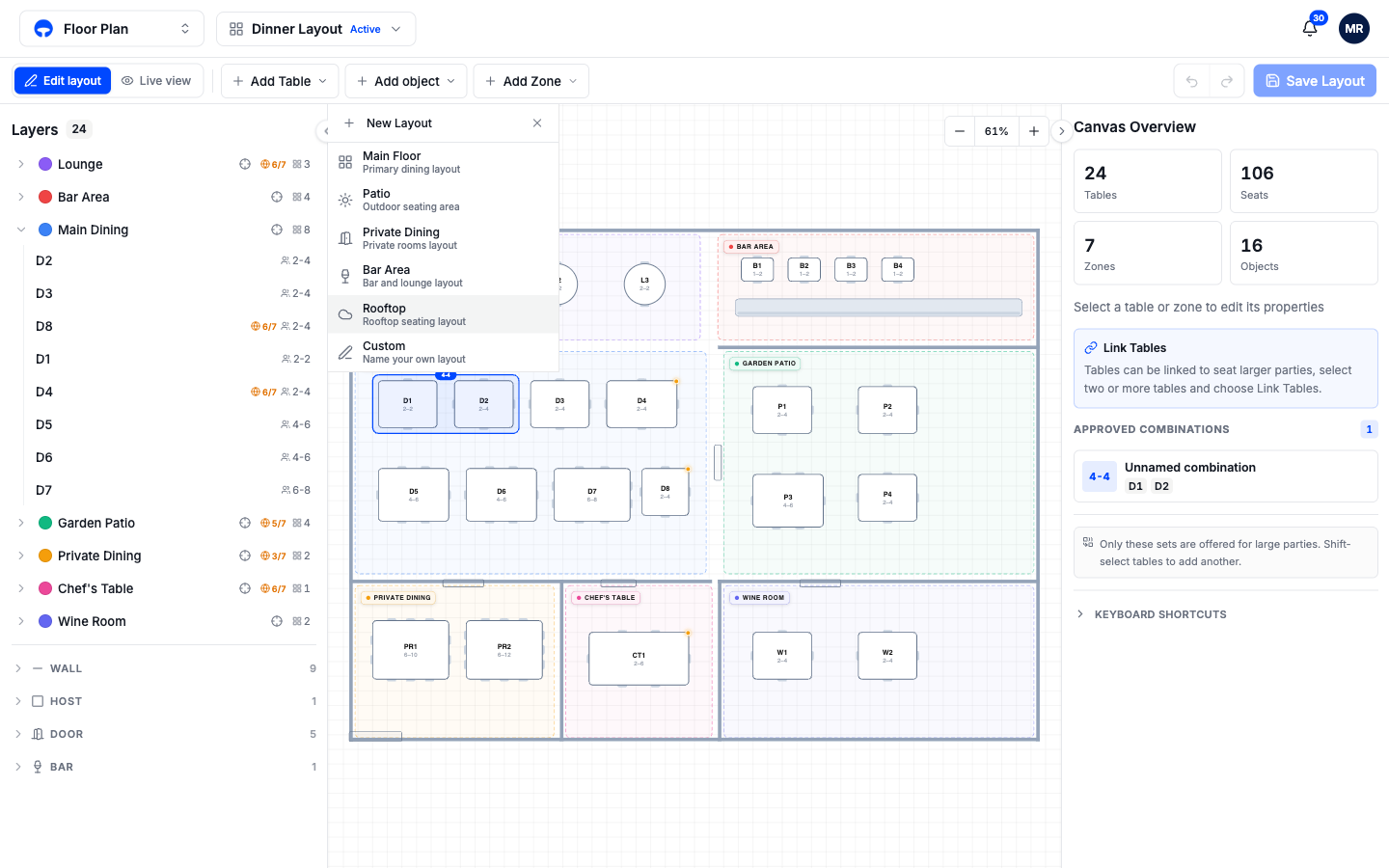
Pick a template
Templates only set the name; every new layout starts as an empty canvas. The editor switches to it and you build it like any other plan.
Attach it to a service
A layout only affects bookings once a service uses it. Open the service in Availability and pick the layout under its floor plan setting; the switcher row then shows the attachment. Create a service covers the setting.
Duplicate instead of rebuilding
If the new arrangement is a variation, use Duplicate in the row's three-dot menu. You get a full copy, tables, zones, and channel settings included, and you only move what changed.