

Seat larger parties
Link tables and approve the combinations your room allows.
A party of ten needs two tables pushed together. Covers handles this with two tools: linking, which joins tables so they sell as one unit, and approved combinations, which tell the booking engine exactly which sets of tables your room allows pushing together. Both live in the floor plan editor.
Link tables
Select the tables together
Hold Shift and click each table. The Properties panel switches to the multi-select view and shows the count at the top.
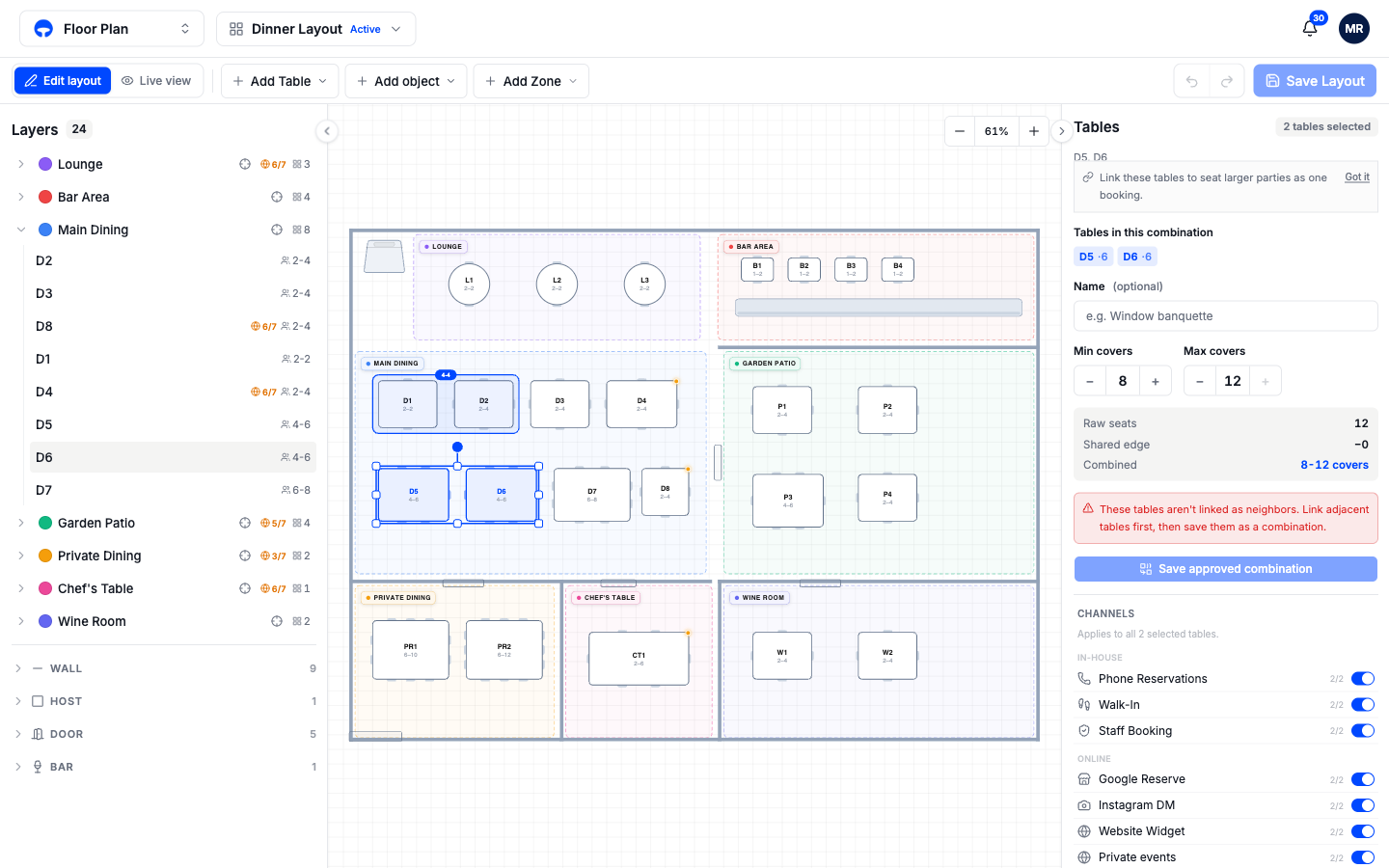
Click Link Tables
The tables snap together side by side and a capacity pill appears above the pair. Linked tables must sit in the same zone.
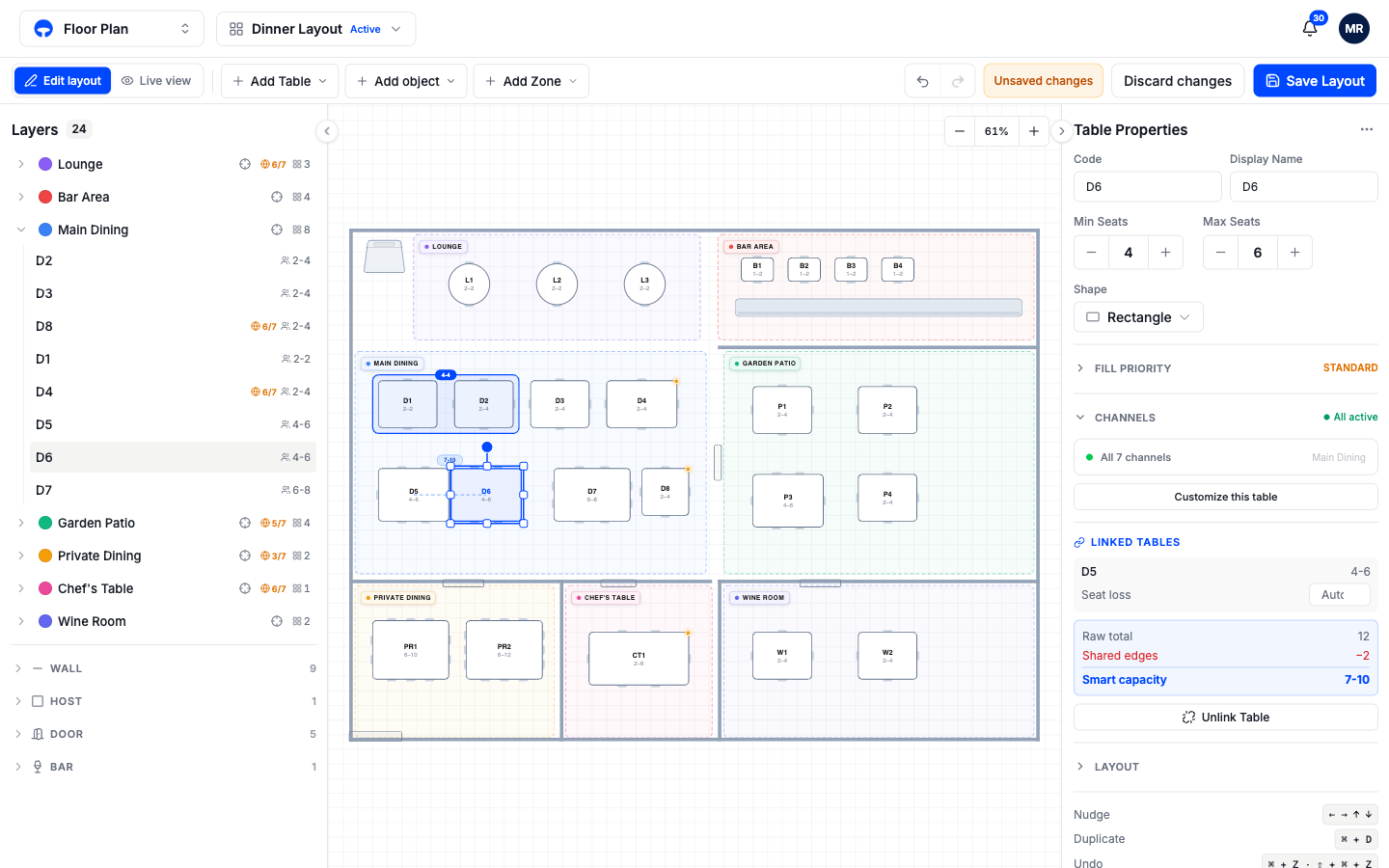
Check the smart capacity
The panel shows the arithmetic: the raw seat total, minus the seats lost where the tables meet, equals the combined capacity. Two six-seaters linked side by side seat 10, not 12, because two seats disappear along the shared edge. Covers works this out for you and you can adjust it.
Save the layout
Linking is a layout change; it saves when you click Save Layout. To separate the tables later, select the group and click Unlink Table.
Approve a combination
An approved combination tells the booking engine "these exact tables may be pushed together for a large party." Once you save your first combination, large parties are only offered your approved sets, never a pair of tables a host would have to drag across the room.
To approve one, Shift-select the tables and use the Save approved combination form in the panel: an optional name like Window banquette, and the minimum and maximum covers the set should take. The tables must be linked as neighbors first; the form tells you if they are not. Saved combinations appear in the Properties panel whenever nothing is selected, and the canvas draws a blue outline around each set.
Only admins can add or remove combinations; everyone else sees the list read-only.