

The floor plan editor
See how the editor is laid out and how your changes go live.
The floor plan is the map of your tables. Every table you place here becomes a real, bookable table: the booking engine seats reservations against it, hosts drag bookings onto it during service, and its seat count decides which parties fit. Open it from the main menu under Floor Plan.
The three parts of the editor
The editor is one screen with a panel on each side of the canvas.
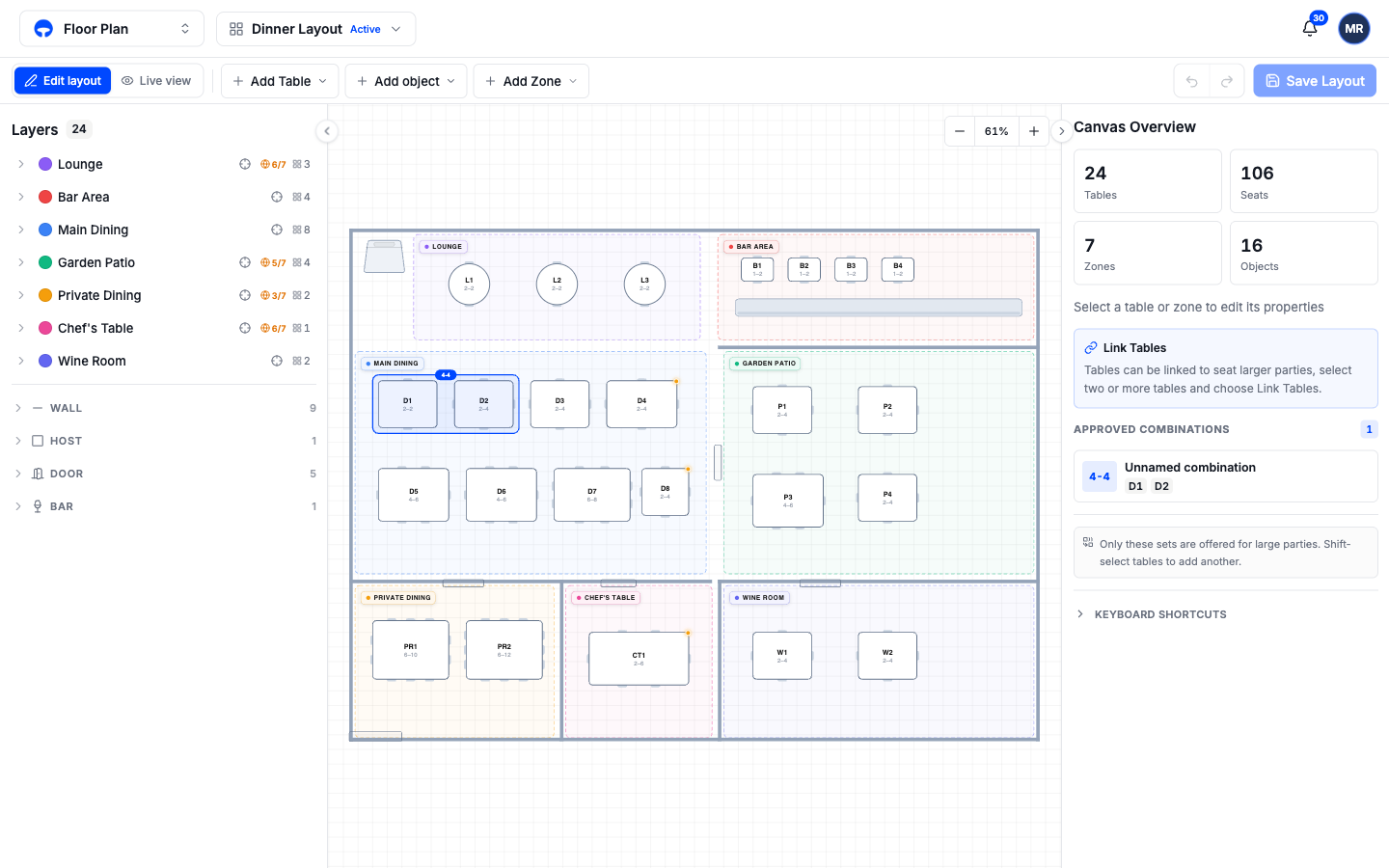
Layers, on the left, lists everything on the plan: each zone with its tables nested underneath, tables that sit in no zone, and objects like walls and doors grouped by type. Click any row to select that item on the canvas; double-click a name to rename it.
The canvas, in the middle, is the plan itself. Drag items to move them, click to select, and use the corner handles to resize or rotate. Hold Space and drag to pan, scroll to zoom, and press Esc to deselect; the same hints sit above the canvas. The zoom control at the top right shows the current zoom, and clicking the percentage fits the whole plan on screen.
Properties, on the right, changes with your selection. With nothing selected it shows the Canvas Overview: total tables, seats, zones, and objects. Select a table, a zone, or an object and the panel switches to that item's settings.
Edit layout and Live view
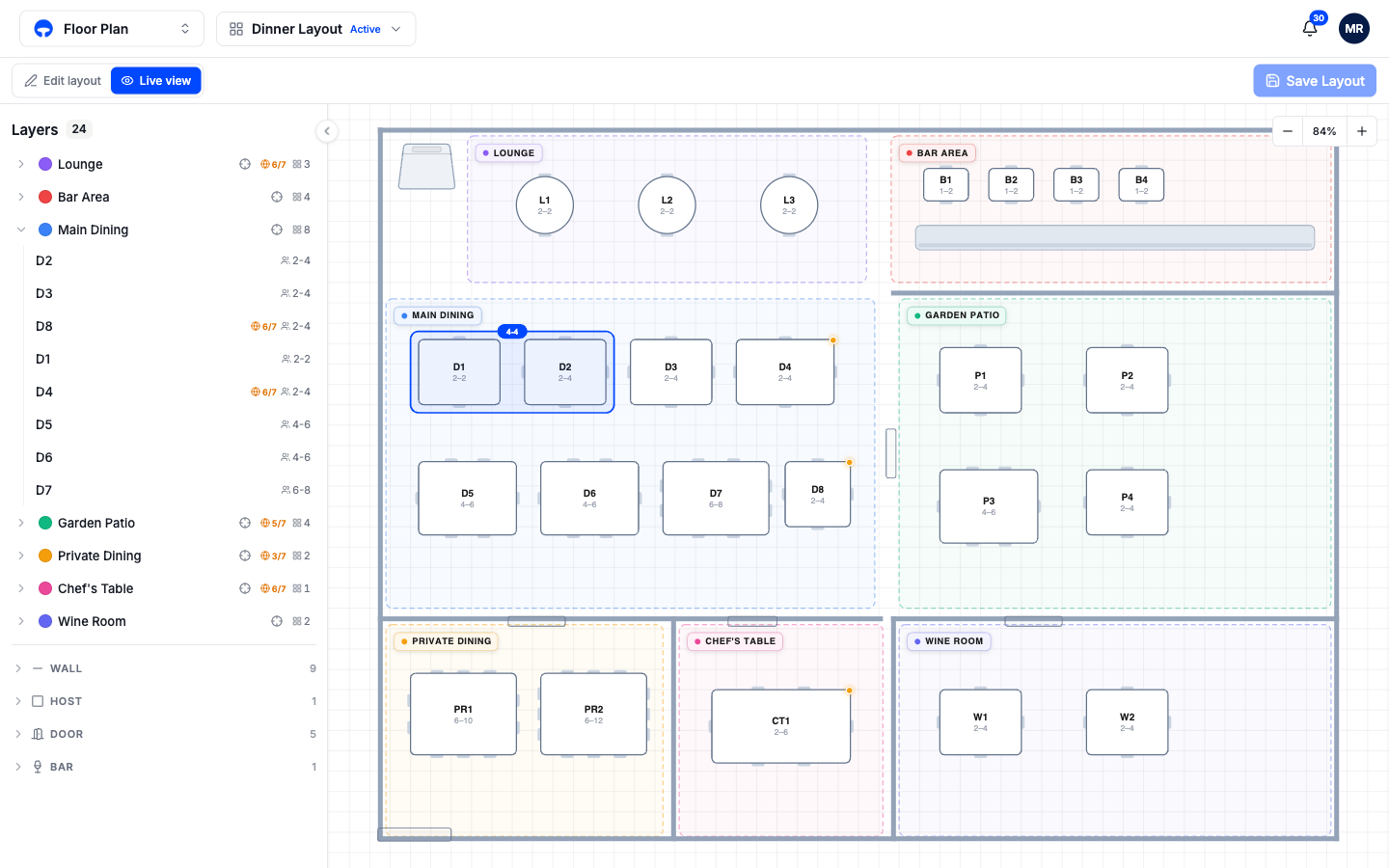
The toggle at the top left switches between two modes. Edit layout is where you change the plan. Live view shows the same floor read-only, the way it looks during service, with the editing tools put away.
How saving works
Changes stay on your screen until you save. While you have unsaved work, an Unsaved changes chip appears in the toolbar next to Discard changes and Save Layout. Save Layout writes everything at once: moved tables, new zones, deletions. Discard changes puts the plan back the way it was. If you try to leave the page with unsaved work, Covers asks whether to save or discard first.
Undo and redo sit in the toolbar too, and Cmd+Z (Ctrl+Z on Windows) works for every move, resize, and delete.