

Booking channels
Decide where each zone and table can be booked.
Not every table should be bookable everywhere. You might keep the patio off online booking until the season starts, hold the chef's counter for phone reservations, or reserve a zone for private events. Channel settings on the floor plan control exactly this: which booking sources can seat guests at which tables.
Where the channels come from
The list mirrors the booking channels set up for your venue: in-house sources like Phone Reservations, Walk-In, and Staff Booking, and online sources like your Website Widget, Google Reserve, Instagram DM, and Private events. Adding a channel in Settings adds it here.
Set channel defaults on a zone
Select a zone and open its Channels section. Every table in the zone inherits these switches, so one change covers the whole area.
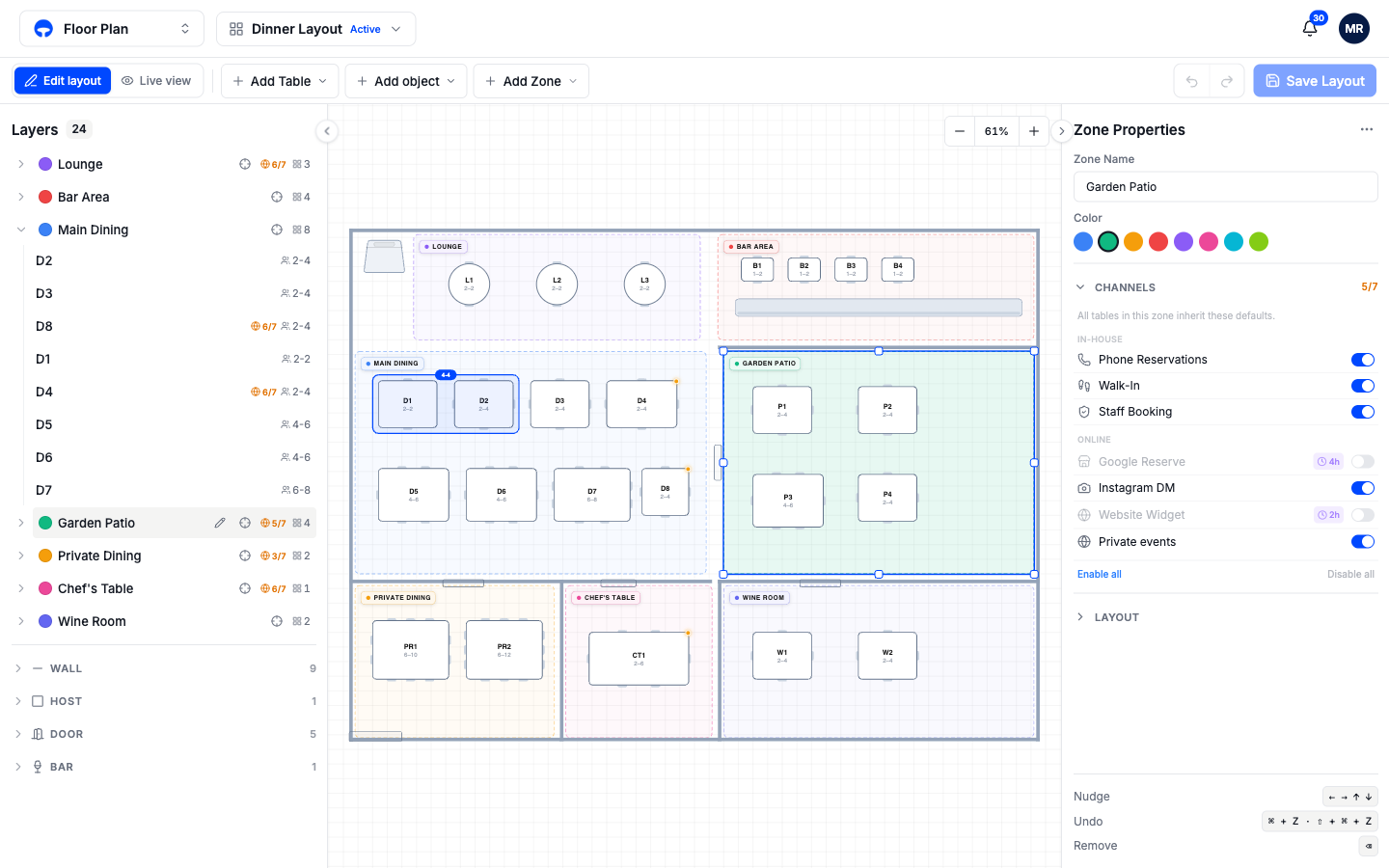
Switch a channel off and its guests can no longer book tables in that zone. Enable all and Disable all at the bottom flip the whole list at once.
Release a closed channel before service
A switched-off online channel can carry a release timer, shown as a small clock next to the channel. With a 4 hour timer, the block lifts four hours before each slot, and tables that are still free go back on sale to that channel. The zone stays protected for most of the booking window, and unclaimed tables still get sold. Click the timer to choose 30 minutes, 1 hour, 2 hours, or 4 hours.
Override one table
Select a table and open its Channels section. It shows one summary row while the table follows its zone; click Customize this table to set the table's own switches. A customized table shows a small amber dot on the canvas so you can spot overrides later.
Tables in no zone start with every channel on.
Where the numbers in Layers come from
In the Layers panel, a zone with any channel switched off shows a count like 5/7 next to its name: five of seven channels open. A zone with no badge takes bookings from everywhere. Use the badges to audit the floor in one look before a season change.