

How event requests arrive
Guests ask for private events from your booking page, by phone, or through your team; every request lands on one list.
A private-event request is a guest saying "we'd like the place for twenty on a Saturday" before any money or dates are settled. Covers collects these from three directions, your booking page, phone calls, and your own team, and lands them all on the Events page so nothing lives in a text thread or a notebook.
From your booking page
With private events switched on, your booking page shows a "Planning a private event?" card, and a Request an event button walks the guest through four steps: the event details, the space they'd like, their contact details, and a review.
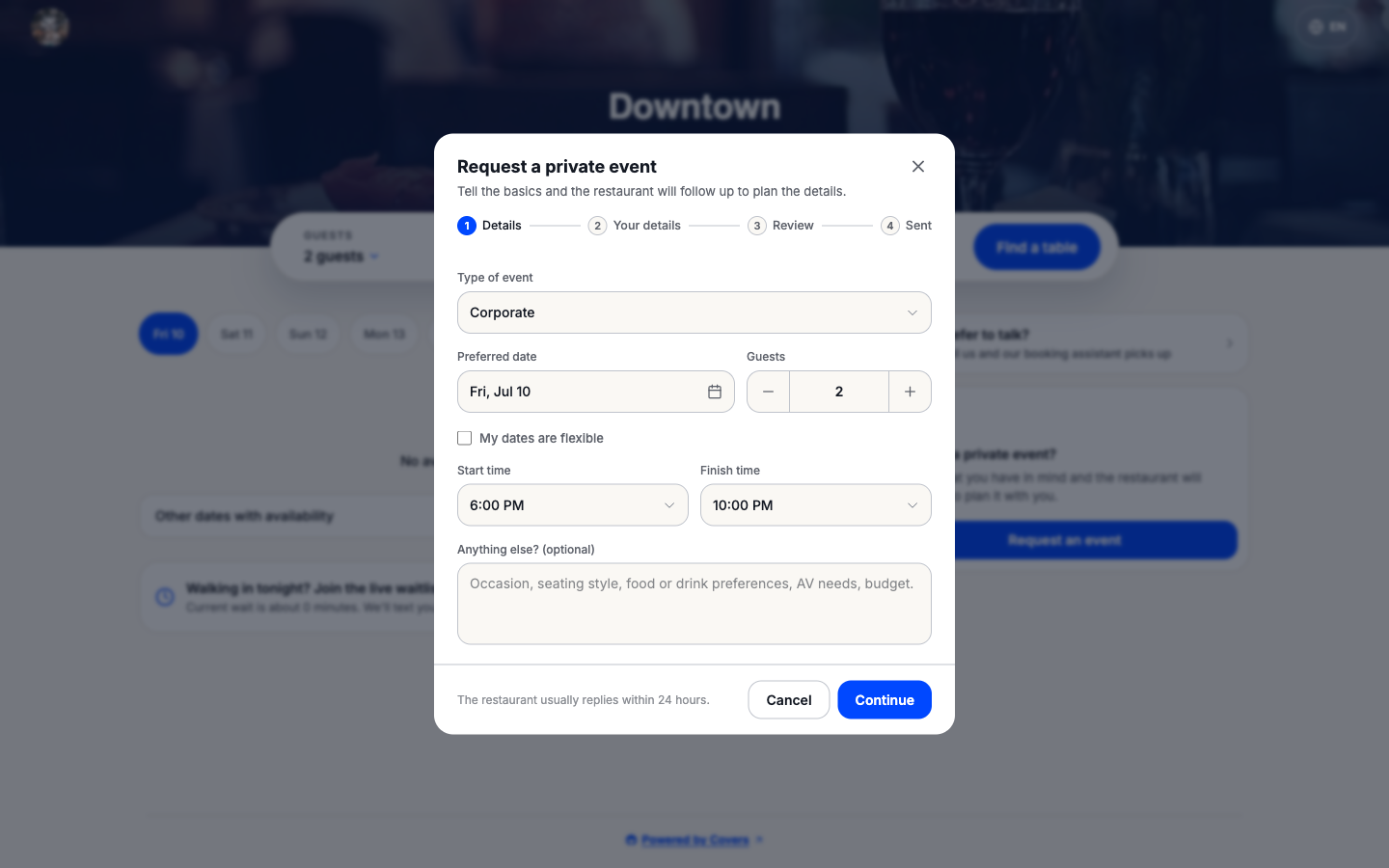
The details step asks for the type of event, a preferred date with a "my dates are flexible" option, a guest count, and a time window, plus an optional notes box for anything else, the occasion, seating style, food or drink preferences, AV needs, or budget. On the space step the guest picks how they'd like to be seated: Whole floor, Specific area, or Specific tables chosen on your plan. They then leave their contact details and review everything before sending.
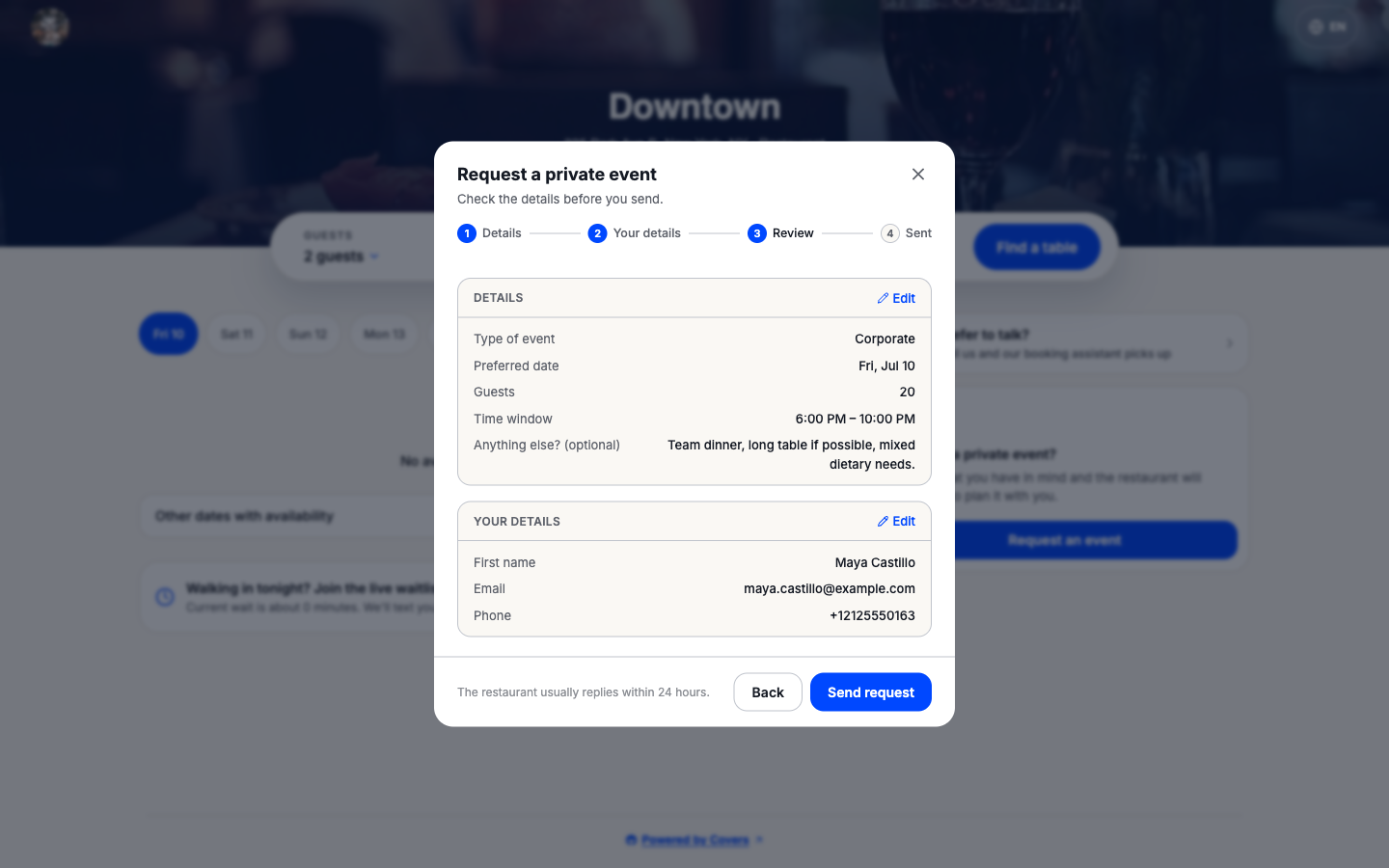
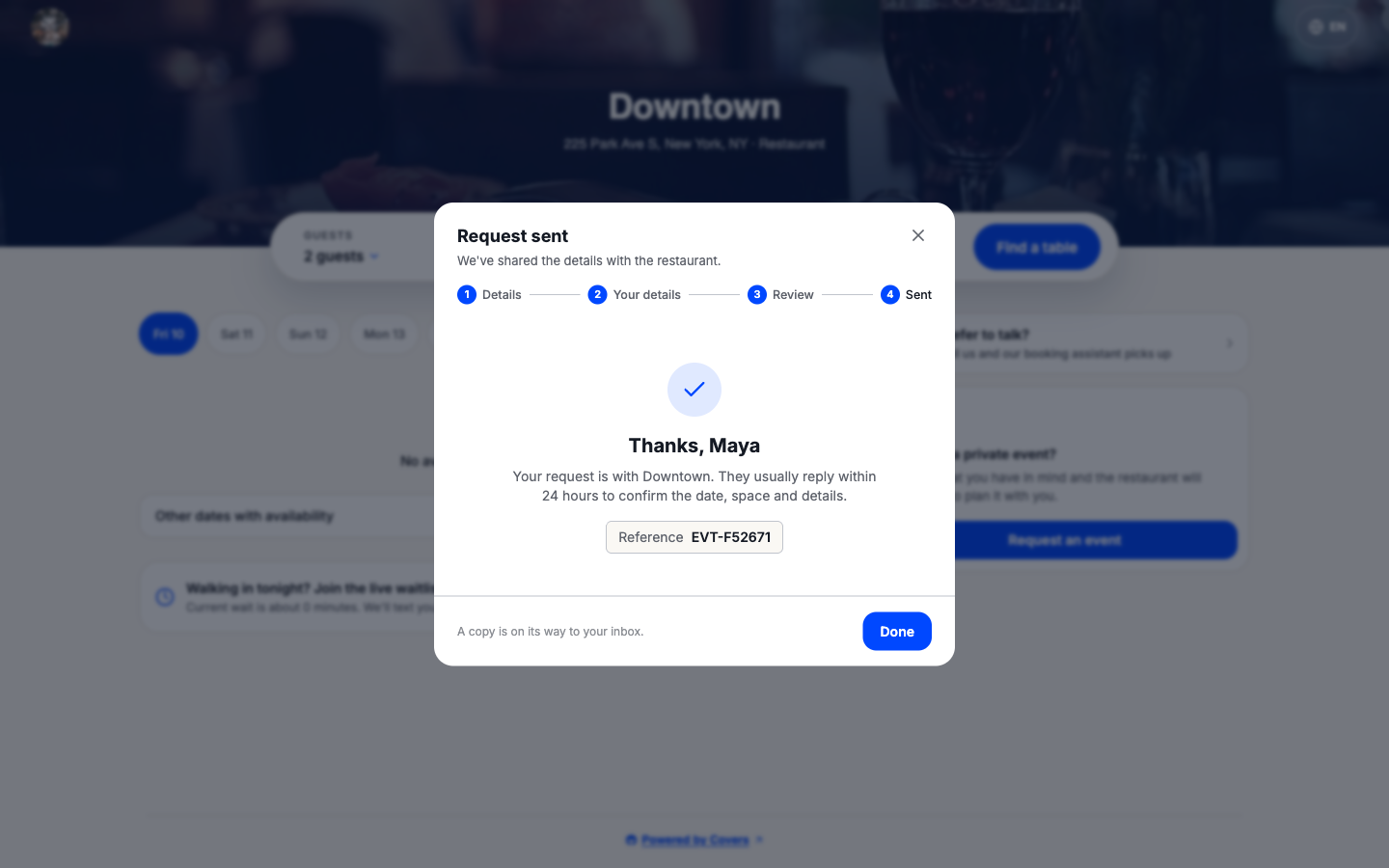
After sending, the guest gets a reference code and a copy by email, and the page tells them you usually reply within 24 hours; the promise is a setting you control, see Set up events.
By phone
When Sadie answers your phone and a caller asks about a private event, she collects the same details and files the request; it appears on the Events page with Voice as its source.
From your team
Click New event at the top of the Events page to enter a request that came in over the bar, by email, or through a regular. Staff-entered requests carry Staff as their source.
What's next
Every request lands with a New status, waiting for your answer: Review and respond.