

Review and respond
Work the Events list, confirm the requests you want, and decline the rest kindly.
The Events page is where requests wait for an answer. Open the menu at the top left and choose Events under Operate. The tiles across the top count what needs you: New requests, Awaiting guest, Confirmed, plus Upcoming and Past; click a tile to filter the list to it.
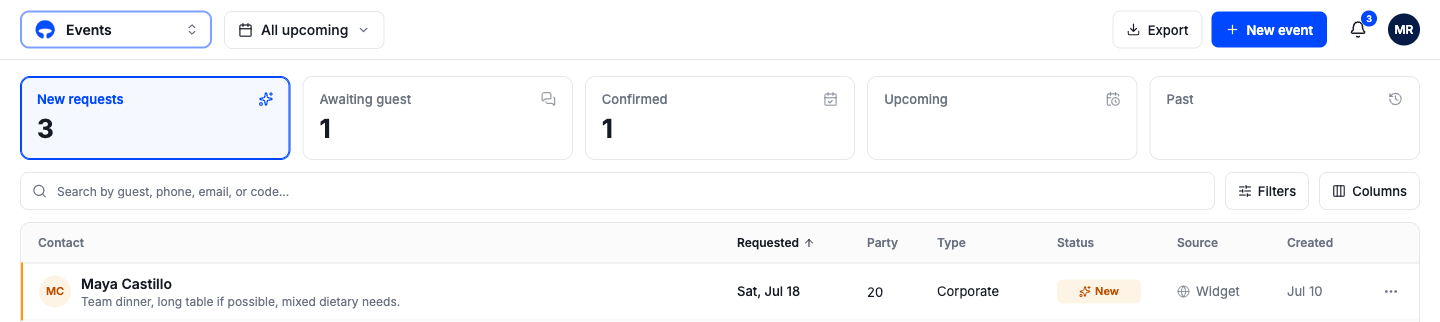
Each row shows the contact, requested date, party size, event type, status, and where the request came from: Widget, Voice, or Staff.
The request panel
Click a request to open it. The panel shows everything the guest sent, their contact details, and the actions you can take.
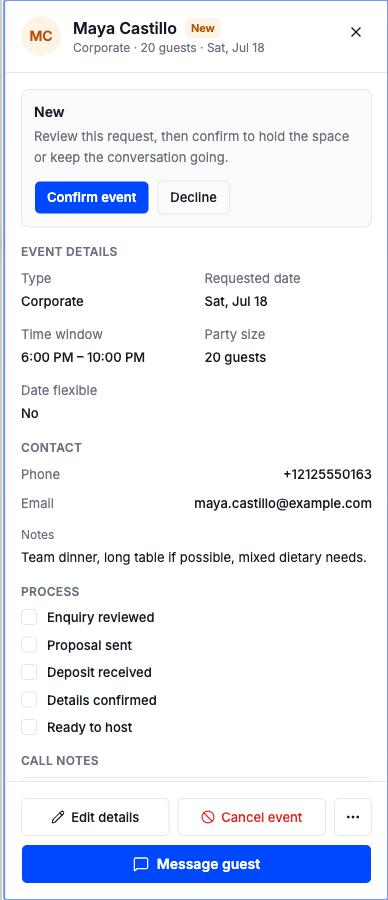
Confirm event accepts the request and holds the space: the event area stops being offered for regular bookings during the event window, and the floor warns anyone who tries to seat a walk-in there. Decline opens the decline flow below. Message guest starts a conversation in your inbox without deciding anything yet, which is the right move when you need to talk dates or numbers first.
The Process checklist, enquiry reviewed, proposal sent, deposit received, details confirmed, ready to host, tracks where the planning stands so any teammate can pick the event up cold. Call notes keeps what was said on the phone with the rest of the event.
Declining a request
Declining asks for a reason and sends the guest a short message, so no request ends in silence.
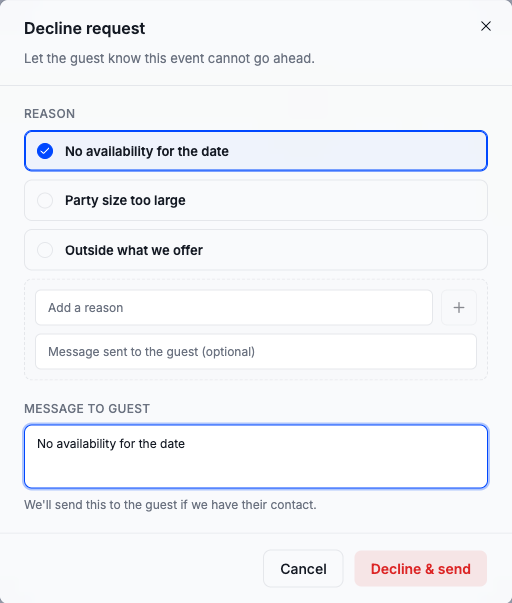
Pick a reason, no availability, party too large, outside what you offer, or write your own, and edit the message if you want to soften it or suggest an alternative. Decline & send closes the request and messages the guest if their contact is on file.