

Set up events
Switch private events on, choose which spaces guests can request, and set the automatic replies.
Before requests can arrive, tell Covers which spaces can host events and what to promise guests. Open the menu at the top left, choose Settings, then click Events under Booking. The Preview widget button at the top opens your booking page so you can check the guest side of every change.
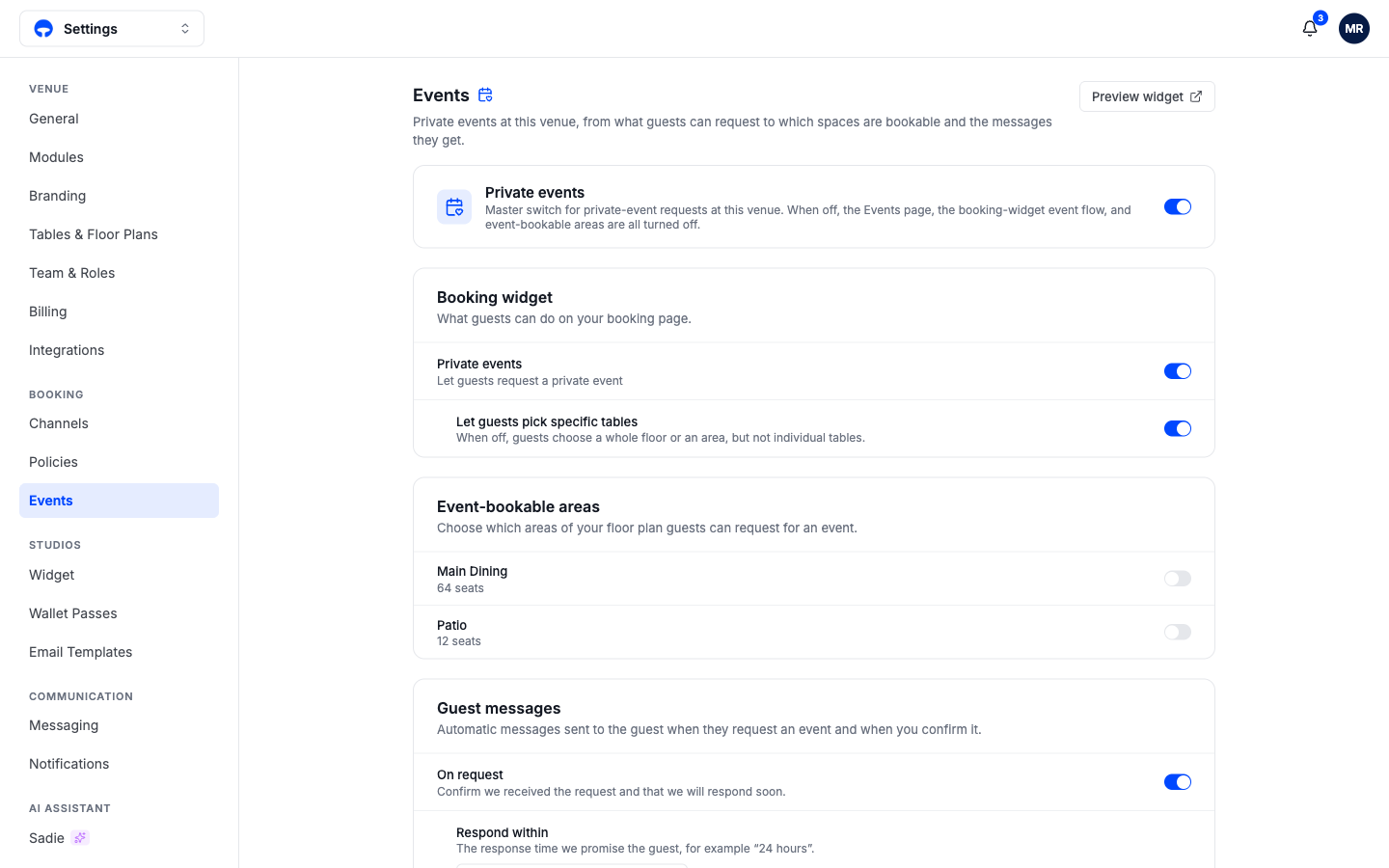
The master switch
Private events at the top turns the whole feature on or off for this venue. Off means the Events page, the booking-widget event flow, and event-bookable areas all disappear; on brings them back exactly as configured.
What the booking page offers
The Booking widget card controls the guest side. Private events puts the "Request an event" card on your booking page. Let guests pick specific tables decides how precise their request can be: on, they can point at tables; off, they choose a whole floor or an area and you decide the exact layout later.
Event-bookable areas
Choose which zones of your floor plan guests can request, with each zone listed with its seat count. Keep this to the spaces you genuinely rent out; a guest who can request the whole main dining room will.
Guest messages
The automatic replies around a request. On request confirms receipt right away and promises a response time; Respond within is that promise, for example "24 hours", and it appears on the request flow itself. A separate message goes out when you confirm. The wording is yours to edit, so the automatic reply sounds like your venue rather than software.
What's next
Once requests flow, work them from the Events page: Review and respond.