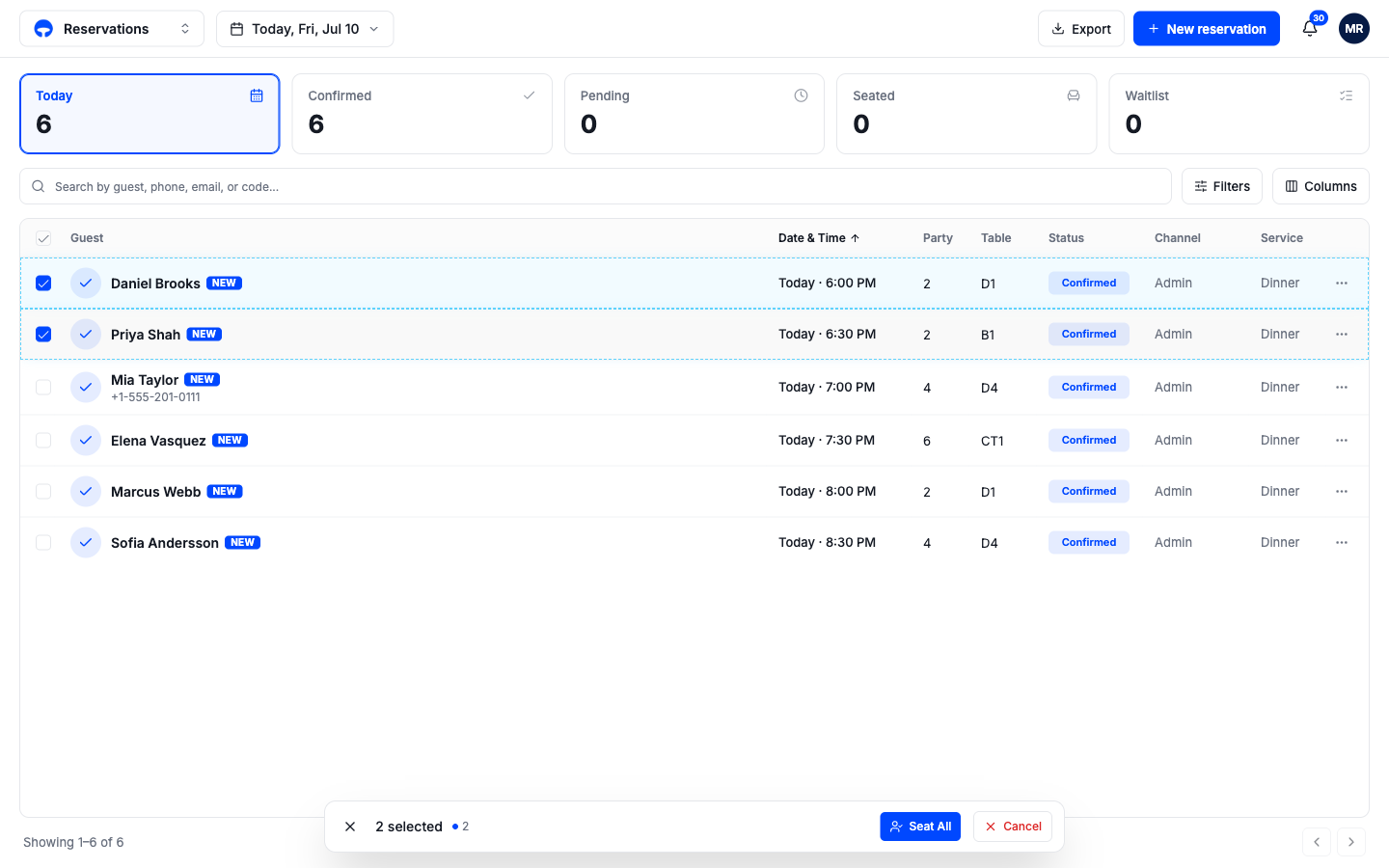
Manage bookings
Seat guests, cancel bookings, reassign tables, and fix mistakes.
Every change to a booking happens from its row in the list: seat the party, mark a no-show, move them to another table, or cancel. This page covers the actions menu, the details panel, and how to work on several bookings at once.
The actions menu
Click the three dots at the end of any row. The menu offers the moves that make sense for the booking's current status; a confirmed booking looks like this:
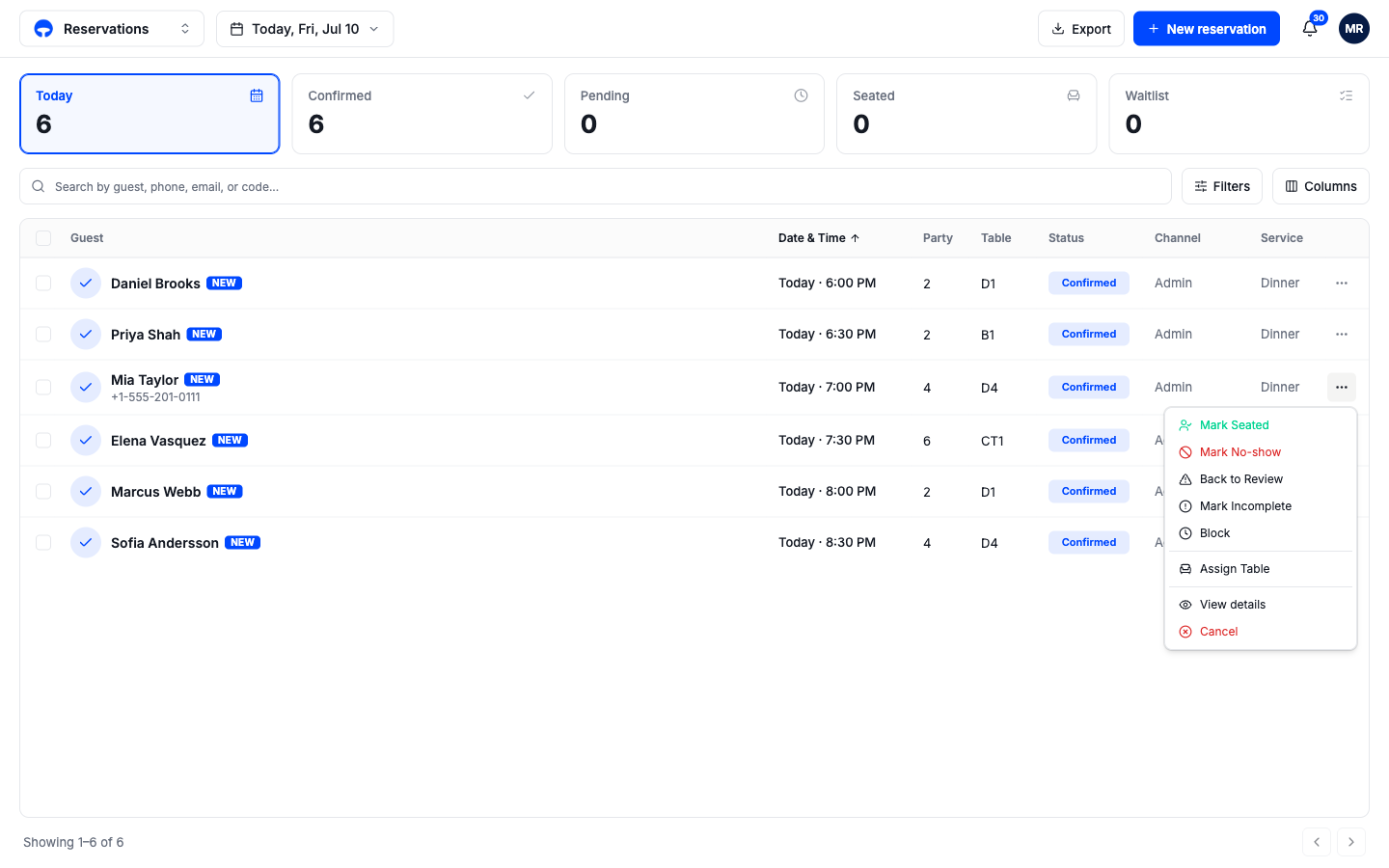
| Action | What it does |
|---|---|
| Mark Seated | The party has arrived and is at the table. |
| Mark No-show | The party never arrived. The booking counts toward the guest's no-show record. |
| Back to Review | Returns the booking to Needs Review so someone can look at it again. |
| Mark Incomplete | Flags a booking that is missing details. |
| Block | Turns the booking into a table block: the table stays held for that time, but the booking no longer expects a guest. |
| Assign Table | Opens the table picker to set or change the table. |
| View details | Opens the full details panel. |
| Cancel | Cancels the booking, with a confirmation first. |
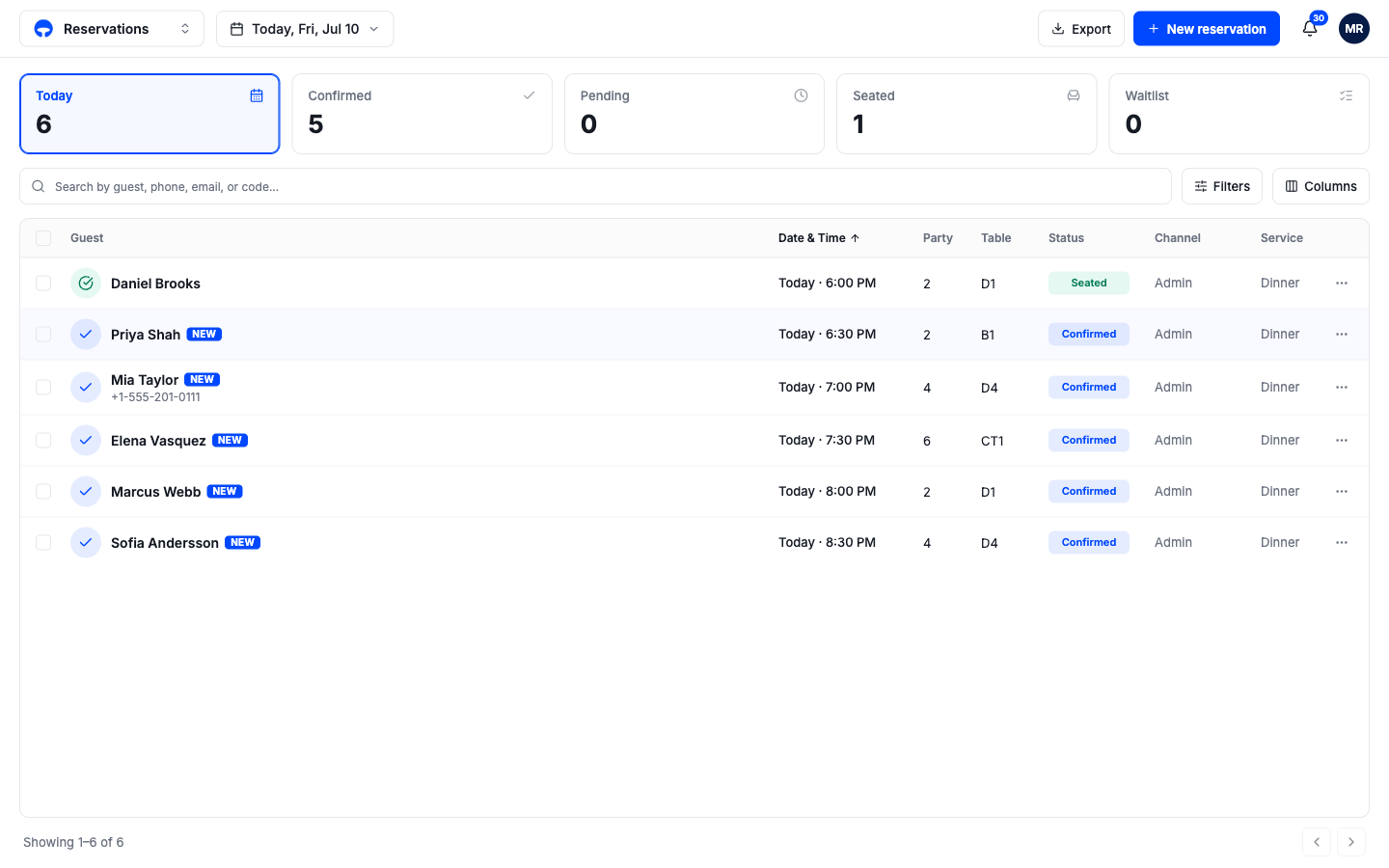
Once a party is seated, the menu changes to match: Mark Completed when they leave, or Unseat if you seated the wrong row.
After a status change, the row updates on the spot and a small Undo message appears at the bottom of the screen for a few seconds, so a slip of the mouse is a one-click fix.
The details panel
Click View details, or click anywhere on the row, to open the booking's panel on the right. It holds the booking fields, the guest's profile chips, and their latest message, with three tabs: Details, Messages, and Activity.
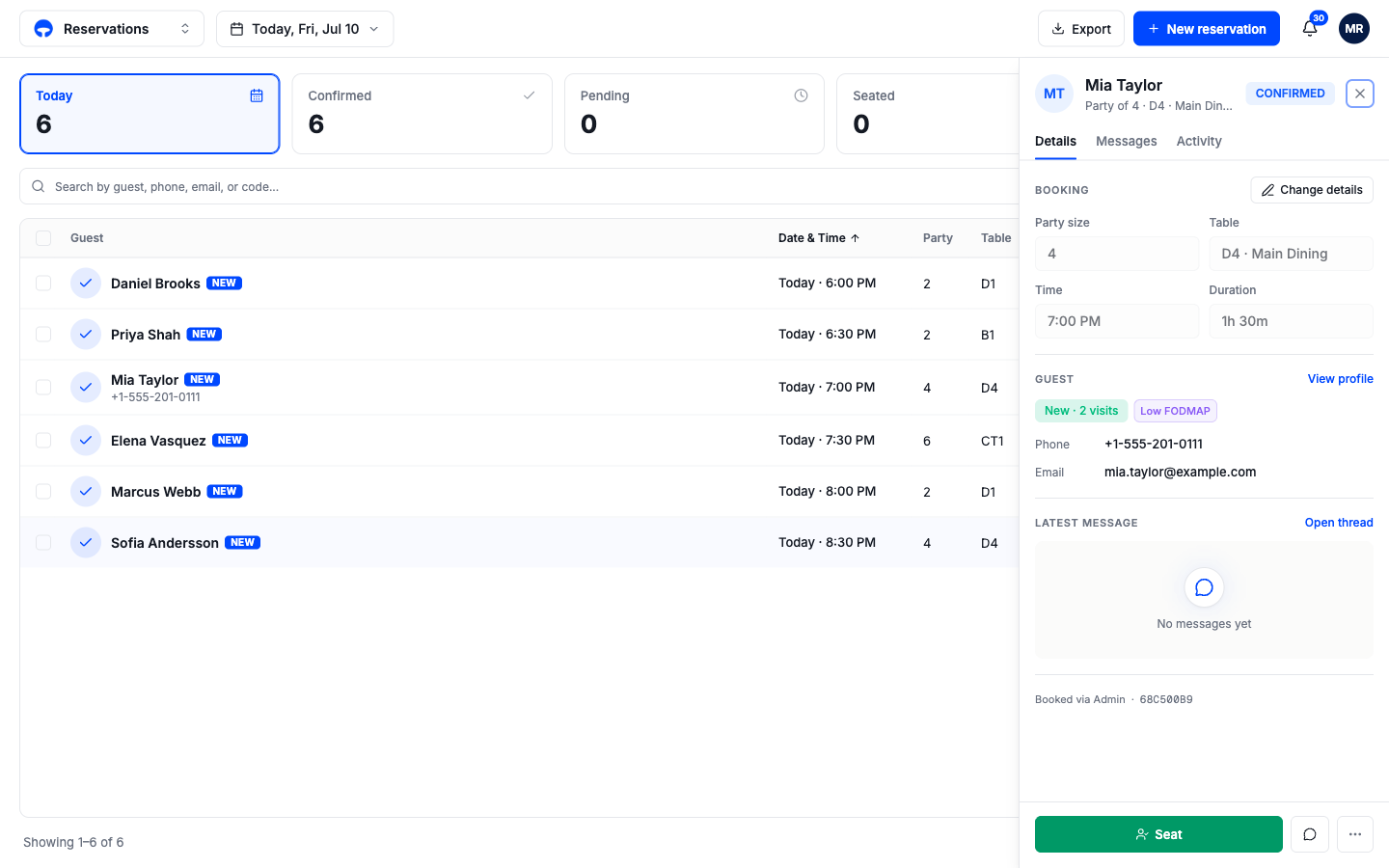
- Change details unlocks the party size, table, time, and duration for editing.
- View profile jumps to the guest's full profile in the guest book.
- Open thread jumps to your message conversation with this guest.
- The green Seat button at the bottom seats the party without hunting through menus.
Cancel a booking
Click Cancel in the actions menu. A confirmation asks you to choose between Keep reservation and Cancel reservation, with an optional reason box; the reason is stored on the booking.
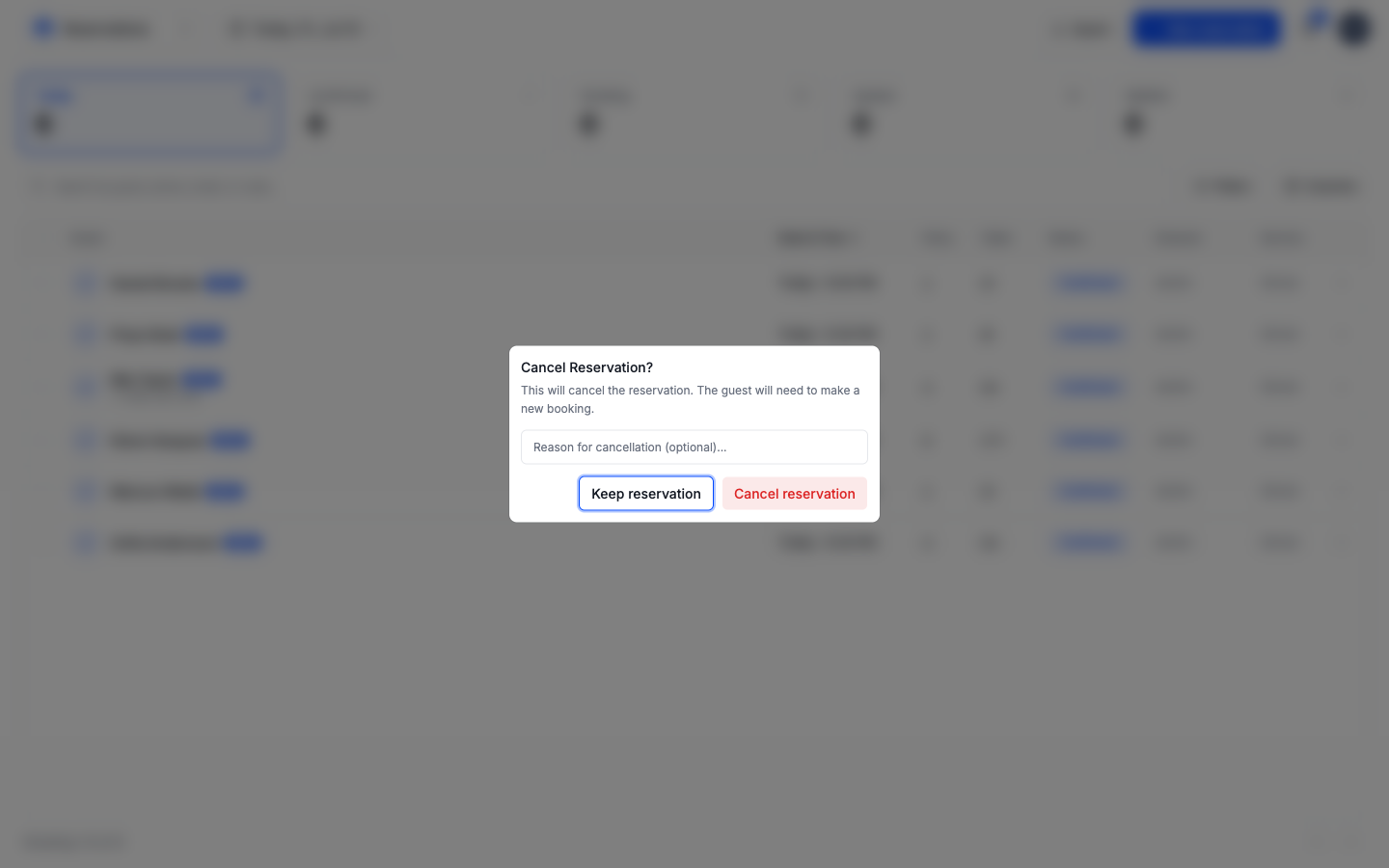
Cancelling frees the table for other bookings right away. To bring a cancelled booking back, the guest needs a new booking.
When guests change their own booking
Guests can modify or cancel from the link in their confirmation text, without calling you. Those changes land in this list like your own: the row updates, the table frees, and the booking's Activity tab records that the guest made the change. See What guests see for their side of it.
Work on several bookings at once
Tick the checkbox at the start of each row. A bar appears at the bottom with the selection count and two actions: Seat All and Cancel. This is the fast way to close out a stack of arrivals, or to clear a block of bookings when plans change.