

The Service view
See what the live service screen shows and where everything lives.
The Service view is the screen you run the night from. It opens when you sign in, shows tonight's bookings on your floor plan, and holds every in-service action in one place, so the host stand never has to leave it. This page walks the layout; the pages after it go deep on each tab.
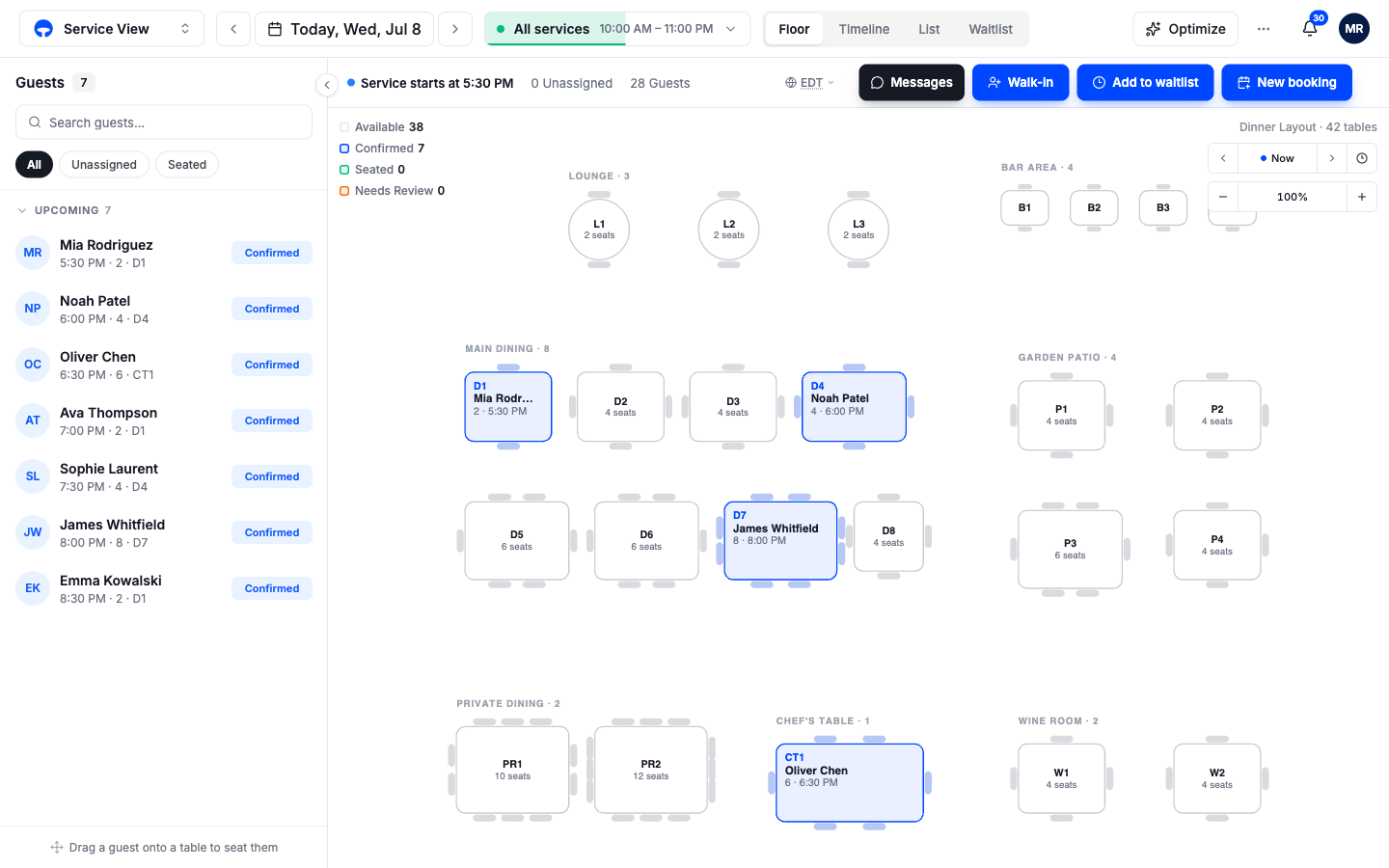
The header
The top bar carries the date, the service, and the view tabs.
- The date pill shows the day you are looking at, with arrows to step back or forward. Most nights it stays on Today; flip ahead to prep tomorrow's service.
- The service pill shows which service you are viewing. Click it to switch between tonight's services or the whole day.
- The tabs switch how you see the service: Floor, Timeline, List, and Waitlist. All four show the same bookings.
The service picker
Click the service pill to open the service picker. Each service shows its hours and a badge: LIVE while it is running, SCHEDULED before it starts, DONE after it ends.
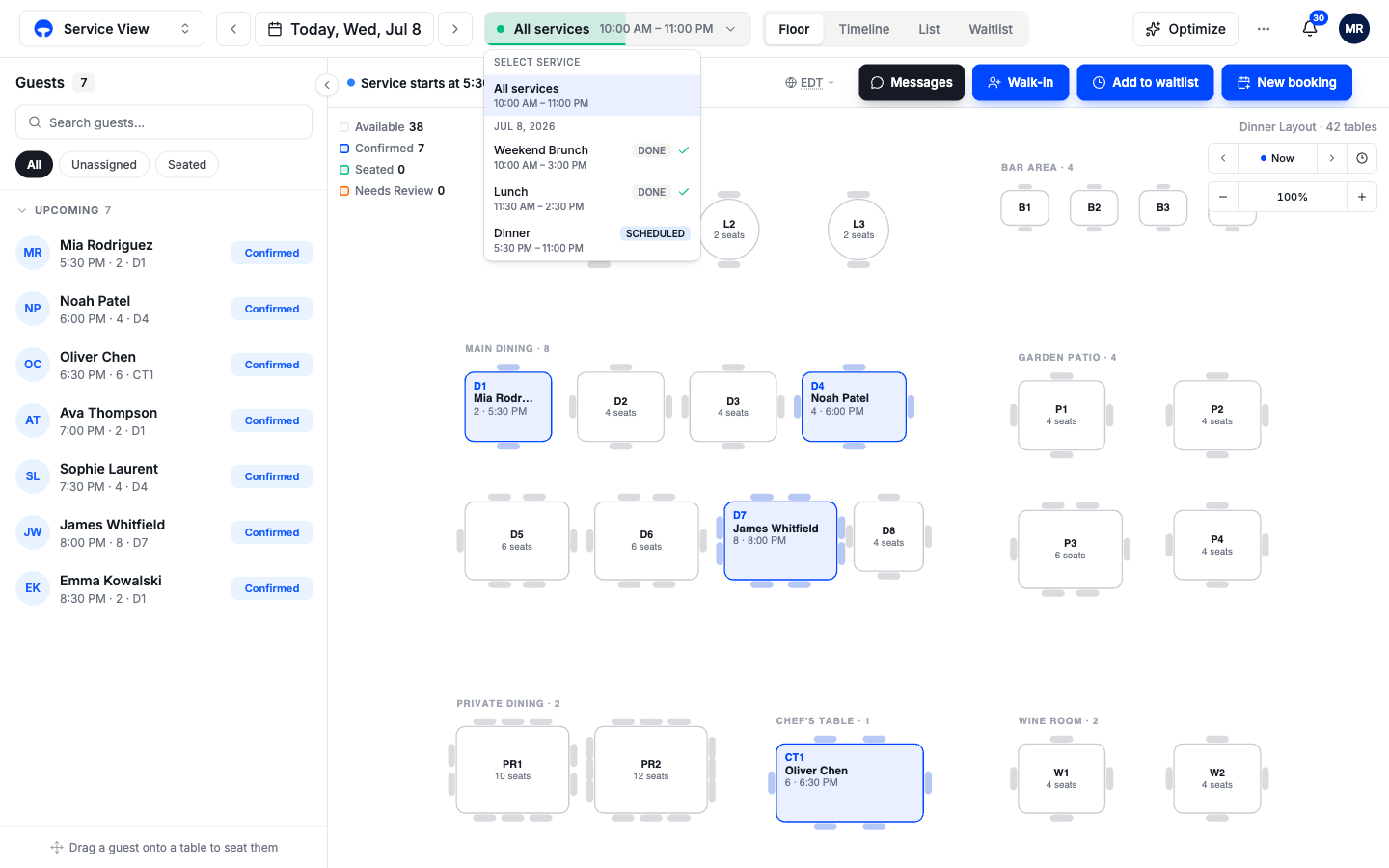
The top row, All services, shows the whole day in one view, from the first service's open to the last one's close. Gaps between services show as closed time, and Covers follows whichever service is live right now for seating and stats. Use it when you work a full day; pick a single service when you only care about tonight's dinner.
The quick actions
The row under the header holds the actions you reach for mid-service. Which buttons appear depends on the service's mode; a standard service shows all of them.
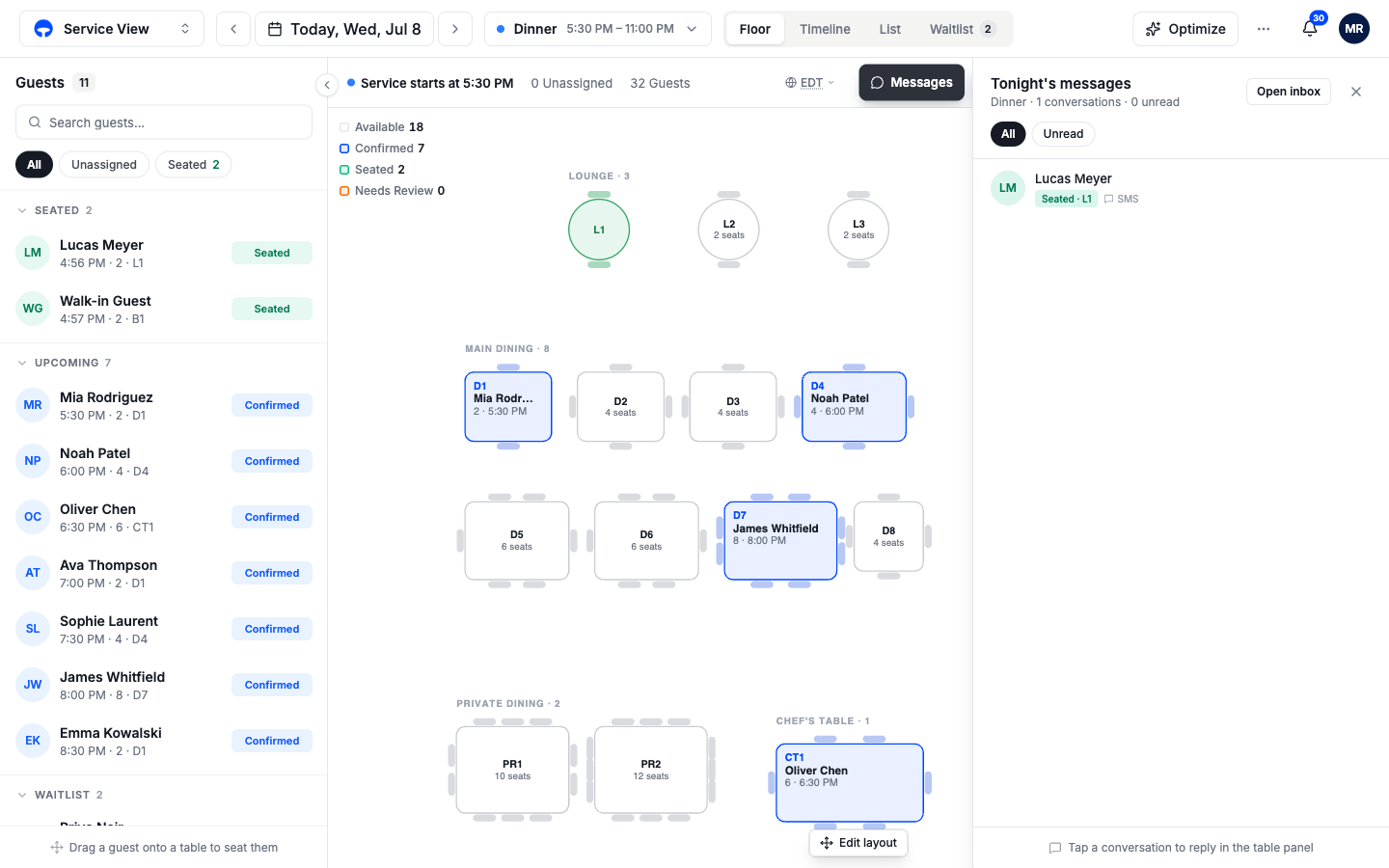
- Messages opens the Tonight's messages drawer, every guest text conversation for this service, with an unread filter. Tap a conversation to reply from the guest's booking.
- Walk-in seats a party that arrived without a booking. See Seat a walk-in.
- Add to waitlist puts a party in line when no table is free. See The Waitlist tab.
- New booking takes a reservation by hand, date and time, guest, confirm.
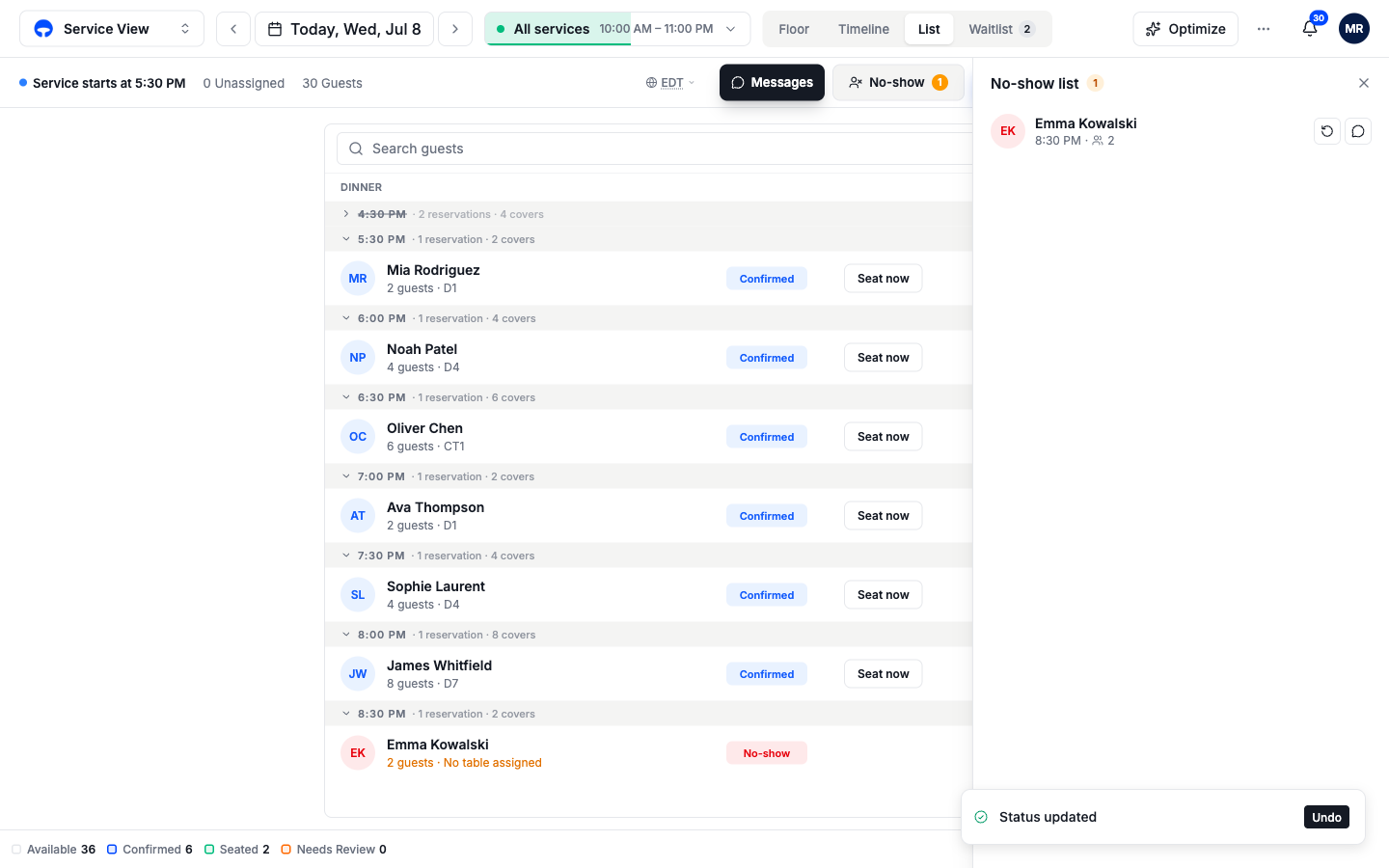
- No-show appears only when tonight has at least one no-show. It opens the No-show list, where Reinstate puts a booking back and Message texts the guest.
Marking a booking no-show releases its table and offers an Undo for a few minutes; the No-show list keeps the night's misses one click away so a returning guest is reinstated fast.
The same row shows the service status on the left, when service starts or ends, plus running counts of guests booked and bookings still without a table.
The four tabs
- Floor is your floor plan, the map of your tables, live. Drag guests onto tables to seat them and read every table's status by color.
- Timeline lays bookings on a time grid, one row per table. Drag blocks to change times or move tables.
- List groups bookings by time slot, the fastest tab for check-ins and a favorite on busy doors.
- Waitlist tracks walk-in parties waiting for a table, with quoted waits and a text-the-guest flow.
Service modes
A service can run in one of three modes, set in Availability: Standard (the full view above), Guest list (a door check-in sheet, no tables), or Waitlist only (the waitlist is the whole screen). The mode changes which tabs and buttons show. Read Service modes to pick the right one per service.