

Go live
What the Go live checklist checks, and what changes when you flip the switch.
The Go live page in Settings is the gate between setting up and taking real bookings. While your venue is not live, your booking page is hidden and no texts go to guests, so you can experiment freely. This page explains what each item on the checklist checks and what happens the moment you go live.
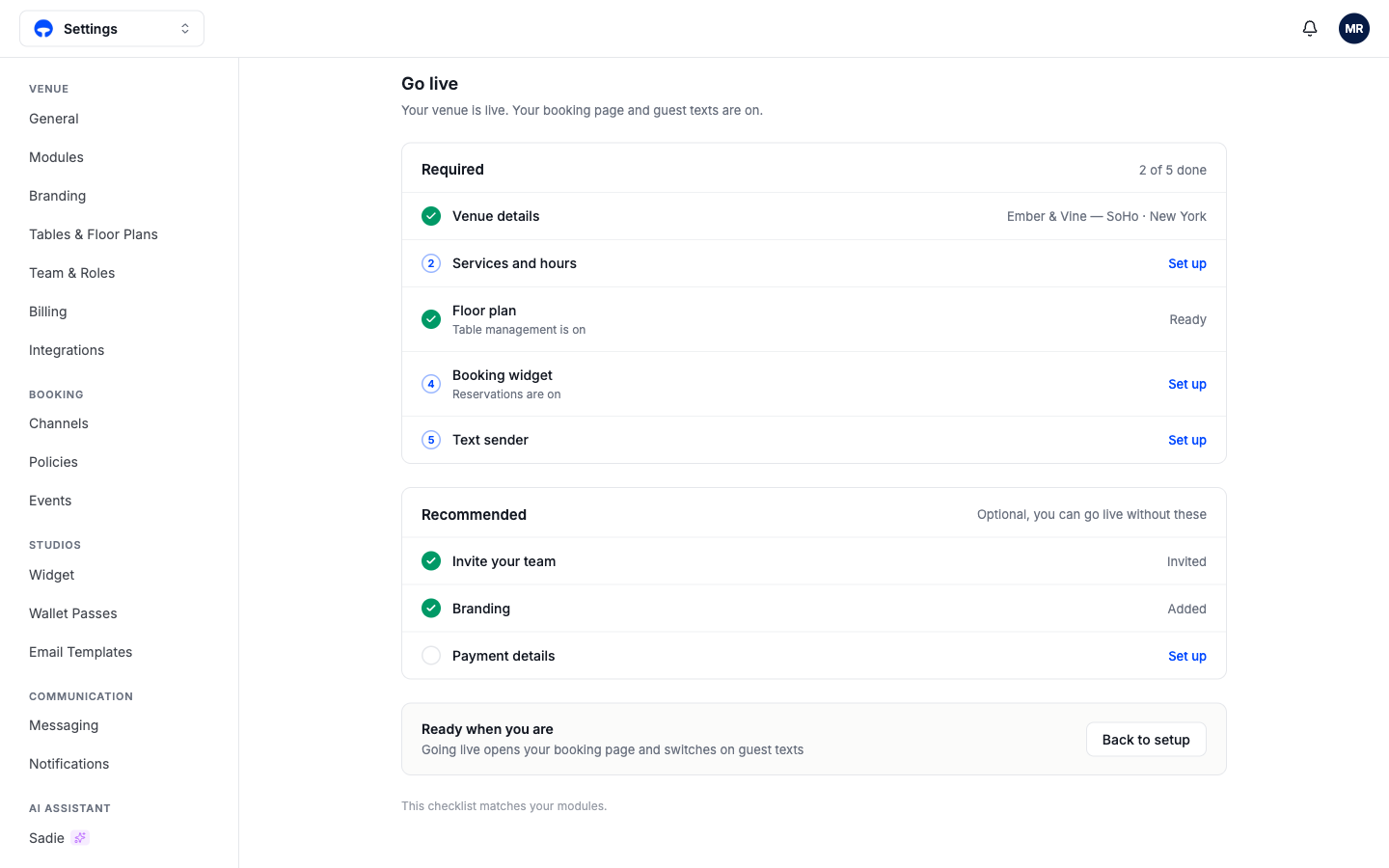
The required steps
Each required item ticks itself as you finish the matching page, and Set up jumps you straight to it. The list matches your modules: a venue without table management skips the floor plan step, and a venue without online reservations skips the booking widget.
Venue details checks your name, address, and contact details in Settings, under General. These fill your booking page and confirmation texts.
Services and hours checks that at least one service is scheduled. Guests can only book inside a service's hours, so a venue with no services has nothing to sell.
Floor plan checks that your tables are drawn. It shows "Table management is on" underneath because it only appears for venues using tables.
Booking widget counts as done once you copy or open your booking link from the Widget page; that is the signal you have seen your page and it looks right.
Text sender checks the phone number your guest texts come from, set in Settings, under Messaging. If Sadie answers your phone, she shares this number.
Set up Sadie appears as a sixth step when the Sadie voice add-on is on for your venue. It counts as done once you save Sadie's configuration, the number she answers calls and texts on.
The recommended steps
You can go live without these three, and the page says so. Invite your team counts once you send an invite from Team & Roles. Branding counts once you save your logo or colors. Payment details points at Billing so your subscription continues past the trial.
The Finish setup panel
While your venue is not live, the same checklist floats at the corner of the dashboard as a Finish setup panel. It walks you through one step at a time, ticks each one as you finish, and offers Skip when a step does not apply to you; a skipped step counts as done. The panel disappears on its own once you go live.
What changes when you go live
Clicking Go live opens your booking page to guests and switches on guest texts, and Covers confirms with "You're live. Your booking page is open." If you need to close up again, the same page offers Back to setup, which pauses your booking page until you return.
What's next
Take your first booking by hand with Take a booking, or put the widget on your website with the Booking Widget guides.