Take a booking
Enter a phone or in-person reservation in three steps.
When a guest books over the phone or at the door, you enter it here. The New booking window walks through three steps: pick the time, pick the guest, confirm. With a regular guest it takes under a minute.
Before you start
Booking times come from your services in Availability. If the day shows no times, that service is not running or is fully booked; see the availability calendar.
The walkthrough
Open the New booking window
Click New reservation at the top right of the Reservations page. The window opens on step 1, Date & time.
Pick the date, party size, and service
Set the date with the date pill, set the party size with the minus and plus buttons, and pick the service from the menu on the right. The available times below update as you change each one.
Choose a time
Click a time chip. Covers marks the best available table for that time under the chip, and the Table row below fills in with Auto-assign plus the closest-fitting tables. Leave Auto-assign selected unless the guest asked for a specific table; All tables opens the full list.
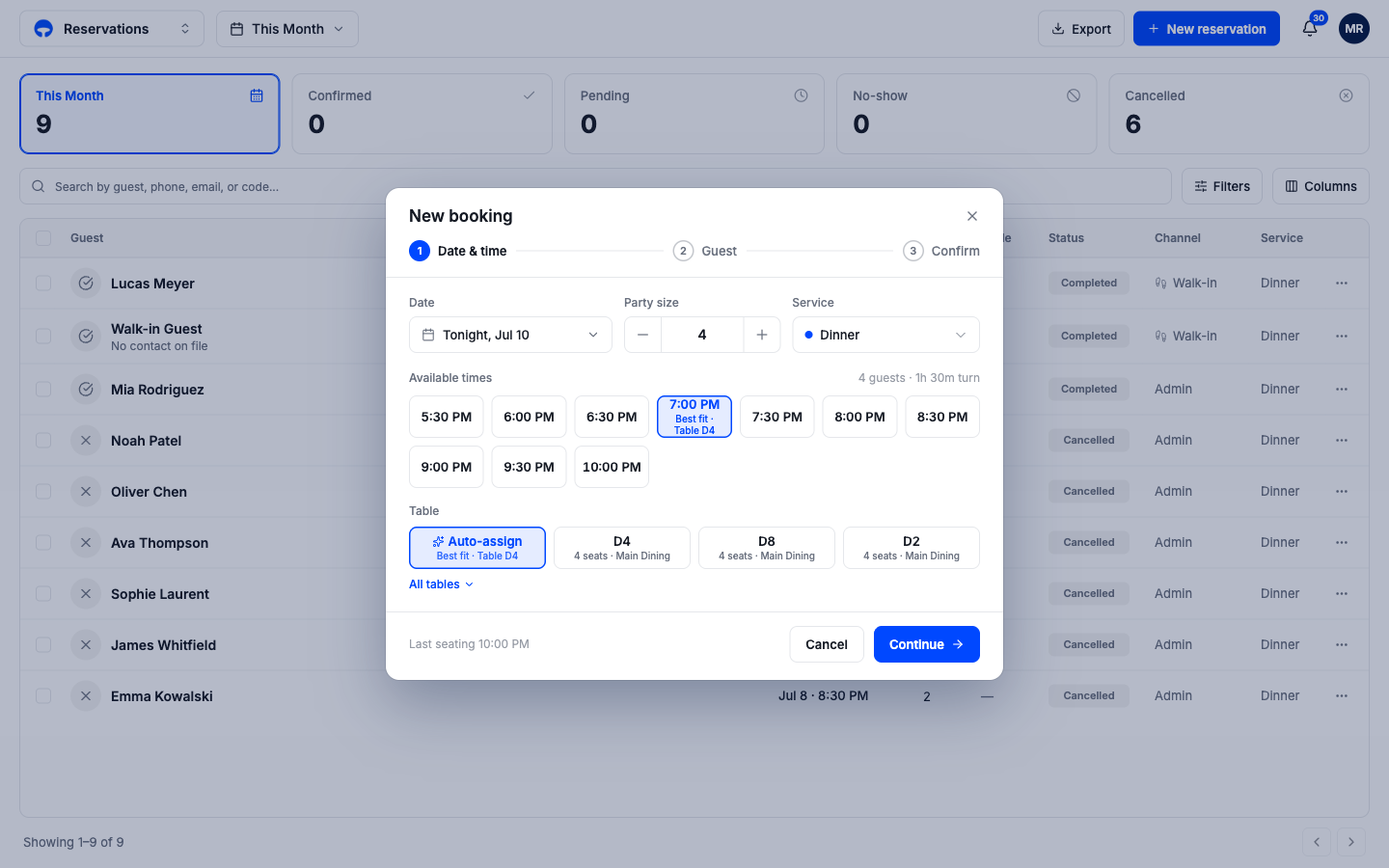
The footer shows the service's last seating time. Click Continue.
Choose the guest
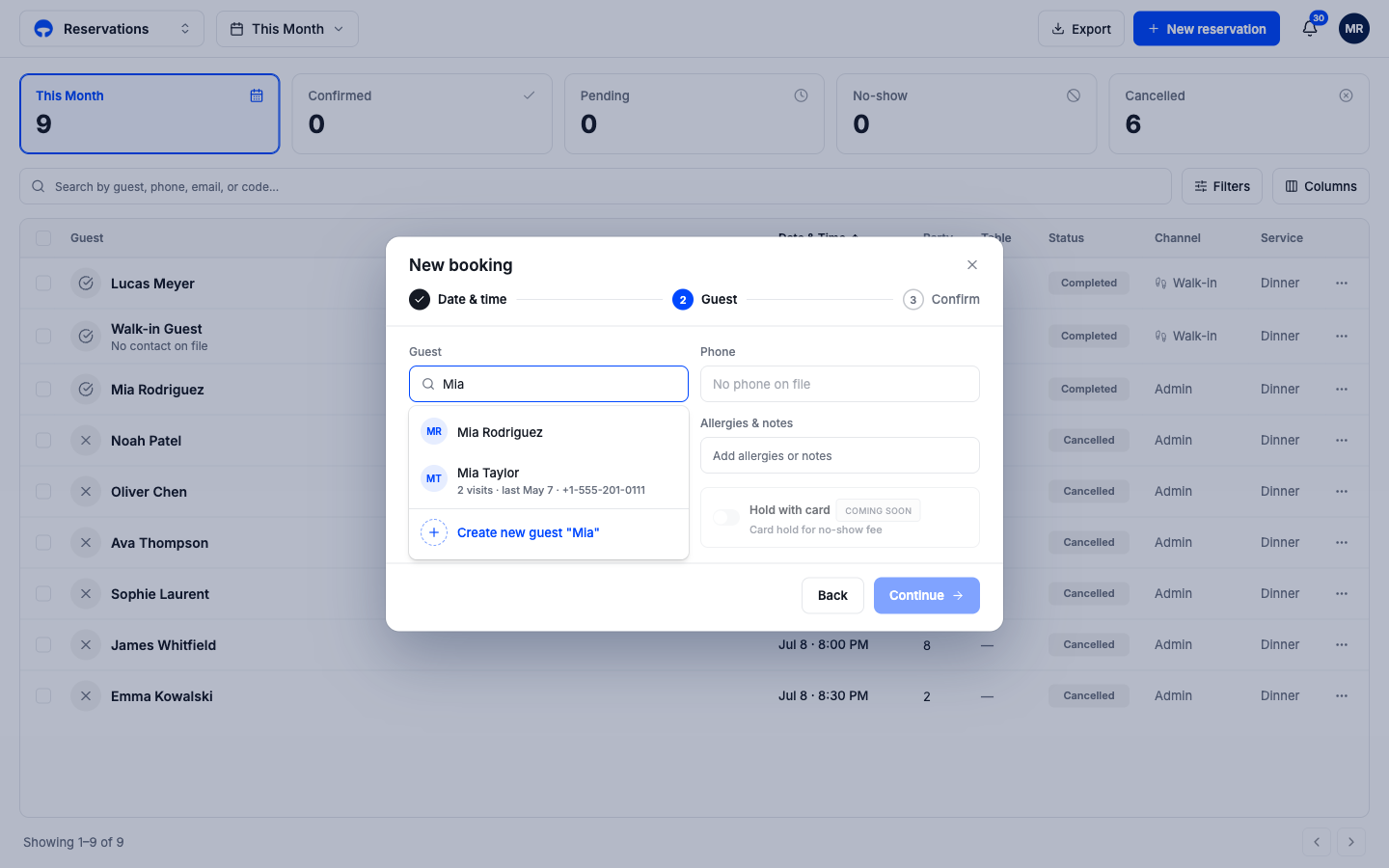
Start typing a name, phone number, or email. Returning guests appear with their visit count and number; click one to select them. If the guest is not in your guest book yet, click Create new guest and enter their name, with a phone number if they gave one.
On this step you can also add an occasion, note allergies, and control the confirmation text. Send SMS confirmation is on whenever the guest has a phone number; it texts them a confirmation right away, and a reminder goes out ahead of the booking, on the timing you set in Messaging settings. Switch it off if the guest asked not to be texted.
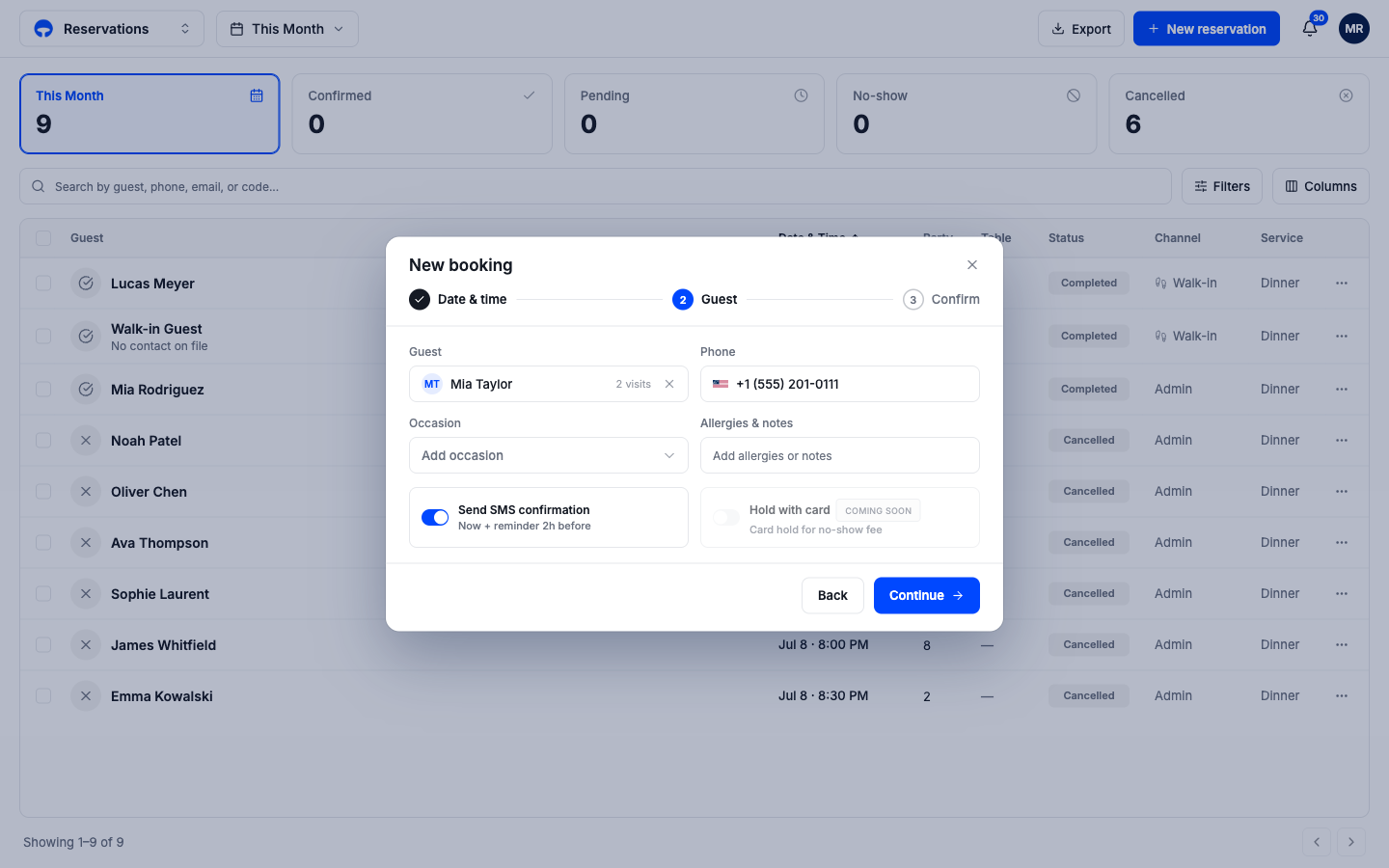
Click Continue.
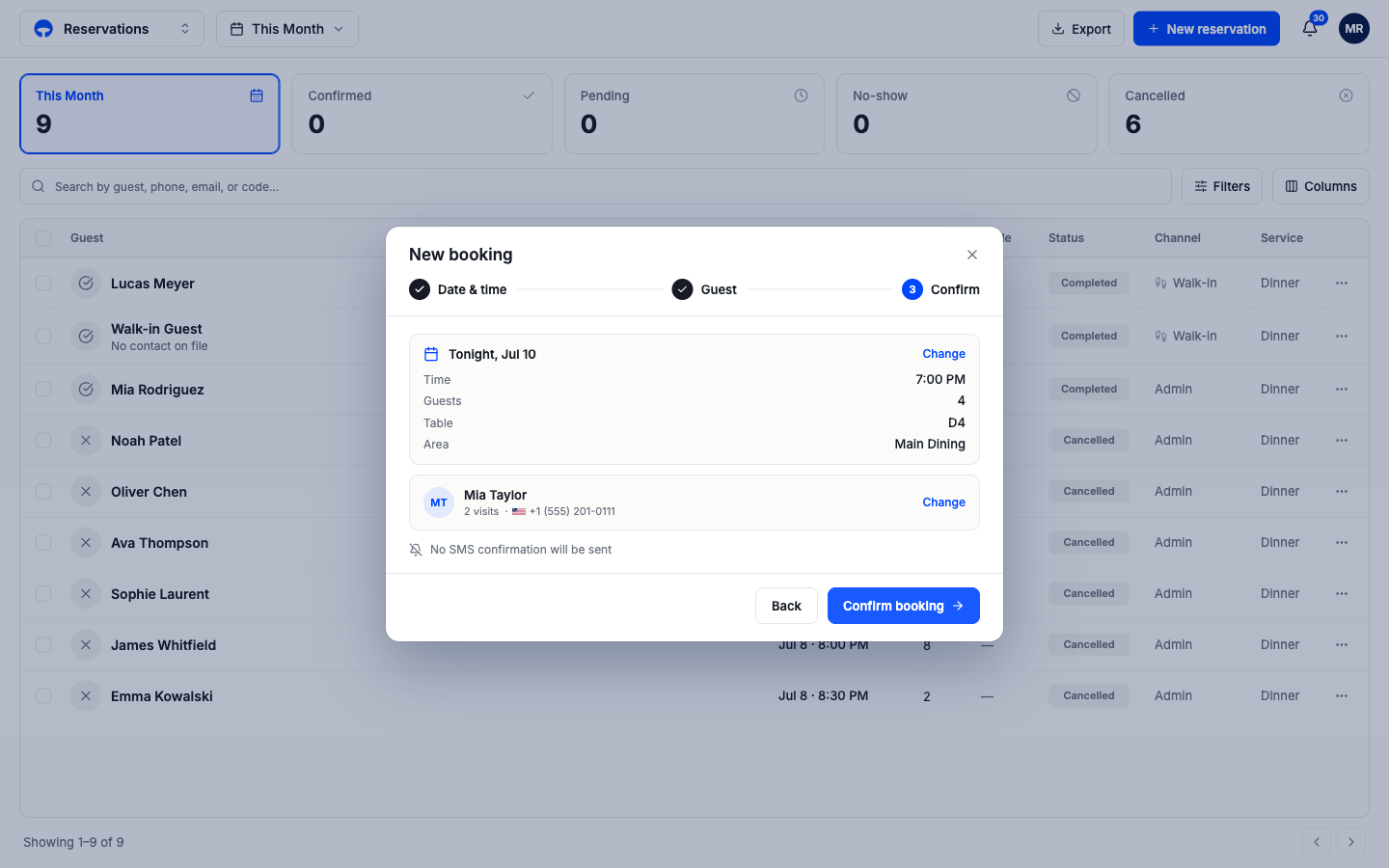
Confirm the booking
Step 3 shows the whole booking: date, time, party, table, and guest. A Change link next to each card takes you back to fix it. When it reads right, click Confirm booking. The window closes and the booking appears in the list with a Confirmed status.