

Service modes
Pick standard, guest list, or waitlist only for each service.
Every service runs in one of three modes, and the mode decides what the Service view shows while that service is live: which tabs, which buttons, whether there is a floor at all. A dinner service with table bookings wants the full view; a club night with a door list does not. The mode is set per service, so your lunch and your late-night door can work completely differently on the same day.
What each mode shows
Standard is the full Service view and the default: all four tabs (Floor, Timeline, List, Waitlist), the guest rail, and every quick action, including Walk-in and New booking. Everything in this section's other pages describes a standard service unless it says otherwise.
Guest list turns the service into a door check-in sheet. There is no floor, timeline, or waitlist; the list is the whole screen, guests are ticked in and out at the door, and the quick actions shrink to Messages and Add to guest list. Built for venues and nights that sell entry, not tables. The full flow is on Guest list mode.
Waitlist only makes the waitlist the whole view, for walk-in-only rooms that seat from a line instead of taking bookings. The Walk-in and New booking buttons go away; parties enter through the waitlist, get notified, and get seated, exactly as on The Waitlist tab. On a wide screen the floor still shows beside the list, since the line still ends at a table.
Change a service's mode
Open the service in Availability
Go to Availability, open the Services tab, and click Edit on the service.
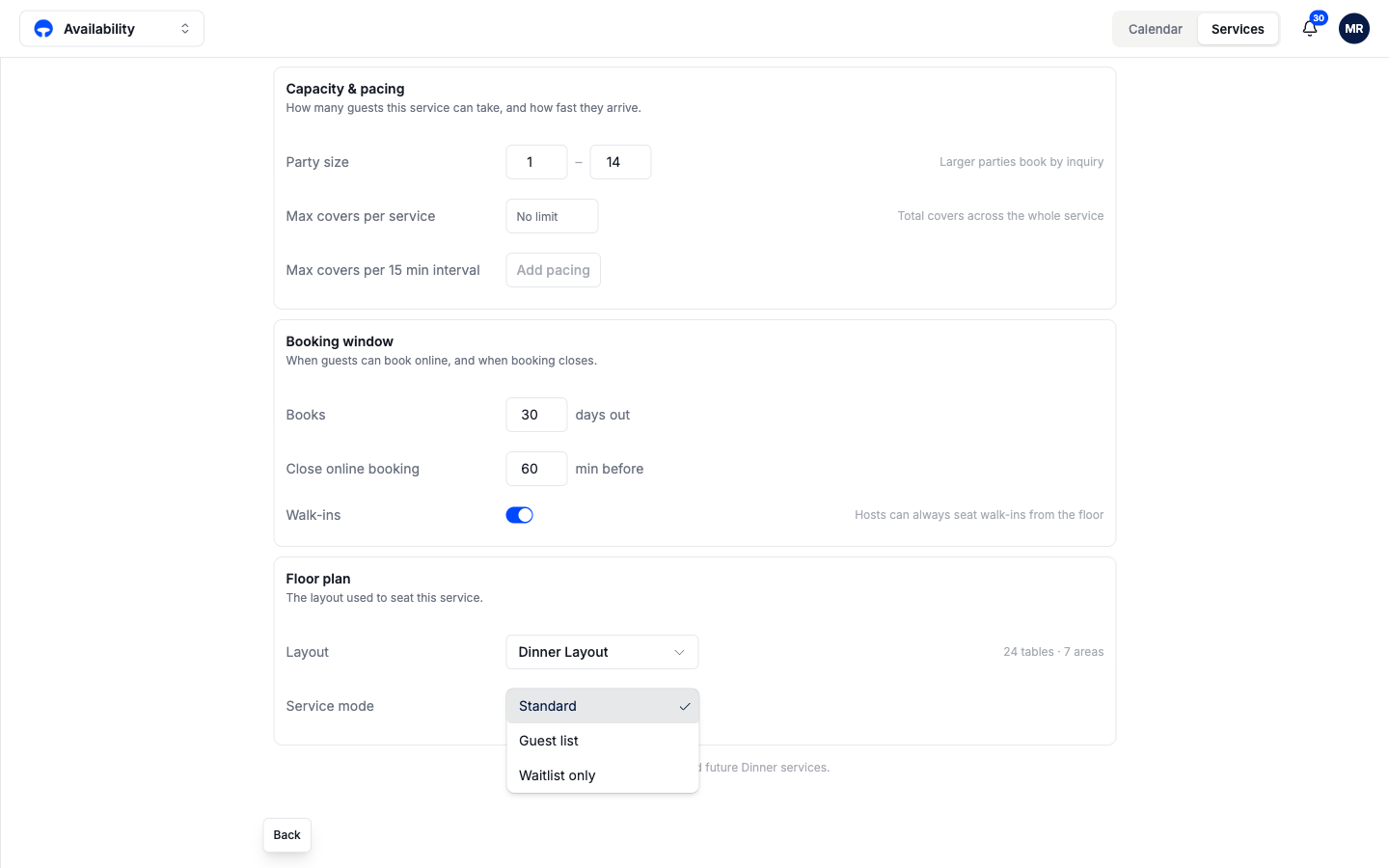
Find Service mode in the Floor plan card
Scroll to the Floor plan card. Service mode sits under the layout picker.
Pick the mode
Choose Standard, Guest list, or Waitlist only. The note under the field says it plainly: the change applies to this and future runs of the service, not to nights already gone.
Mode changes reach your booking channels
Only standard services take online reservations. Switch a service to Guest list or Waitlist only and its booking times come off your booking widget and connected channels such as Reserve with Google. Existing reservations are not cancelled, but no new ones can be made.
Which mode for which night
| You run... | Pick |
|---|---|
| Table service with reservations | Standard |
| A door with cover charge or RSVPs, no table plan | Guest list |
| First-come seating from a line, no bookings | Waitlist only |