

The List tab
Work check-ins from a time-ordered list of tonight's bookings.
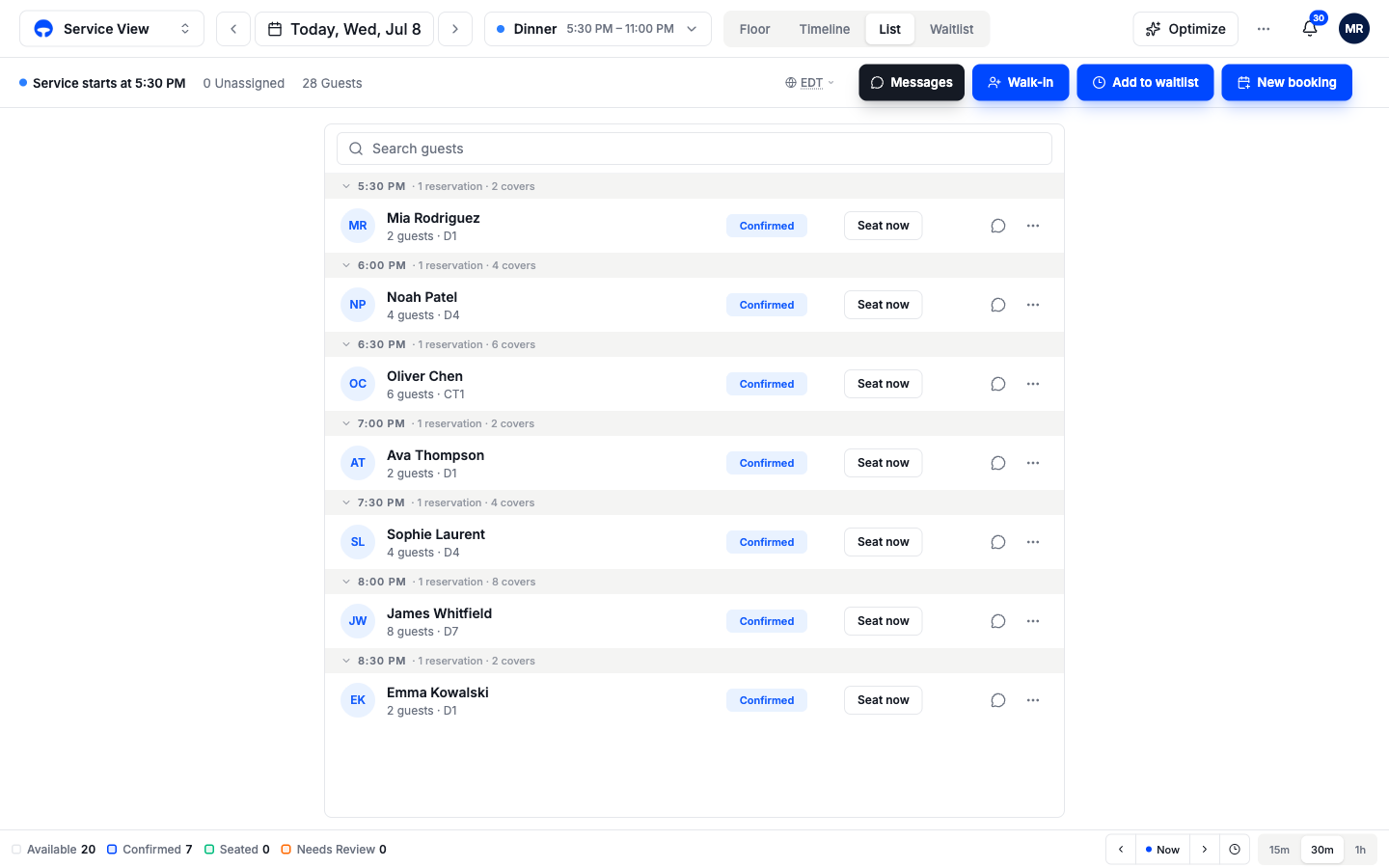
The List tab shows every booking for the service as rows grouped by time slot, with the covers per slot added up in each group header. It reads like the paper book: 7:00 PM, one reservation, two covers. When the door gets busy and you just need names in order, this beats scanning the floor.
Reading a row
Each row carries the guest's name, party size, table, and a status badge, Confirmed, Seated, and so on. The speech-bubble icon opens the guest's message thread, and the three-dot menu holds the rest of the booking's actions.
Act on a booking from its row
- Seat now checks the party in and seats them at their table in one tap. The row's badge flips to Seated and the table turns green on the floor.
- Assign table shows on bookings that have no table yet. Pick one from the list and the booking is set.
- Review shows on bookings flagged Needs Review, usually a table clash after an edit. Open it, pick a table, done.
Finished bookings stay in their time slot, showing how long the party has been seated, and slots whose time has passed collapse on their own, so the working list stays short.
The list on an All services day
The search box at the top filters by guest name as you type. With All services picked in the service pill, the list covers the whole day and adds a header per service, so lunch and dinner stay separate.
Doors without tables use this tab too
On a service set to Guest list mode, the List tab becomes a door check-in sheet with tick-offs instead of tables. That flow has its own page: Guest list mode.