The Floor tab
Seat arrivals, move parties, and read table status on the live floor.
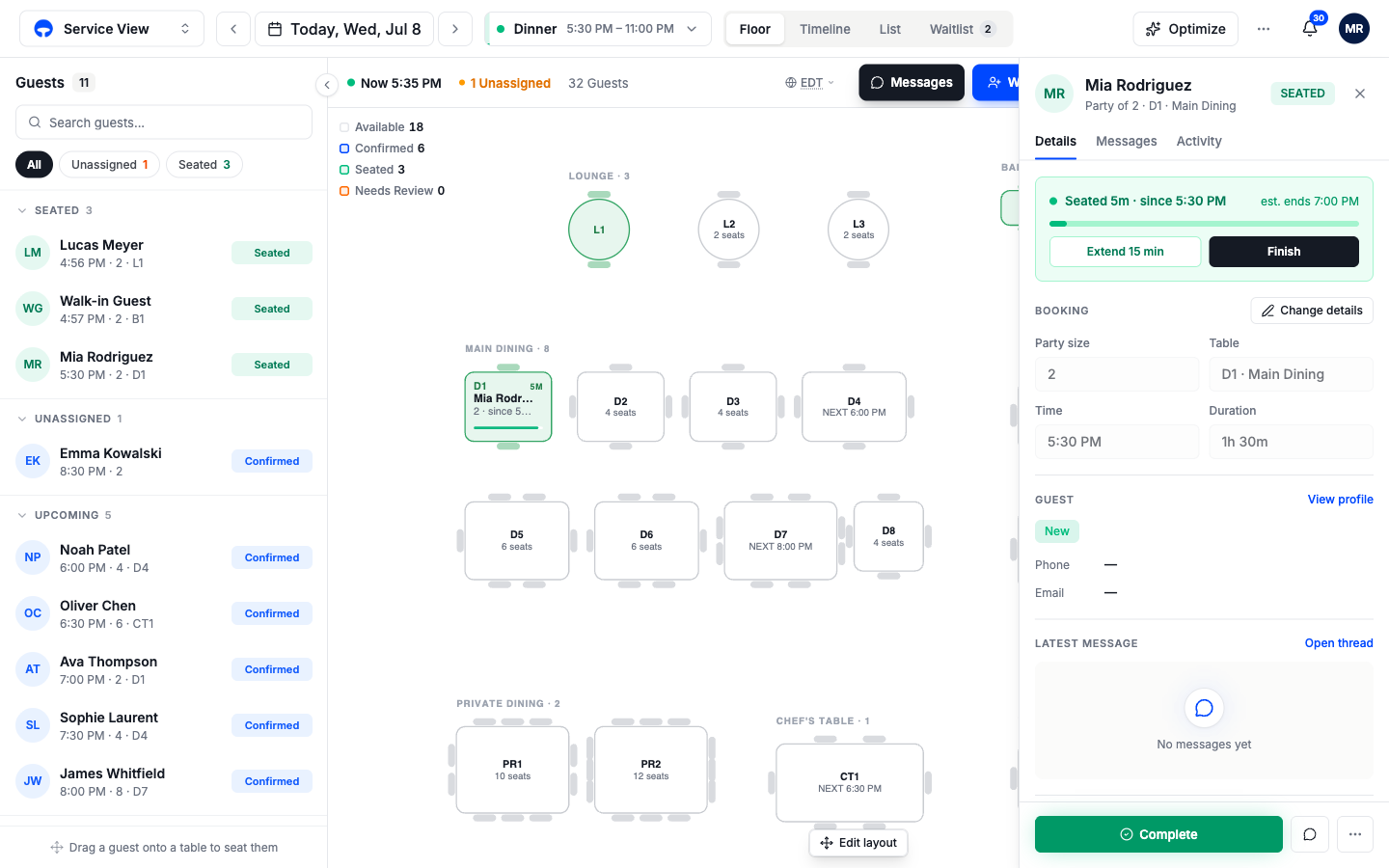
The Floor tab shows your floor plan, the map of your tables, with tonight's service laid over it. Every table tells you its state by color, the guest rail on the left holds everyone due in, and seating a party is one drag. If you work the host stand, this is the tab you live on.
Before you start
The floor comes from your saved floor plan and the layout attached to this service. To add or rearrange tables, see Build your floor plan; the Service view only seats guests, it never edits the room.
Reading the floor
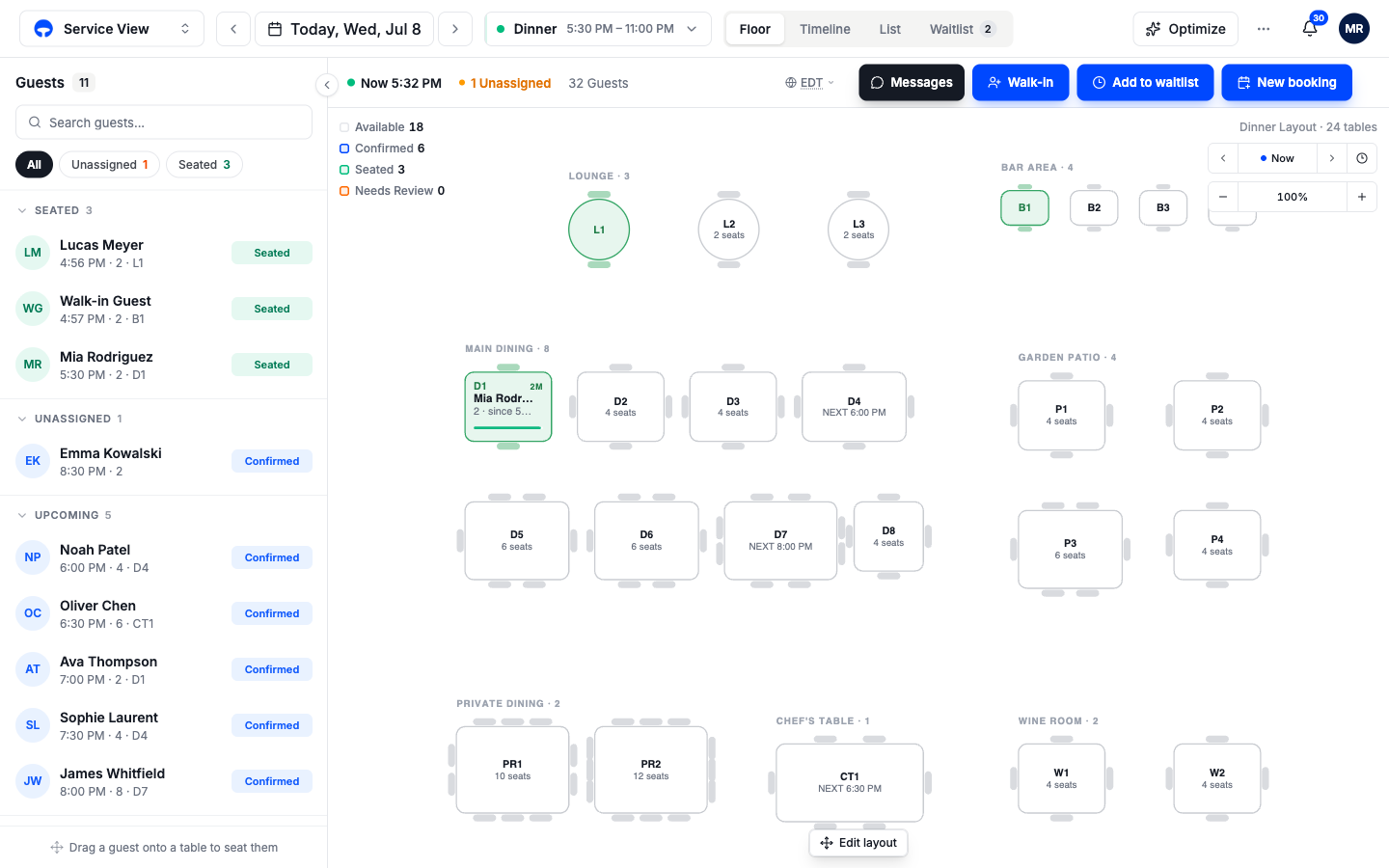
Each table shows its number and seat count. When a booking is attached, the table shows the guest's name, party size, and time:
- Blue outline means the table has a confirmed booking coming up; the label shows the next booking's time.
- Green means the party is seated there now, with a running count of their time at the table.
- Plain means the table is free.
The legend in the top corner keeps the running counts: Available, Confirmed, Seated, and Needs Review. The zoom controls sit top right; pinch or use the plus and minus to fit a big room on a small screen.
The guest rail
The left rail lists tonight's guests grouped by state: seated parties first, then unassigned bookings waiting for a table, then upcoming bookings in time order, then anyone on the waitlist. Three filter chips, All, Unassigned, and Seated, narrow the list, and the search box finds a name fast. The rail is also your seating tool, which is the next step.
Seat an arriving party
Find the booking in the guest rail
The party walking in is in the Upcoming group, listed by time. Search by name if the rail is long.
Drag the guest onto their table
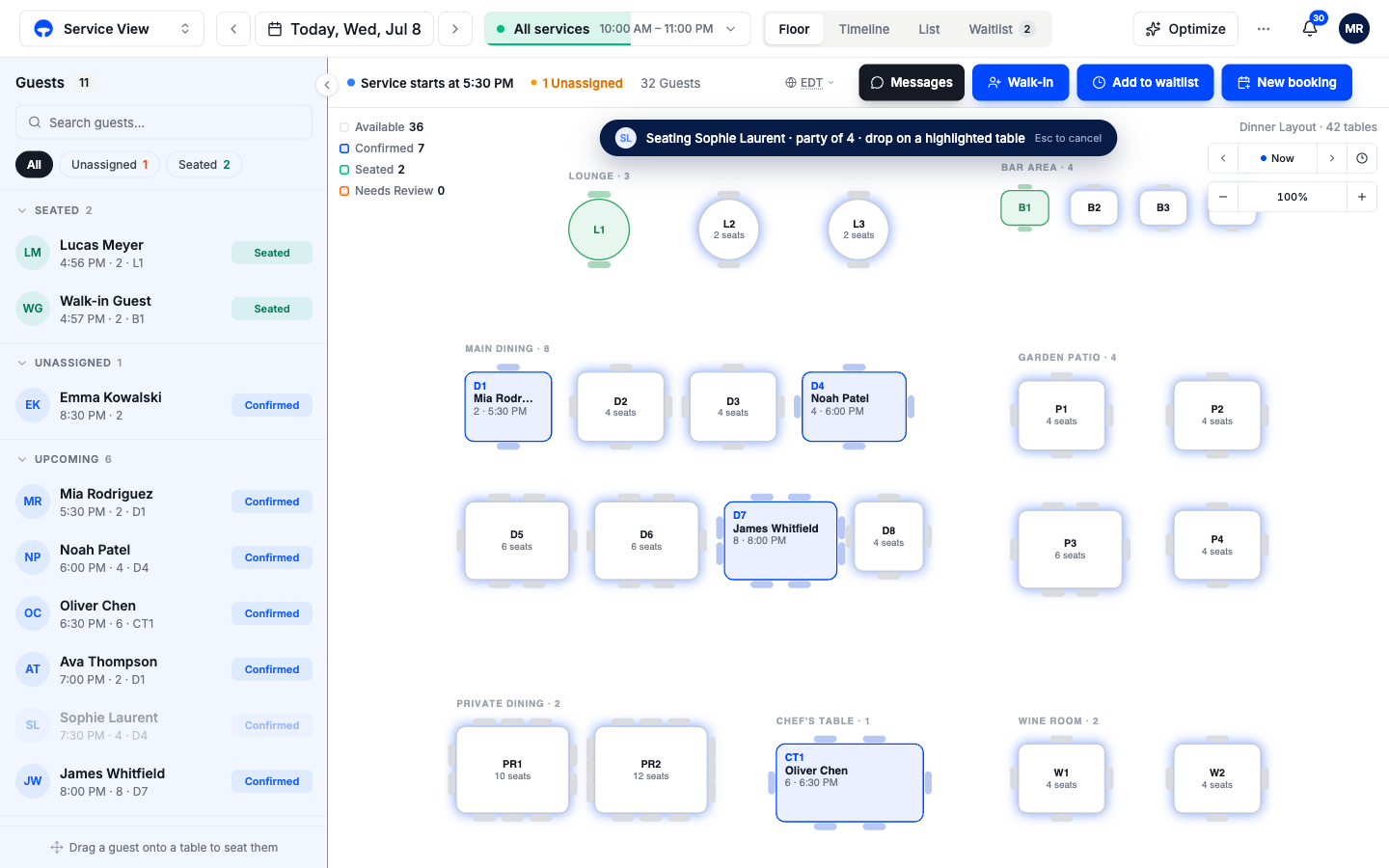
Press and hold the row, then drag it onto a table and let go. While you drag, a banner names the party and every table that can take them lights up; Esc cancels the drag. The table turns green on the drop and the party moves to the Seated group in the rail.
Check the party won't outgrow the table
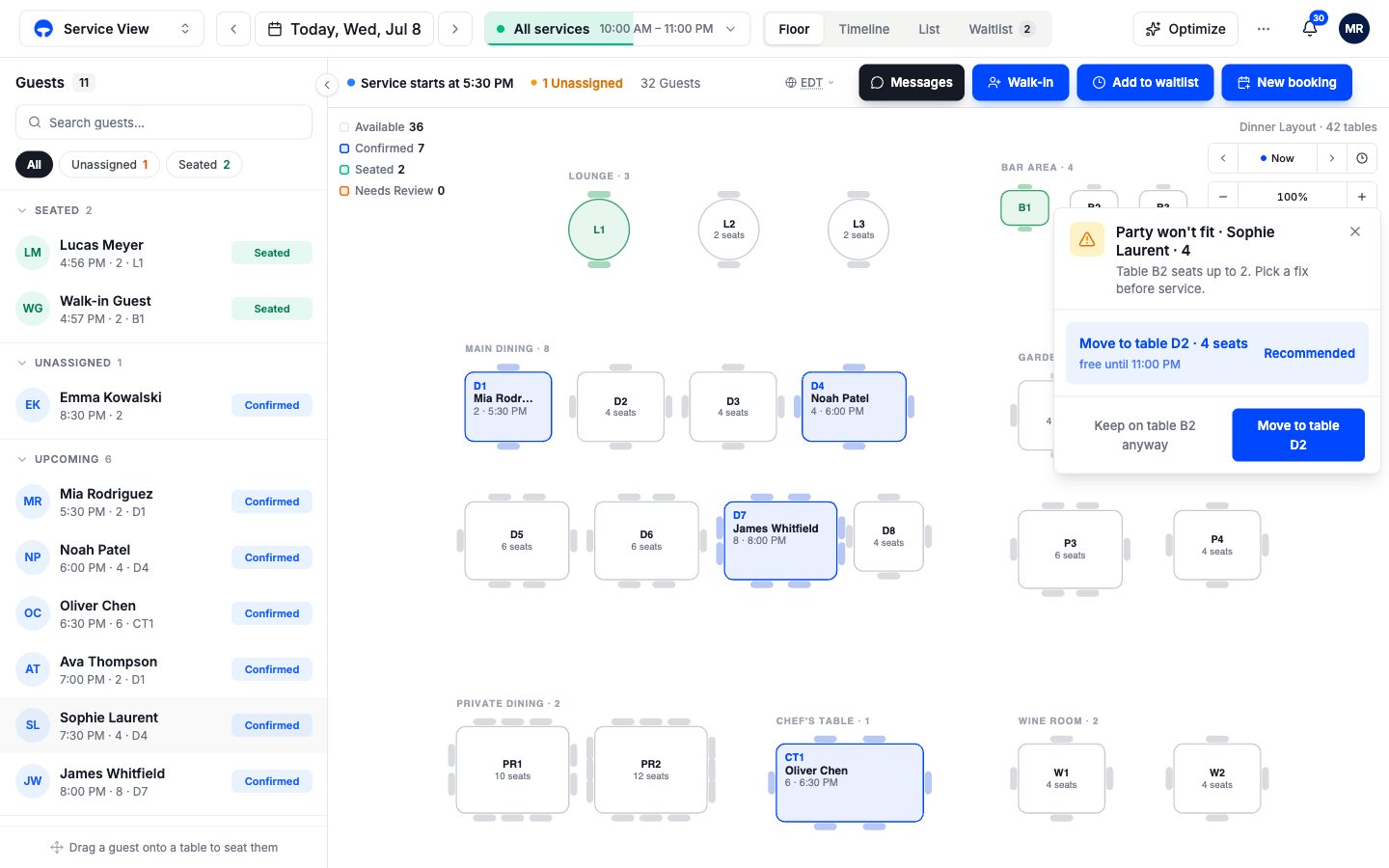
If you drop a party on a table with too few seats, Covers stops and shows the Party won't fit panel: a recommended table that fits and is free long enough, or the option to keep the tight table anyway. Nothing is saved until you pick.
You can also seat from the table itself: tap an empty table during service and the walk-in window opens with that table ready to go. See Seat a walk-in.
Move or finish a seated party
Tap a seated table to open the party's booking. The panel shows how long they have been seated and when their table is due back, with Extend 15 min to buy them time and Finish to close the table when they leave, which frees it for the next booking. The booking fields below change their party size, table, time, or duration; moving them onto an occupied table is blocked, and Covers asks you to pick another.