

Guest profiles
Read a guest's history, add notes and tags, and manage problem guests.
Click any guest in the directory and their profile opens on the right. This is the page your host reads before the party arrives: who they are, how often they come, what they need, and what happened last time. Everything on it can be updated without leaving the panel.
What the profile shows
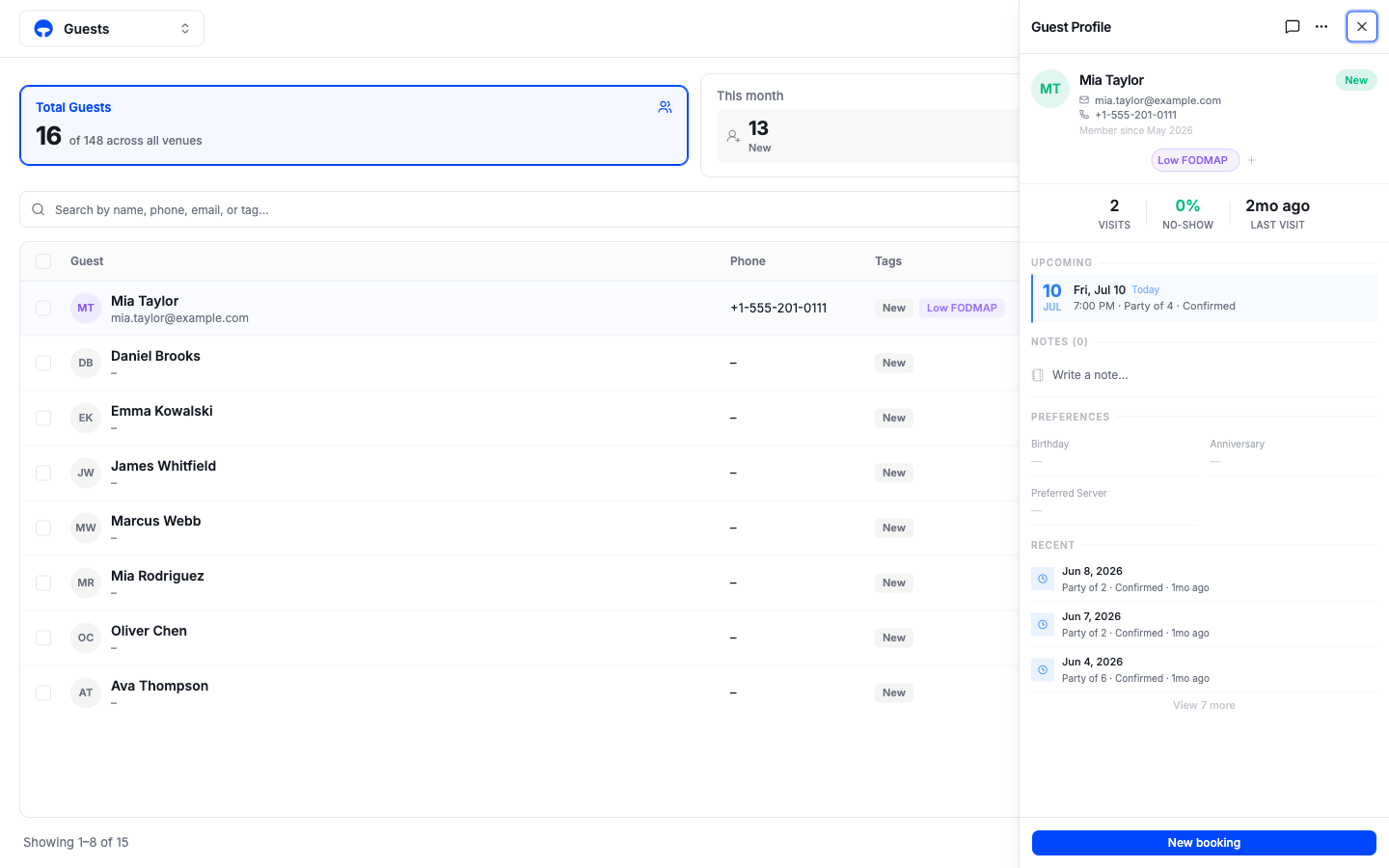
From top to bottom:
- The header: name, tier badge, email, phone, and how long they have been a guest. The speech-bubble icon at the top opens your message thread with them.
- Tags: dietary needs, allergies, occasions. The small plus adds more.
- The numbers: visits, no-show rate, and last visit.
- Upcoming: their next booking, with today's marked.
- Notes: your team's running notes on the guest. Type in Write a note and press Enter; each note keeps its date.
- Preferences: birthday, anniversary, and preferred server.
- Recent: their visit history, newest first.
The New booking button at the bottom starts a reservation with this guest already selected.
Add and remove tags
Click the plus next to the tags to open the tag picker. Tags are grouped by what they mean: Dietary, Allergies, AI Insights that Covers spots on its own, such as Frequent Visitor, then Occasion, Loyalty, and Custom for tags you create yourself. Click a tag to add it, click the x on an existing tag to remove it, or type to search and create a new one. Changes save as you click.
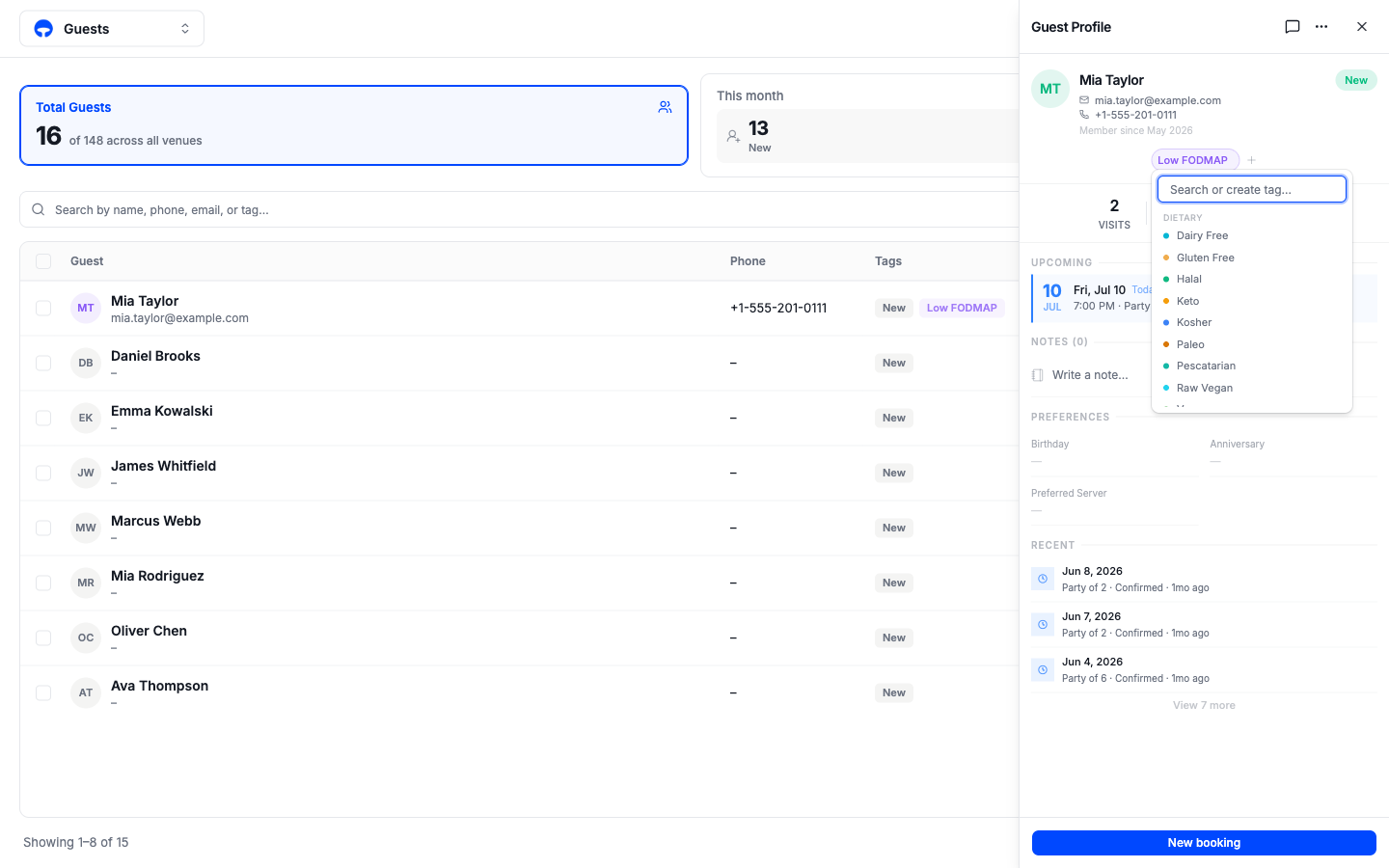
Tags live on the profile, so your host sees them on every visit. For the kitchen, note allergies on the booking itself when you take it; the booking has its own allergies field.
Manage a guest from their row
The three dots at the end of a guest's row in the directory hold the bigger moves: Edit, Blacklist, and Delete.
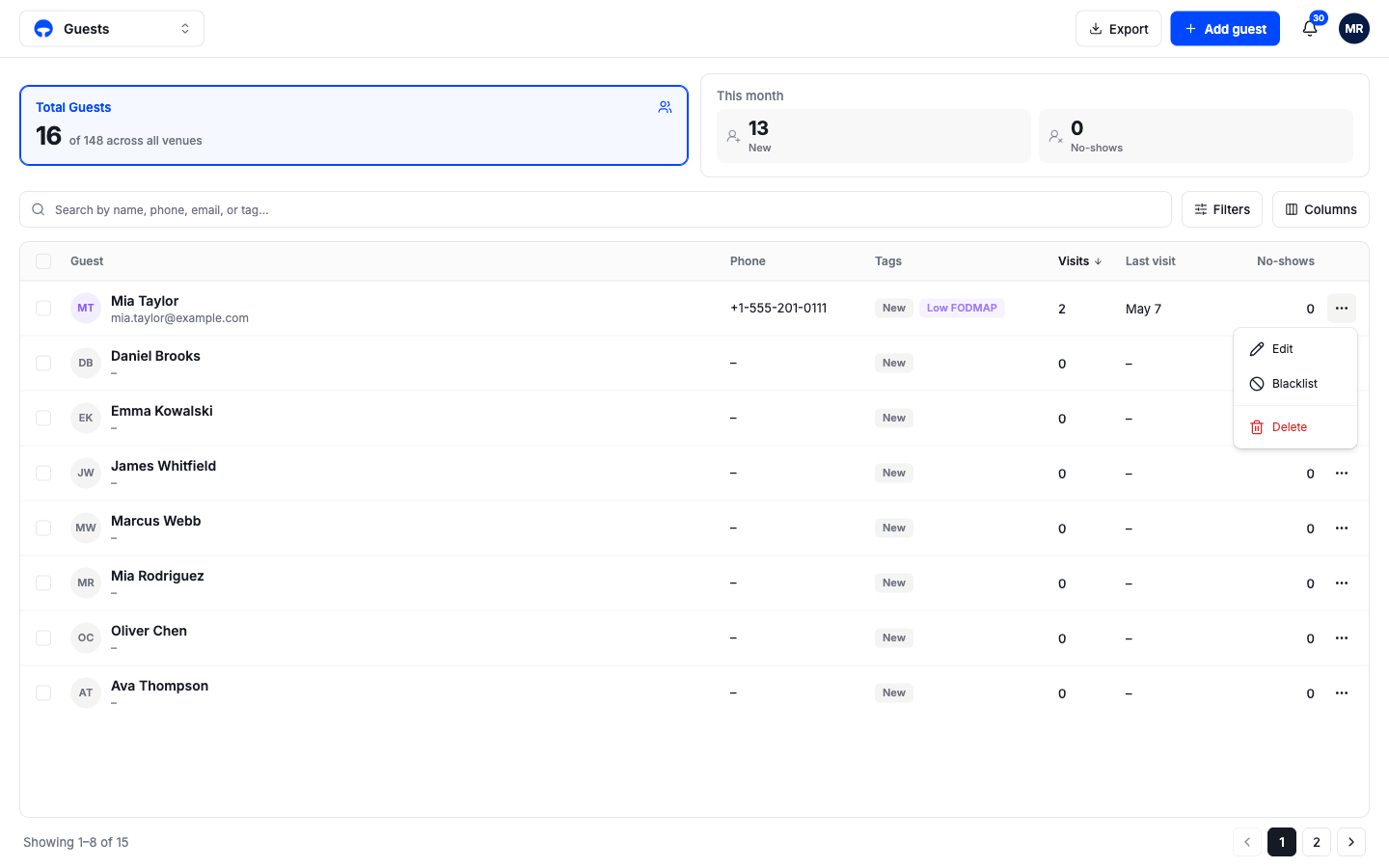
- Edit reopens the three-step guest window with everything filled in.
- Blacklist marks the guest so the team is warned when they book. It sits on top of their tier rather than replacing it, and you can lift it the same way you set it.
- Delete removes the profile after a confirmation.
Deleting a guest removes their profile, notes, and tags for good. For a guest you never want to seat again, blacklist instead; the record and the warning both stay.