

Deposits and no-show protection
Take a deposit or hold a card when a guest books, charge a no-show fee automatically, and send a payment link for bookings you make yourself.
Empty covers on a busy night are expensive. Covers can ask guests to leave a deposit when they book, hold their card as a guarantee, and charge a fee automatically when they fail to arrive. Money moves straight into your own Stripe account, so you stay the merchant and Covers never holds your funds.
Where this lives
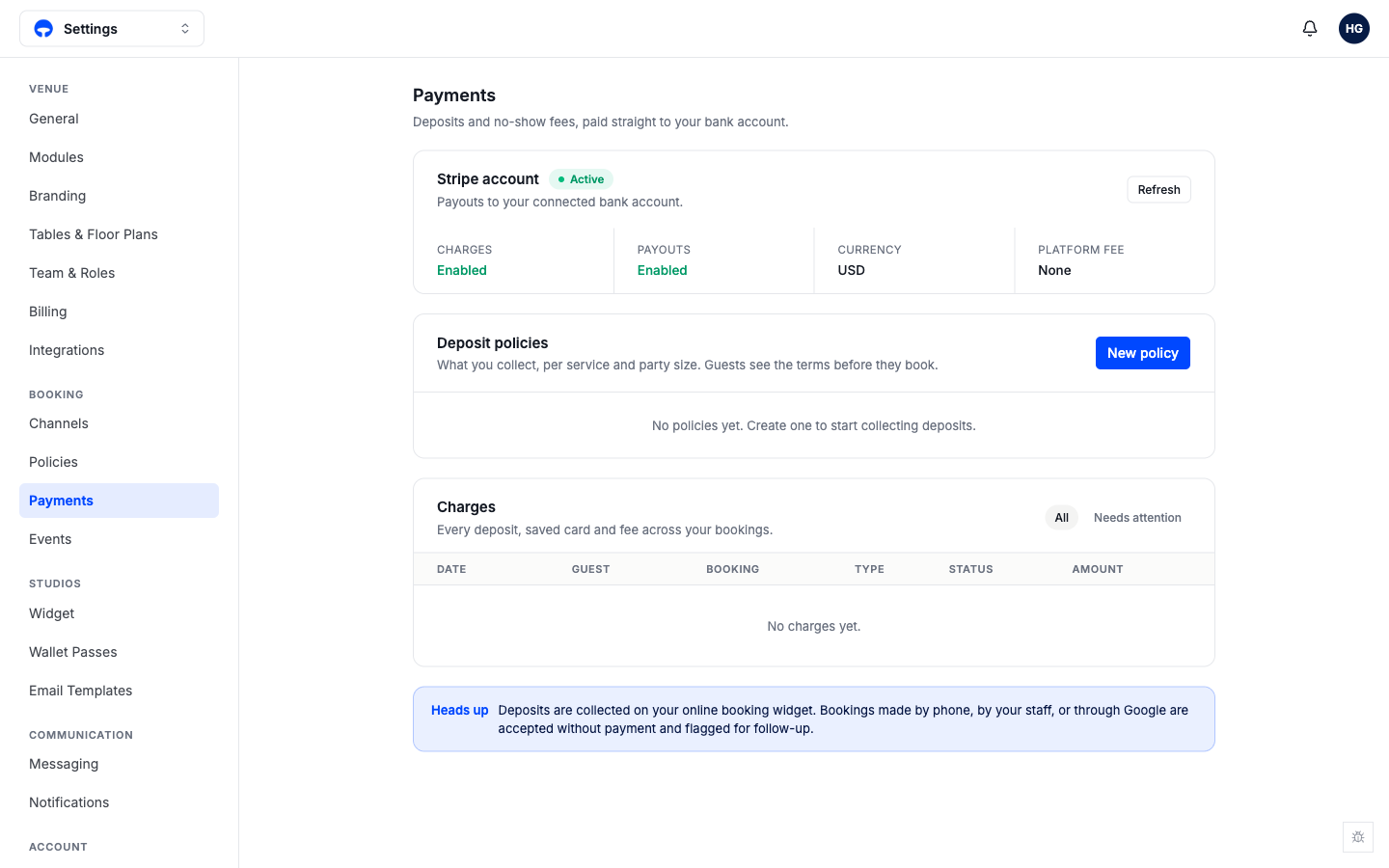
Deposits are set up under Settings, Payments. If you do not see the Payments page yet, it has not been switched on for your venue. Ask the Covers team to enable it, then come back here.
Connect your Stripe account
Deposits are collected into your own Stripe account, not through Covers. You connect once.
Open Settings, Payments and click Connect with Stripe. Covers sends you to Stripe to sign in or create an account.
Complete Stripe's short setup: your business details and where payouts should land. Stripe verifies your identity, so you deal with Stripe directly and Covers never sees your bank details.
When Stripe sends you back, the Payments page shows your account as connected, with the currency it charges in. You are ready to write your first deposit rule.
One currency
Your Stripe account charges in one currency. It needs to match your venue's currency, or Covers will flag it before you take a deposit.
Write a deposit rule
A deposit rule decides who is asked to pay, how much, and what happens to the money. You can have several, each covering different services or party sizes.
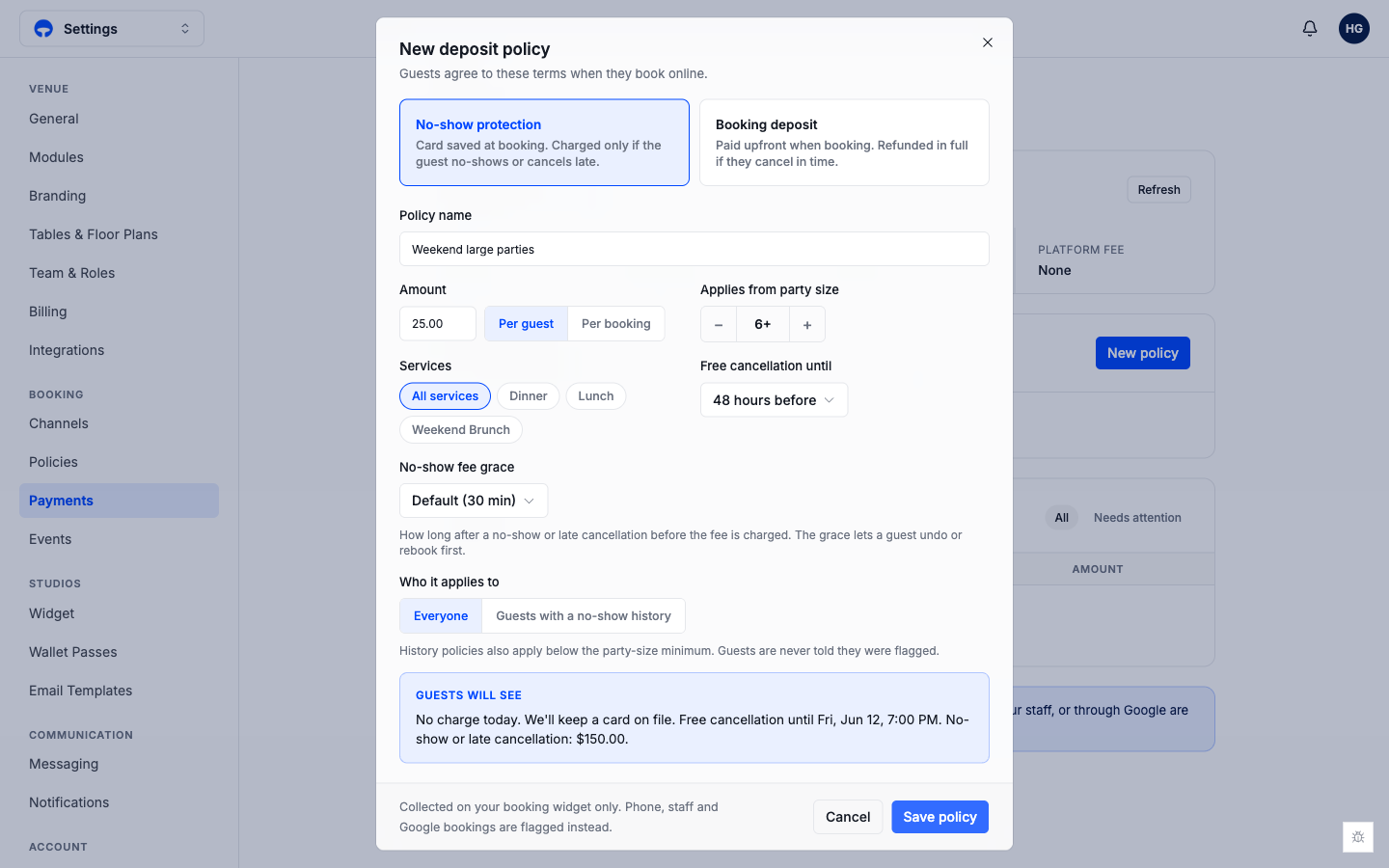
On the Payments page, click New policy. Give it a clear name, like "Weekend large parties" or "Dinner deposit".
Choose the kind of rule. No-show protection saves the guest's card and charges it only if they no-show or cancel late. Booking deposit takes the money up front and refunds it in full if they cancel in time.
Set the amount and whether it is per guest or per booking, then choose which services the rule covers and the party size it starts at. A common setup asks for a card only on parties of six or more.
Set free cancellation until, so a guest who cancels in good time is never charged. Save the rule, and Covers shows guests a plain sentence explaining the charge before they confirm.
No-show fees
When a rule uses no-show protection, Covers charges the fee automatically if the guest does not show. You can set a short grace period, so a guest who is running a few minutes late is not charged the moment their booking time passes. Deposits already paid are kept rather than grace-charged, since the guest has already paid.
You can also limit a rule to guests with a no-show history, so first-time and reliable guests book without a card while repeat no-shows are asked to secure the table. Guests are never told they were flagged.
Hold the table until it's paid
For a booking you or your team make by phone or in person, you can hold the table until the deposit is paid. Turn on Hold the table until it's paid in the rule, and choose how long to hold it, from one to twenty-four hours. Covers creates the booking, sends the guest a payment link by text, and holds the table for them. If the deposit is not paid in time, the table is released automatically, so a forgotten payment never quietly keeps a prime table off the floor.
Payment links for bookings you make
Guests booking through your online widget pay as the last step, before the table is held. For a booking you make yourself, you can send a payment link instead: the booking is made in Covers, the guest gets a link by text, and the deposit is collected without them opening the widget.
Widget bookings collect automatically
Deposits are collected in full on your online booking widget. Bookings made by phone, by your team, or through Google are flagged for a deposit rather than blocked, so you can send a link or take a card yourself.
Track and refund charges
The Payments page keeps a running list of every deposit and no-show charge. A Needs attention filter surfaces any charge that failed, so nothing slips through, and you can refund a captured charge in one click. Refunds are tracked accurately even when several updates land at once, so a guest is never charged twice.
What's next
- Set your cancellation and no-show policies so guests know the rules before they book.
- Choose which channels can take bookings, and where deposits apply.