

Modules
Turn the parts of Covers your venue needs on, and hide the rest.
Covers is built from modules, so a wine bar keeping a paper list and a hundred-cover dining room can both run the same app without wading through screens they never use. The Modules page decides which parts of Covers your venue runs. Open the menu at the top left, choose Settings, then click Modules.
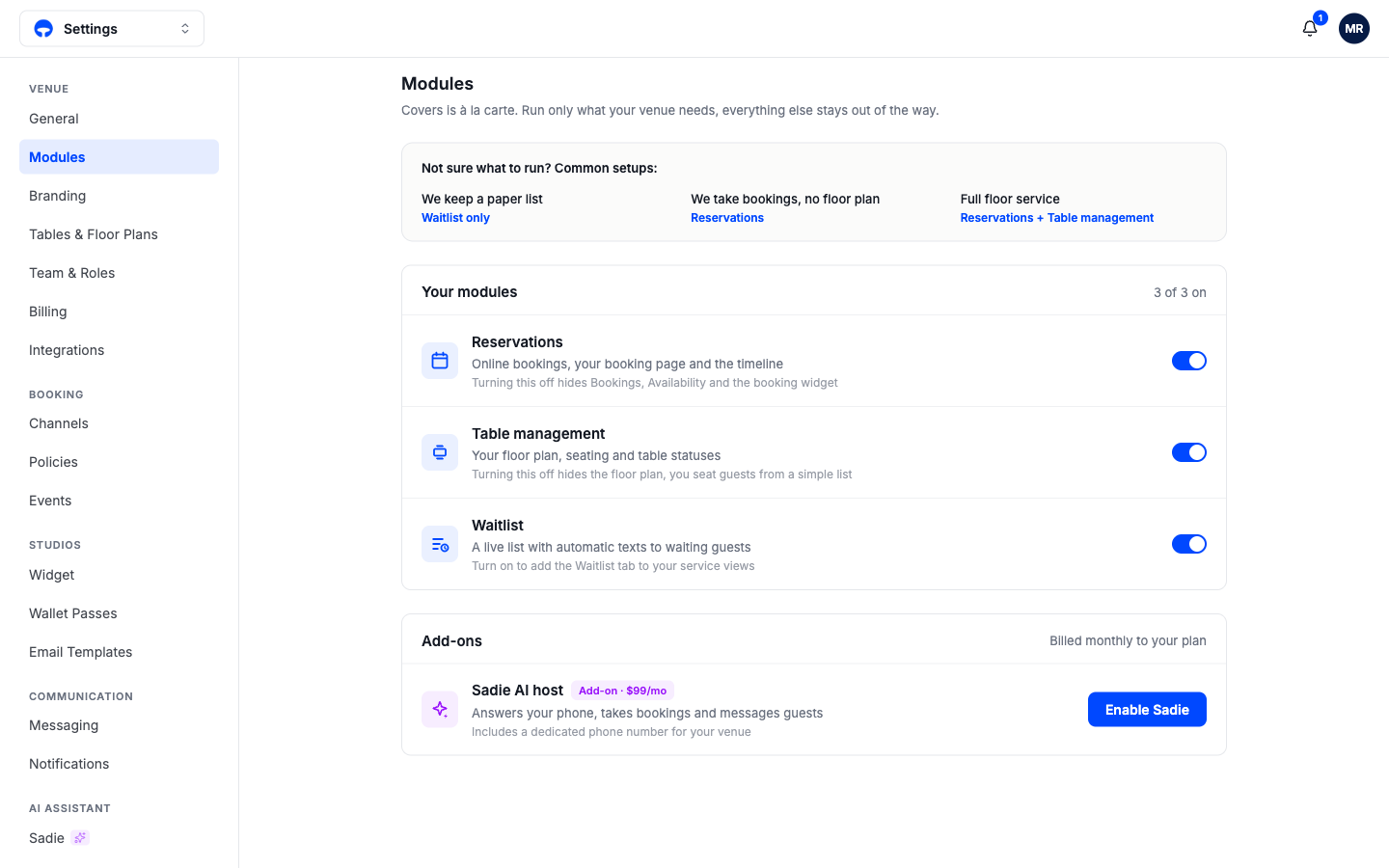
The three modules
Reservations is online booking: your booking page, the Bookings list, Availability, and the timeline. Turning it off hides all of them; guests can no longer book ahead.
Table management is your floor plan, seating, and table statuses. With it off there is no floor plan, and you seat guests from a simple list instead.
Waitlist is the live walk-in list with automatic texts to waiting guests. Turning it on adds the Waitlist tab to your service views.
The rest of Covers follows your choices. The setup checklist, the settings menu, and the Service View tabs all shrink or grow to match, so switching a module off genuinely removes it from your screens rather than leaving dead buttons around.
Common setups
The card at the top of the page offers three one-click starting points, and you can change any of them later:
| Setup | Modules | Runs like |
|---|---|---|
| We keep a paper list | Waitlist only | A walk-in bar with a live list and text-backs |
| We take bookings, no floor plan | Reservations | Online booking without table assignment |
| Full floor service | Reservations + Table management | A dining room with a floor plan and statuses |
Add-ons
Below the modules sit paid add-ons, billed monthly to your plan. Sadie AI host answers your phone, takes bookings, and messages guests, and comes with a dedicated phone number for your venue. Enabling her adds the Sadie pages to Settings; the Sadie guides cover setting her up.
What's next
After changing modules, check Go live: the setup checklist matches your modules, so a newly enabled module can add a required step.