

Team & Roles
Invite your staff and control what each person can reach.
Everyone who works your floor can have their own Covers sign-in, so actions carry a name and nobody shares a password. Team & Roles lists every member of your organization, their role, and where they can work. Open the menu at the top left, choose Settings, then click Team & Roles.
Invite a team member
Open the invite window
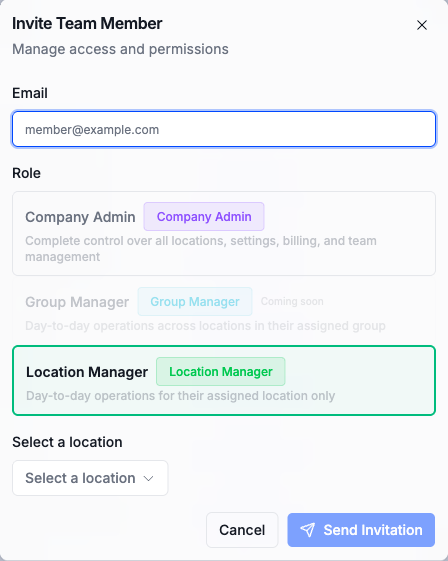
Click Invite Member at the top right. A window opens asking for their email and role.
Pick a role
Two roles are assignable today. Company Admin has complete control over all locations, settings, billing, and team management. Location Manager runs day-to-day operations for one assigned location only; picking it adds a location selector so you choose which venue they manage. A third card, Group Manager, for day-to-day operations across a group of locations, shows as coming soon.
Send the invitation
Click Send Invitation. The invite lands in their email with a link that creates their sign-in and drops them straight into your venue. Sending your first invite also ticks the team step on the Go live checklist.
Manage existing members
Each row in the member list shows the person's role, scope, status, and when they were last active. The menu at the end of a row changes their role or removes them; removing a member signs them out and ends their access immediately.
Who should be an admin?
Give Company Admin only to people who handle billing or settings. Hosts and floor managers work fine as Location Managers, and fewer admins means fewer places for an accidental settings change to come from.